Vivo Monitor Mount Review: Single Arm, Dual Desk Mount, and Dual Stand Compared
Tired of a cluttered desk? A good monitor mount can clear your workspace fast. The Vivo monitor mount line offers several options, from a single arm to a dual stand. Let us see what it does well.
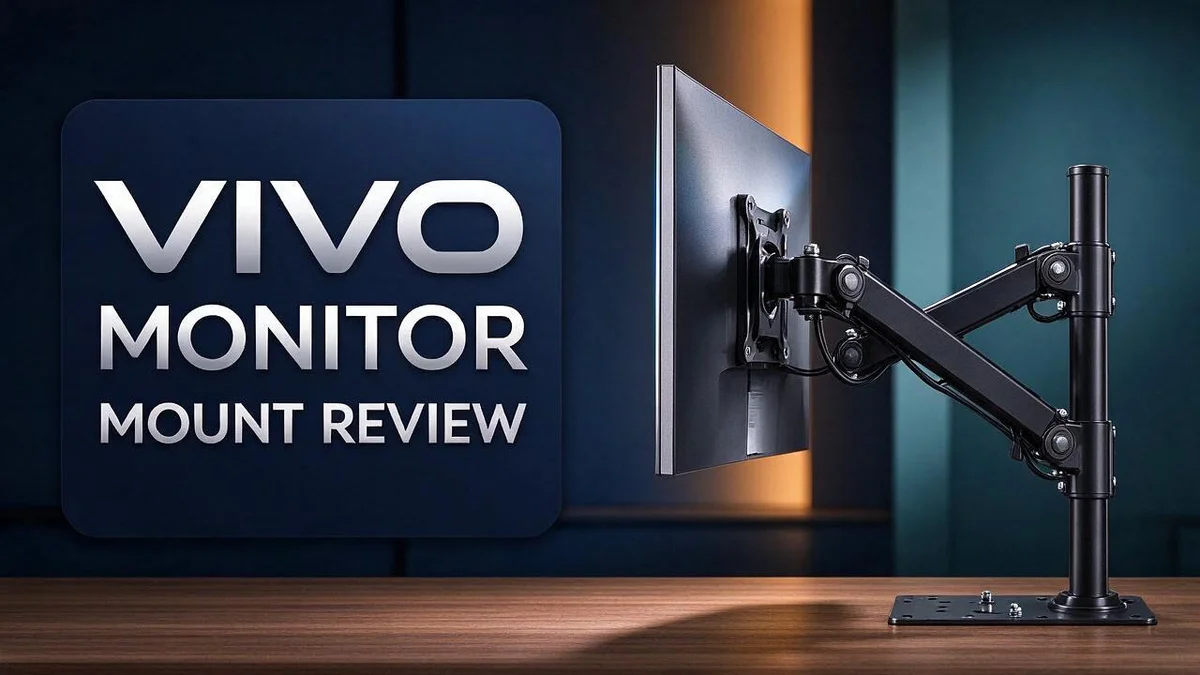
The Vivo range covers many setups. The single arm holds up to a 32 inch screen or a 38 inch ultrawide. Dual models handle screens from 13 to 38 inches.
Users often praise the gas springs. They make it easy to adjust height and angle. Many buyers also say the mount saves desk space.
Not every review is glowing. Some people call the design bulky, and two monitors barely fit on a small desk. Check the exact model number before you order.
In a Nutshell
- Single arm handles large screens: The V001W holds up to a 32 inch regular monitor or a 38 inch ultrawide. Its white finish also suits many desk setups.
- Flexible base choices: You can attach it with a C clamp or a grommet base. This helps if your desk has no clamp space or already has a grommet hole.
- Two monitor options: The dual desk mount suits screens from 13 inch to 34 inch. The dual stand handles screens up to 38 inch, so you can pick the style that fits your room.
- Load and height details: Each monitor can carry up to 22 lbs on both dual models. The dual desk mount also has a 17 inch pole height for extra reach.
- Size can overwhelm: Some owners say the mount feels massive and bulky. One user found that two monitors barely fit on their desk, so measure your space first.
- Check the model carefully: One blog lists a 27 inch and 17 lb maximum, which does not match the official specs. Confirm the exact model number before you order.
Mount Types and Configurations

- Screen Compatibility: Universally compatible with most 17-inch to 32-inch flat and curved screens weighing...
- Mechanical Spring Adjustment: Toolless monitor placement with perfect counterbalance presentation in all...
Last update on 2026-11-26 / Affiliate links / Images from Amazon Product Advertising API
Choosing the right mount starts with your desk and your screens. Vivo offers three main types. Each one suits a different setup.
Dual stand for a freestanding setup. The V002F and V038F models sit on their own base. They do not need a desk clamp. They support screens up to 38 inches. The V002F uses steel, while the V038F combines steel and aluminum.
Dual desk mount for thicker desks. This model clamps onto your desk edge. It works with desktops up to 3.5 inches thick. Measure your desk before you order. A thicker surface may not fit the clamp.
Single arm for one large screen. If you only need one display, a single arm keeps things simple. It gives you one clean point of support and frees up the rest of your surface.
Plan your layout first. One Reddit user found that two monitors barely fit on their desk. Before you buy, mark the screen area with painter’s tape. Check how much room you have left for your keyboard and mouse.
Think about desk space. An Amazon reviewer says the mount saves desk space. Lifting screens off the surface gives you room for notes, a lamp, or a plant. Many people find this the biggest benefit of any mount.
Read more feedback. One Reddit user reports good quality and no issues. That is encouraging, but one experience does not tell the whole story. Look for several reviews that mention the same model before you decide.
Pick the type that fits your space. Choose a single arm for one large monitor. Choose a dual desk mount if you have a thick desk edge and two screens. Choose a dual stand if you want no clamp at all.
Screen Size and Weight Capacity
Measure your screen before you shop. Start with the diagonal size listed in your monitor manual or box. This number tells you which mount range fits your display.
Screen size is only half the story. Weight matters just as much for a safe setup. Heavier panels put more strain on the arm, especially when you extend it far from the base.
Look up the weight of your monitor on its product page. Then compare it with the limit listed for the model you want. Leave some room for cables, a webcam, or a soundbar.
Weigh your monitor if the weight is missing. Many boxes do not show the weight clearly. A kitchen scale gives you a quick answer, and this step prevents surprises later.
Ultrawide screens need extra thought. These wide panels are long, so they pull the arm sideways. A mount with a firm grip on your desk keeps the setup steady.
Check the VESA pattern on the back of your monitor too. Matching holes help the mount fit without extra adapters. This small check saves time during setup.
Dual setups add up quickly. Two monitors double the load on one mount. Add both weights together before you decide.
Mixed screen sizes work well. A 24 inch display beside a 27 inch display can still look balanced. Just make sure both screens stay within the listed range.
Think about how you use your screens. If you tilt and turn them often, a mount that moves smoothly keeps you comfortable all day.
Stay inside the listed limits. Going past the stated size or weight can cause sagging or wobble over time. Staying within the limits keeps viewing steady and safe.
A stable mount makes work feel calmer. A secure screen lets you focus on your tasks instead of a wobbling display. Choose the model that matches your numbers, and your desk will feel more comfortable every day.
Installation and Desk Clamping
Setting up your mount takes less time than you might expect. A little planning before you open the box makes the job much smoother.
Start with a clean desk edge. Clear the surface and check the spot where the clamp will sit. Look for a flat, sturdy section that does not wobble.
Avoid curved or glass edges. The clamp needs a solid grip, and thin lips or rounded corners can slip under weight.
Measure your desk thickness with a ruler or tape. Write the number down so you can compare it with the clamp range in the product details.
Gather your tools before you begin. Most kits include an Allen key and a few screws. Keep a screwdriver nearby just in case.
Tighten the clamp slowly. Turn the screw by hand first. Then add a few gentle turns with the key. Over tightening can crack wood or bend metal.
Add padding under the clamp jaws. A thin felt or rubber pad protects the finish and helps the mount grip better.
Position the clamp near the back edge of the desk. This spot keeps the arm stable and leaves room in front for your keyboard and notebook.
Attach the arm to the base before you mount the monitor. Working on a table or bench is easier than working on a crowded desk. Then lift the arm onto the clamp and secure it.
Route your cables early. Many people forget this step. Run the cables through the clip channels along the arm so they stay tidy and do not snag.
Mount the monitor with a partner if possible. Large screens feel heavy and awkward when you hold them alone. Two people can line up the VESA holes quickly and safely.
Test the setup gently. Push the screen slightly to the side. The arm should move smoothly and stop where you leave it. If the desk shakes, loosen the clamp, reposition it, and tighten it again.
Keep the mount away from heat vents and direct sunlight. Heat can soften some plastic parts over time.
Check the clamp every few weeks. Desks can vibrate from typing or rolling chairs. A quick check keeps your setup safe, steady, and ready for daily use.
Top 3 Alternatives
Looking for another option? These three monitor arms could be a great fit for your desk. Each one offers something a little different, so read on to find your match.
Ergotron LX Desk Mount

- Broad compatibility: Fits single screens up to 34 inches diagonal and 7 to 25 pounds; compatible with VESA...
- Versatile mounting options: Includes two-piece desk clamp and grommet mount to fit a variety of desk types...
Last update on 2026-11-26 / Affiliate links / Images from Amazon Product Advertising API
The Ergotron LX Desk Mount is a popular pick for home offices. It holds monitors with ease. Its smooth spring arm lets you move your screen up, down, and side to side. Many users love its clean look and sturdy build. It works well if you sit at a desk for long hours.
Amazon Basics Monitor Arm

- PAPER SPECIFICATIONS: Amazon Basics 20lb weight multipurpose copy printer paper with 92 GE brightness...
- BULK QUANTITY: Full truckload of 21 pallets with 840 cartons & 8,400 reams of 8.5 x 11 inch letter size paper...

Last update on 2026-11-26 / Affiliate links / Images from Amazon Product Advertising API
The Amazon Basics Monitor Arm is a simple and easy choice. It suits shoppers who want a basic setup. The gas spring helps you adjust height and tilt. Setup usually takes only a few minutes. It is a good starting point for first-time buyers.
Loctek D7 Monitor Arm

- 1.【Monitor Compatibility】Most Curved / Ultra-wide / Flat monitor with 32 to 60 inches in size and 2 to...
- 2.【Ready in Minutes】No need to sort through bags of parts unlike other mount products, just clamp in or...
Last update on 2026-11-26 / Affiliate links / Images from Amazon Product Advertising API
The Loctek D7 Monitor Arm offers flexible movement for busy users. It supports dual screens, so it fits multitasking setups. The arm rotates and tilts with little effort. Cable management keeps your desk tidy. It is a helpful option for people who switch between work and video calls.
Adjustment and Gas Spring Movement
Gas springs change how you adjust your screen every day. They let you raise, lower, and turn the display with light pressure. One user review says that position and orientation changes feel easy.
Gas springs do much of the lifting for you. Your hand guides the screen instead of carrying its full load. This makes small changes quick and comfortable.
Finding the right height matters most. Set the top of the screen near eye level so your neck stays relaxed. Lower the monitor slightly if you sit taller in your chair.
Tilt and swivel add more control. You can angle the screen to cut glare from a window or lamp. You can also turn it so a colleague can see it during a meeting. Angle the screen down a little when you read long documents.
Dual setups need a little extra care. Adjust one screen first, then check how the second one lines up. Small tweaks keep both displays level.
Test the movement before you settle in. Push the screen up and down several times. Listen for any slipping or sudden drops. A firm, steady feel means the tension is set well.
Gas spring arms also help you change position through the day. Sit for focused work in the morning, then raise the screen later when you want to stand. Small changes keep your posture fresh.
Keep your hands clear of moving joints while you adjust. Move the arm slowly with a steady grip. Check the tension now and then so the monitor stays in place.
Smooth movement makes the mount easy to live with. Gas springs turn a simple desk setup into a flexible workspace. With a few small adjustments, you can find a comfortable view for hours of work.
Build Quality and Materials
A monitor mount carries your screen every day, so build quality matters. Vivo uses different materials across its models. Knowing what each part is made from helps you choose well.
The dual stand V002F uses steel. Steel gives the frame a heavy and solid feel. It helps the mount stay steady when you type or move the screen.
The V038F takes a different path. It combines steel and aluminum. Aluminum parts can reduce overall weight, which makes the stand easier to handle during setup.
The single arm V001W comes in white. Its finish blends well with light desks and bright home offices. Color is a simple choice, but it shapes how the whole setup looks.
Size and bulk are different from strength. One Reddit user calls the mount massive and bulky. A large frame can feel sturdy, yet it also takes up more room on the surface.
Another Reddit user says two monitors barely fit on the desk. This shows that frame size matters as much as the material. Measure your desk before you choose a larger model.
Good quality is a common theme. One Reddit user reports good quality and zero issues. A single positive review does not prove durability over many years, so read more feedback before you decide.
Check the model number on the box or product page. One blog review lists specs that do not match the official details. A clear model number helps you know which materials you will receive.
Look closely at the joints and clamp area when the mount arrives. Solid metal parts should feel firm, not loose. Tight connections keep the arm stable through daily use.
Wipe the metal with a soft cloth every few weeks. Dust and grease can build up on joints, so a quick clean keeps the finish looking neat.
Strong materials protect your screen and your desk over time.
Pros and Cons
Pros
- Saves desk space in a way that many users notice, according to one Amazon review.
- The single arm holds screens up to 32 inches or a 38 inch ultrawide.
- The dual desk mount fits screens from 13 to 34 inches.
- One YouTube reviewer ranks it as a top dual stand pick.
Cons
- One blog review lists conflicting specs with a 27 inch and 17 lb maximum.
- The exact model is unclear in some reviews, so check the model number first.
- Much of the praise comes from just one or two reviewers, so the sample is small.
Who Should Buy It
A monitor mount does not suit every desk. Still, several types of people benefit from one.
Remote workers with a laptop and one large screen often need more room. A mount lifts the display off the surface, so the laptop and notebooks have space.
People with two different screen sizes can find a good fit too. The dual desk mount handles screens from 13 to 34 inches, so mismatched displays can sit side by side.
Owners of thicker desks should measure first. The dual desk mount works with a desktop up to 3.5 inches thick. Thicker tops may need another plan.
Anyone with heavy panels should check the weight limits. Each monitor on the dual models can carry up to 22 pounds. Heavier screens need a stronger option.
Gamers and designers with ultrawide screens may find the single arm useful. Before ordering, check the VESA pattern on the back of your display. The mount supports 75 by 75 and 100 by 100 millimeter patterns.
Anyone who wants flexible clamping should compare the base options. The single arm offers a C-clamp or a grommet base. A grommet base suits desks without a clamp edge.
Buyers with a shallow desk edge should plan carefully. A clamp needs a solid lip to grip. Measure the edge before you pick a base.
Students who study at a shared table may gain a lot too. A mount keeps the screen off the table, so books and notes stay within reach. A clear setup often helps focus.
Light users with small desks may not need a mount at all. A simple stand can cover basic needs.
Read the setup details before you buy. Measuring your desk and screen takes only a few minutes. That small step prevents most surprises.
Final Verdict
Our final take is positive but measured. The Vivo mount range offers useful choices for many desks. Still, the right pick depends on your screens and your space.
Think of this as a fit test, not a gamble. Start with screen size, total weight, and desk edge. When those numbers line up, the mount can feel like a smart addition.
Comfort is the quiet win. Once you set the height and angle, the screen stays where you want it. That steady hold can make long workdays feel less cramped.
Reviews work best as clues. Most praise comes from a handful of people. Treat each opinion as one data point, then test the mount in your own room.
Here is a simple plan. First, write down your screen sizes, total weight, and desk thickness. Next, compare those numbers with the listing before you order.
Keep the box and paperwork for a few days. This gives you time to test the setup. If something feels off, you can act early.
Who should say yes now? Buyers with two screens and a clear desk edge should feel confident. Shoppers with one laptop and no spare room may want to wait.
Weigh the options before buying. A compact setup may suit a tiny desk. A larger setup may suit wide screens. Neither choice is wrong, so match the design to your daily habits.
Think about your future setup too. You may add a monitor or change desks later. Pick a mount that still fits your plans, not just today’s needs. A little planning now avoids regret later. Take your time with this decision. Good planning makes that step easy.
The final thought is simple. A good mount should earn its place every day. If the Vivo fits your desk and your screens, it can free space for years.
Frequently Asked Questions
Is the Vivo dual stand made from strong material?
The dual stand comes in two builds. The V002F uses steel, while the V038F uses steel and aluminum. Choose the one that fits your monitor weight and style.
Do the gas springs make adjustments easy?
Yes. The gas springs let you change the height and angle with light effort. Users say the screen stays where you set it, so daily tweaks take only a moment.
What is the weight limit for each monitor?
Both dual models support up to 22 pounds per monitor. Add up the weight of each screen before you order. This helps you avoid overloading the arms.
What should I do if the mount feels bulky?
Some reviewers call the mounts massive, so measure your desk first. Leave room for your keyboard and mouse. A clear layout keeps the workspace comfortable.
Which model suits a single large screen?
The single arm is the right pick for one display. It works well for one large monitor that needs flexible positioning. Check your screen size and mounting pattern before you buy.

Dillip is the founder and editor of DillipWeb.com, where he simplifies the world of AI software, tech gadgets, and accessories through honest reviews, detailed comparisons, and easy-to-follow guides. With a deep passion for emerging technology, he helps everyday users make smarter, more informed tech decisions.