
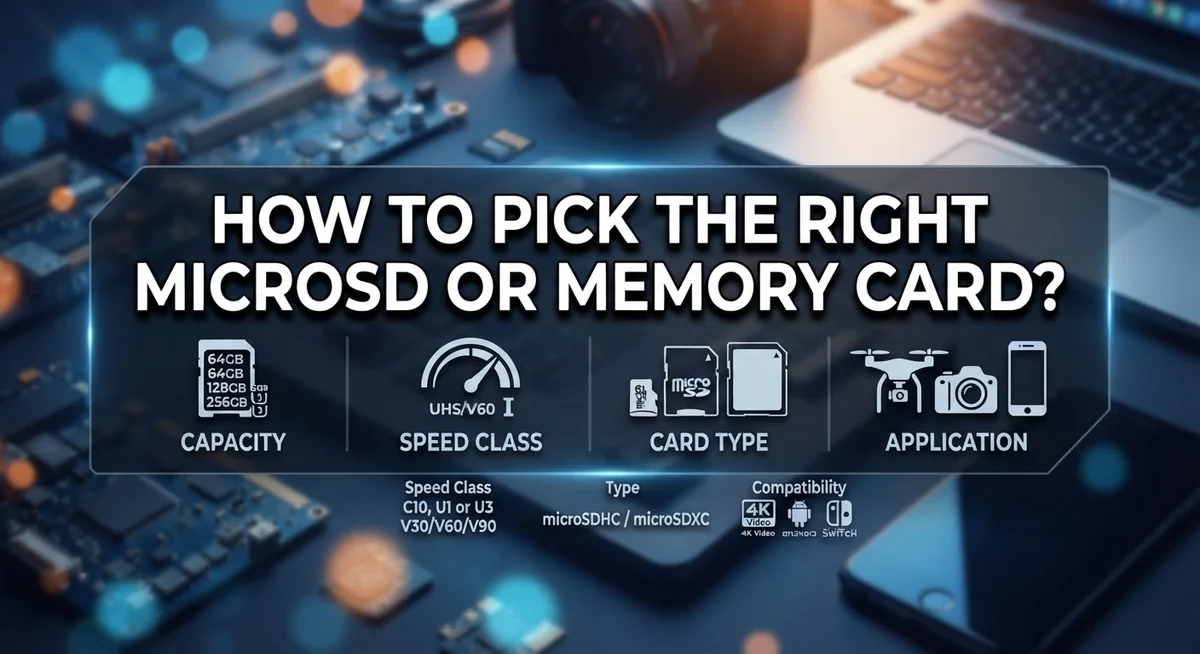
How to Pick the Right MicroSD or Memory Card?
Picking the right microSD or memory card feels tricky at first. Store shelves show many options. Each card looks similar but performs differently.
Your camera, phone, or gaming device needs a specific card type. The wrong choice can cause slow performance or even device errors. Compatibility matters more than most people realize.
Speed class ratings tell you how fast a card writes data. You’ll see labels like U1 or U3 on the card front. These numbers actually impact your recording quality and app speed.
Capacity is another big factor. A larger card sounds better, but it’s not always the smartest pick. Using multiple smaller cards often works better than one giant card.
This guide breaks down everything you need to know. We’ll cover device compatibility, storage capacity, and speed classes. You’ll also learn about different microSD variants like SDXC and SDHC.
By the end, you’ll understand exactly what to look for. No more guessing games at the store. Just simple steps to help you choose the perfect card for your specific device and needs.
In a Nutshell
Here’s a quick rundown to help you choose the perfect card without any guesswork.
-
Check your device first. Look at your camera, phone, or console manual. It tells you the exact card type it accepts.
-
Match the speed class. Look for U1 or U3 symbols on the card. These show the minimum write speed it can handle.
-
Look at UHS speed class too. This rating affects how fast the card reads and writes large files. It matters most for video and burst photos.
-
Pick the right variant. microSDHC, microSDXC, and microSDUC differ in storage size limits. Your device only supports certain ones.
-
Choose capacity based on your needs. Think about how many photos, videos, or games you plan to store.
-
Use multiple cards instead of one giant card. This protects you if a single card fails or gets lost.
Keep these points in mind, and you’ll avoid the most common mistakes buyers make. A little research now saves you from returning the wrong card later.
Understanding MicroSD Card Types and Variants
MicroSD and memory cards come in several distinct types, and picking the wrong one means your card won’t work in your device at all. Understanding these variants helps you make the right choice before you buy.
The main microSD variants are microSDHC, microSDXC, and microSDUC. Each one supports different storage capacity limits. MicroSDHC cards hold up to 32GB of data. MicroSDXC cards go from 64GB up to 2TB. MicroSDUC is the newest standard and supports capacities beyond 2TB. Your device manual tells you which variant it accepts.
Speed class ratings appear on the front of every card. You’ll see symbols like U1 or U3. The U stands for UHS speed class, and the number tells you the minimum write speed in megabytes per second. U1 means at least 10MB/s write speed. U3 guarantees 30MB/s or faster. Cards with U3 are better for recording video or transferring large files quickly.
UHS speed class is different from the basic speed class. UHS (Ultra High Speed) describes how fast the card can read and write data in sequence. Look for UHS I, UHS II, or UHS III on your card. Higher UHS ratings mean faster performance, but your device must support that UHS version too.
Video speed class is another rating you might see. It’s marked with a V followed by a number like V30 or V60. This rating ensures the card maintains consistent write speeds during video recording. Higher V ratings work better for 4K or high frame rate video.
Your device manual lists which variants and speed classes it supports. Don’t guess. Check the manual first, then match the card specifications exactly. This simple step prevents buying an incompatible card that won’t work at all.
Checking Your Device’s Compatibility Requirements
Checking your device’s compatibility requirements is the first and most important step. Open your device’s instruction manual or user guide to find the exact specifications it needs. Most devices clearly state which card types they accept.
Look for these key details in your manual: the supported microSD variants (microSDHC, microSDXC, or microSDUC), the maximum capacity the device recognizes, and any speed class requirements. Different devices have different limits, and using an incompatible card wastes your money.
Check the speed class requirements next. Your manual will tell you if your device needs a U1 or U3 rated card. U1 cards have a minimum write speed of 10 MB/s, while U3 cards guarantee 30 MB/s write speeds. Using the wrong speed class means slower performance or potential recording failures.
Verify the UHS speed class as well. This rating (UHS I, UHS II, or UHS III) affects how quickly the card transfers data. Some older devices don’t support newer UHS classes, so matching this specification matters.
Don’t assume all cards work everywhere. A card that fits physically might not be compatible with your device’s software. Phones from different manufacturers sometimes support different card variants. Gaming consoles often have specific requirements too.
Write down the exact specifications your device needs. This prevents confusion when shopping and helps you avoid buying incompatible cards by mistake. If your manual is missing or unclear, visit the manufacturer’s website for official compatibility information.
Taking five minutes to check compatibility saves you frustration later. You’ll know exactly what to look for and can make a confident purchase decision.
Determining the Storage Capacity You Need
Storage capacity determines how much data your card can hold. The right amount depends on what you plan to store and how often you replace cards.
Start by thinking about your usage. Do you take photos, record videos, or store games? Photos use less space than videos. A single high quality video can consume 500 MB to several GB depending on resolution and length. Games range from 100 MB to over 2 GB each.
Calculate your typical storage needs. If you take 50 photos daily, that’s roughly 2 GB per month on most cameras. If you record 10 minutes of video weekly, add another 1 to 2 GB monthly. Write down these numbers for each activity.
Consider your device’s maximum capacity. Your manual lists the largest card size your device accepts. MicroSDHC cards max out at 32 GB. MicroSDXC cards go up to 2 TB. MicroSDUC cards reach 128 GB. Don’t buy a card larger than your device supports.
Account for practical limitations. Manufacturers recommend using multiple smaller cards rather than one massive card. A 64 GB card holds more data than two 32 GB cards, but if one card fails, you lose everything on it. Two cards spread the risk.
Leave buffer space. Never fill a card completely. Leave at least 10 percent empty. A full card performs slower and risks data corruption. A 64 GB card works best when you keep usage under 55 GB.
Think long term. If you plan to keep your device for years, buy slightly more capacity than you currently need. Storage needs often grow over time. However, don’t buy excessive capacity you’ll never use.
The sweet spot for most users is 64 GB to 256 GB. This range handles photos, videos, and apps without wasting money on unused space.
Decoding Speed Class and UHS Ratings
Speed class and UHS ratings tell you how fast your card reads and writes data. Understanding these numbers helps you pick a card that actually works for your needs.
Speed class ratings appear as a “U” symbol on the front of your card. You’ll see either U1 or U3. The number after the U indicates the minimum write speed in megabytes per second. U1 cards guarantee at least 10 MB/s write speed. U3 cards guarantee at least 30 MB/s write speed. If your device manual says you need U3, don’t settle for U1. The faster speed matters for smooth video recording and photo capture.
UHS speed class is separate from the basic speed class rating. UHS stands for Ultra High Speed. This rating measures sequential read and write performance. You might see UHS I, UHS II, or UHS III on premium cards. Higher UHS ratings mean faster data transfers between your card and device. Check your device manual to see which UHS class it supports. Your device won’t use a faster UHS class if it doesn’t support it, so matching the rating prevents wasted money.
Video speed class is another rating you might encounter. This appears as a “V” symbol followed by a number like V30 or V90. Video speed class indicates sustained write speed for continuous video recording. V30 means 30 MB/s minimum write speed. V90 means 90 MB/s minimum. Choose video speed class based on your recording resolution. 4K video needs faster speeds than standard video.
Write down the exact speed class and UHS requirements from your device manual before shopping. Match these specifications precisely. A card with faster ratings costs more but won’t improve performance in a device that doesn’t support those speeds. Speed ratings exist to guarantee your card performs reliably for specific tasks like streaming, gaming, or professional video work.
Step-by-Step Process for Selecting the Right Card
Start by gathering information about your specific device. Pull out the instruction manual or find the specifications online. You need to know exactly what your device accepts.
Write down three critical details: the supported card variants (microSDHC, microSDXC, or microSDUC), the maximum capacity your device handles, and the speed class requirements. Don’t skip this step. A card that fits physically might not work with your device’s software.
Next, think about how you’ll use the card. Will you take photos, record videos, or store files? Different activities need different storage amounts. Photos typically use less space than videos. Calculate roughly how much data you generate monthly. If you take 50 photos daily, that’s approximately 2 GB per month on most cameras.
Check your device manual for the largest card size it accepts. Some older devices have capacity limits. You don’t want to buy a card your device can’t recognize.
Consider using multiple smaller cards instead of one massive card. This approach protects your data. If one card fails, you don’t lose everything. It also helps manage storage across different devices.
Leave buffer space on every card. Never fill a card completely to full capacity. Aim to keep 10 percent free space for optimal performance.
Look at the speed class ratings on the card front. The “U” symbol indicates the minimum write speed. U1 means 10 MB per second minimum, while U3 means 30 MB per second minimum. Check which rating your device needs.
Verify the UHS speed class separately. This rating affects sequential read and write performance. Video recording and streaming need higher UHS speeds.
Take five minutes to write down all these specifications before shopping. This simple preparation prevents buying incompatible cards and saves you frustration later.
Best Practices for Using and Storing Memory Cards
Proper care keeps your memory cards working well for years. Store cards in a protective wallet or case when you’re not using them. This prevents physical damage, dust, and loss. Keep cards away from extreme heat, cold, and moisture. Never leave them in direct sunlight or hot cars.
Handle cards carefully by the edges only. Avoid touching the gold contacts or connectors. Fingerprints and dirt can cause read and write errors. If contacts get dirty, gently clean them with a soft, dry cloth.
Don’t rely on a single large capacity card for all your data. Use multiple smaller cards instead. If one card fails, you lose only some files, not everything. This backup approach protects your important photos, videos, and documents.
Keep your cards organized by labeling them clearly. Write the card type, capacity, and date on each one. This helps you grab the right card quickly and track card age.
Remove cards safely from your device. Never yank them out during read or write operations. Wait for your device to finish any data transfers first. This prevents file corruption and card damage.
Store cards in a cool, dry place when not in use. Room temperature works best. Avoid basements, attics, or areas with high humidity.
Check your cards regularly for errors. Most devices have a built-in card check feature. Run this occasionally to catch problems early. If a card shows repeated errors, stop using it immediately.
Keep backups of important files stored on your cards. Transfer photos and videos to your computer or cloud storage regularly. Memory cards can fail unexpectedly, so backups save your memories.
Replace old cards after several years of heavy use. Cards degrade over time, especially with frequent read and write cycles. Newer cards offer better speed and reliability for demanding tasks like 4K video recording.
Common Mistakes to Avoid When Choosing a Memory Card
Many people make preventable mistakes when selecting a memory card. Understanding these errors helps you avoid wasting money and experiencing frustration later.
Ignoring device compatibility tops the list of common mistakes. Your device manual specifies which card types it accepts. Some devices work with microSDHC cards only, while others support microSDXC or microSDUC. Buying the wrong type means your card simply won’t work in your device. Always check your manual first before shopping.
Overlooking speed class requirements causes problems during actual use. Your device needs a specific minimum write speed to function properly. A card rated U1 has a minimum write speed of 10 MB/s. A U3 card guarantees 30 MB/s minimum write speed. Using a slower card than your device requires leads to stuttering, dropped frames, or failed recordings.
Misunderstanding capacity limits creates another frequent issue. Your device has a maximum card size it supports. Installing a larger capacity card than your device accepts won’t work, even if the card is the correct type. Check your manual for the exact maximum capacity your device handles.
Neglecting UHS speed class ratings affects performance during high demand operations. UHS speed class differs from basic speed class ratings. These appear as separate markings on your card. Your device manual specifies which UHS speed class you need. Ignoring this detail means slower data transfer than your device could actually achieve.
Buying a single massive card instead of multiple smaller cards creates unnecessary risk. If one large card fails, you lose everything stored on it. Multiple smaller cards spread your data across different physical cards, protecting against total data loss.
Not verifying specifications before purchase wastes time and money. Take five minutes to write down your device’s exact requirements. Compare these specs directly against card packaging before buying. This simple step prevents every mistake mentioned above.
Final Thoughts
Picking the right microSD or memory card does not need to feel confusing. Simple checks make a big difference.
Start with your device manual. It tells you the exact card type your device supports.
Match capacity to your actual needs. Think about photos, videos, or apps you plan to store.
Speed class matters more than most people realize. U1 or U3 ratings show the minimum write speed a card offers.
UHS speed class works alongside speed class. Check both ratings before you decide on a card.
Confirm the microSD variant too. microSDHC, microSDXC, and microSDUC all serve different capacity ranges.
Avoid buying one giant card for everything. Multiple smaller cards spread out your risk if one fails.
Keep your cards protected in a wallet or case. This simple habit prevents damage and loss over time.
Remember that cartridge format often works better than microSD for certain devices. Choose it when your device allows this option.
Double check compatibility every single time. Even similar devices sometimes need different card types.
Write down your requirements before you shop. This includes capacity, speed class, and card variant.
Test new cards right after purchase. Catching a faulty card early saves you from bigger headaches later.
Review your storage needs every few months. Your usage patterns can change as you use your device more.
Good card selection comes down to matching specifications with real needs. Skip guesswork and check facts instead.
Your device manual, speed ratings, and capacity needs guide every decision. Follow these steps and you avoid common mistakes.
A little research now saves frustration later. Take your time, verify details, and pick with confidence.
Frequently Asked Questions
What does the U1 or U3 rating actually mean?
The U1 and U3 ratings tell you the minimum write speed your card can handle. U1 means the card writes at least 10 megabytes per second. U3 means it writes at least 30 megabytes per second.
Check the front of your card. You’ll see a “U” with a number inside. This rating matters most when you record videos or transfer large files quickly. Without the right speed class, your device may struggle or stop working mid task.
Can I use the same memory card in different devices?
Not always. Your device manual lists which card types it accepts. Some devices need microSDHC cards. Others need microSDXC or microSDUC cards instead.
The physical size might fit, but the card type must match your device. Always check your manual before buying. Using the wrong type wastes money and causes frustration.
How much storage capacity do I actually need?
Think about what you store. Photos take less space than videos. High resolution videos need much more room.
Start by checking how much space you currently use on your device. Add 20 percent extra for future needs. This gives you a realistic number without buying more than necessary.
Why should I use multiple smaller cards instead of one large card?
One massive card puts all your data at risk. If that single card fails or gets lost, everything disappears. Multiple smaller cards spread the risk across several cards.
You also have backup options. If one card stops working, your other cards still hold your data safe.
Does UHS speed class matter if I already have U3?
Yes. UHS speed class handles sequential read and write performance. This matters during streaming or moving huge files.
U3 guarantees minimum write speed. UHS speed class (like UHS II or UHS III) measures faster overall performance. Both ratings work together to give you the complete picture of card speed.

Dillip is the founder and editor of DillipWeb.com, where he simplifies the world of AI software, tech gadgets, and accessories through honest reviews, detailed comparisons, and easy-to-follow guides. With a deep passion for emerging technology, he helps everyday users make smarter, more informed tech decisions.


