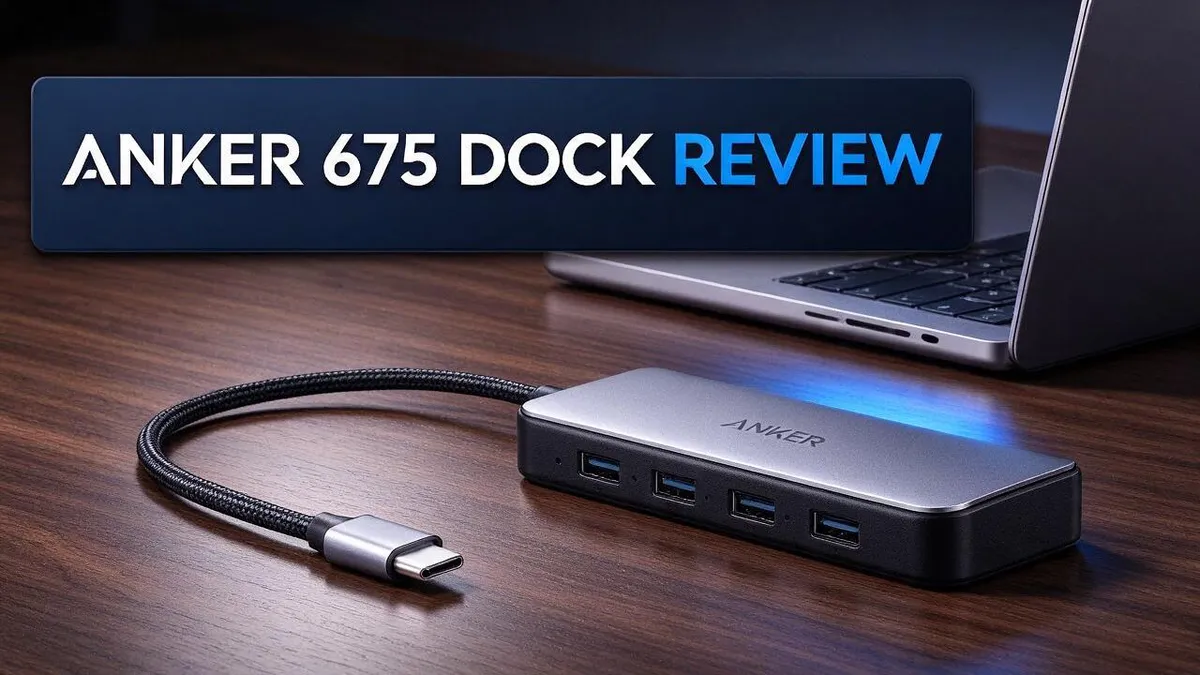
Anker 675 Dock Review: Is This 12-in-1 USB-C Docking Station Worth It?
Is your desk full of tangled cables? The Anker 675 dock could fix that fast. It packs 12 ports into one sleek unit. You also get a monitor stand, so your screen sits at a better height.
Think about how much time you lose plugging and unplugging gear every day. This dock links your laptop to monitors, storage, and accessories through one USB C cable. Its 100W upstream port also charges your laptop while you work.
Reviewers often praise its cable management and ergonomic design. Still, you should confirm that the dock delivers enough downstream power for your devices before you buy.
In this review, we break down the key specs, real strengths, and possible drawbacks. Let’s see if this dock earns a spot on your desk.
In a Nutshell
-
Best for: Remote workers and students who switch between a desk and a laptop every day. They gain a faster setup each morning. Plugging in takes seconds instead of minutes.
-
One cable setup: A single USB C cable links your laptop to the full workspace. Your keyboard, mouse, and external drives stay connected even when you walk away. This habit saves time over the course of a week.
-
Monitor stand bonus: The built in stand lifts your screen to a comfortable height. The space underneath becomes useful for a notebook, a keyboard, or extra storage. Many desks feel more open after this simple change.
-
Check the power first: Confirm that the dock delivers enough power to your other devices before you buy. Some users report concerns about downstream power. Read your device requirements so you know what to expect.
-
Two screen option: If you need two HDMI outputs, the Acer 9 in 1 deserves a look. It offers a different mix of ports for people who run dual displays. Pick the dock that matches your screen setup.
-
Quick verdict: This dock suits anyone who wants a cleaner desk with fewer daily connections. It handles the core tasks well. Choose it if your main goal is a tidy, simple workspace.
Design and Build

- The Anker Advantage: Join the 50 million+ powered by our leading technology.
- Massive Expansion: Equipped with a USB C PD-IN charging port, 2 USB-A data ports, 2 HDMI ports, an Ethernet...
Last update on 2026-11-26 / Affiliate links / Images from Amazon Product Advertising API
Think of this dock as a desk anchor. It stays in one place, so it suits a fixed workstation. It does not suit a backpack or a travel bag.
Start with the footprint. The dock measures 54 × 22 × 9 cm, so it takes up real space. Measure your desk depth first. Leave room for your keyboard, mouse, and notebook.
The shape looks modern and clean. Its low profile fits well under a monitor. Many people enjoy how the setup looks in a home office or a classroom.
Count your daily gear. List the devices you use every day. Make sure each one has a clear place on the dock. This quick step saves frustration later.
Plan for a shared desk. Two people can use the same station with ease. Each person can plug in a laptop in seconds. The dock keeps the workspace organized for both users.
Expect a permanent setup. Once you place it, you will likely leave it there. That habit keeps your gear ready at all times. Moving it often may feel awkward.
Think about your laptop position. Place your laptop on the stand or beside the dock. Keep the USB C cable short but not tight. A loose cable reduces strain on the connector.
Look at the surface beneath. A stable desk helps the stand stay steady. Avoid wobbly tables or thin shelves. A solid surface keeps your screen and laptop secure.
Keep the surface clean. Any dock collects dust over time. A soft cloth keeps the surface fresh. Clear crumbs from the ports, too.
Keep future upgrades in mind. Extra ports leave room to grow. You can add a new drive or accessory later. This space helps you avoid buying another dock soon.
A clean desk feels calmer. A tidy setup makes long workdays feel lighter. The dock helps you reach that feeling with very little effort.
Port Selection and Expansion
Port selection decides whether a dock fits your daily routine. The Anker 675 offers a mix of port types, so you can connect both older and newer gear. Good planning starts with the ports you already use.
Think about your older devices first. The dock includes 3 USB A ports. These suit keyboards, mice, webcams, and external drives that still use the classic connector. You do not need adapters for these items.
Newer gear uses USB C. Two USB C ports handle phones, tablets, and modern storage. The 100W upstream port already serves your laptop, so these two ports work mainly for accessories and data.
Memory cards need an SD slot. Photographers and video creators often move files from cameras. The built in SD slot saves you from carrying a separate card reader.
Display output comes through HDMI. The HDMI port sends a picture to one external screen. If you need more than one display, check the dock’s video limits before you commit.
Count your ports against your list. Write down every device that needs a direct connection. Compare that number with the 12 total ports on the dock. A short list means the dock likely has room to spare.
Watch for gaps. Some workers need ports that the Anker 675 does not list in its specs, such as Ethernet. Check those needs now, before you buy.
Compare rival docks. The DOCKCASE Explorer 10 in 1 and the UGREEN Revodok Pro 9 in 1 offer different port mixes. Put their port lists side by side with this dock.
Test your setup before you commit. Plug in your main devices for a day. Note any port you reach for often. That habit reveals which ports matter most to you.
Leave room for growth. A good port mix lasts longer. If you add a new tablet or a second monitor next year, extra ports will help. Choose a dock that handles today’s tasks and tomorrow’s changes.
Charging Performance
The Anker 675 charges your laptop at up to 100W. That power travels through the upstream USB C port, which links straight to your computer. Your battery stays topped up while you work.
Dynamic charging adjusts power based on demand. Light use sends more energy to your laptop. Heavy loads cause the dock to share the total output across devices.
Think about a typical workday. Your laptop can keep charging during video calls, file transfers, or long writing sessions. You do not need to watch the battery icon all afternoon.
Every port draws from the same energy pool. A phone, a tablet, and a portable drive can slow the charge going to your laptop. Decide which devices need fast charging first.
Try this simple test. Connect your laptop, then add your heaviest device. Check the battery level after one hour. The result shows how the dock performs during real use.
Cable quality changes the results. A weak cable can limit charge speed, even when the dock supports high power. Choose cables that handle USB C charging, and keep them as short as practical.
Charging habits matter too. Plug the dock into a stable outlet and avoid overloaded power strips. Steady power helps every connected device charge at a consistent rate.
Overnight charging works well for desk setups. Leave the laptop docked at night so it starts the morning full. This habit suits people who use the same station every day.
Battery health also benefits from steady power. Avoid letting your laptop run flat often. Keeping the battery in a middle charge range can help it last longer.
Watch for signs of slow charging. If the battery drops while docked, check the cable, the outlet, and the list of connected devices. Small fixes often restore speed quickly.
Check your laptop charger rating. Some laptops need more than 100W for peak performance. Compare your laptop needs with the dock limit before you rely on it alone.
In short, the dock handles everyday charging well. Test your setup, and match your devices to its power limits for the best results.
Top 3 Alternatives
Looking for a different charging setup? These three options deliver solid performance for everyday use. Each one fits a different type of user, so choose based on your daily habits.
Belkin BoostCharge Pro

- FAST, PORTABLE CHARGING W/ QI2: Get up to 15W of fast charging in Pass-Thru Mode with Qi2 for iPhone and other...
- HIGH BATTERY CAPACITY: With a capacity of 5,000 mAh, this battery pack helps you gain up to an additional...

Last update on 2026-11-26 / Affiliate links / Images from Amazon Product Advertising API
The Belkin BoostCharge Pro suits people who charge several devices at once. Its clean layout keeps cables neat on your desk, so your workspace stays tidy. It works well for home offices and bedside tables. Setup takes only a minute. You can start charging right away without reading a long manual. Most people feel comfortable using it on day one.
Anker MagGo

- Slim and Portable: At just 0.58 × 2.78 × 4.09 inches, this 10,000mAh Anker power bank delivers exceptional...
- Versatile Charging Options: Equipped with a 15W max Qi wireless charging pad and a 30W max USB-C port, you can...
Last update on 2026-11-26 / Affiliate links / Images from Amazon Product Advertising API
The Anker MagGo focuses on portability. Magnets hold your phone in place, so it stays steady during video calls. It travels well and fits easily in a bag. Many users like how compact it feels on a crowded desk. It also works well during short trips when you need power fast.
Samsung Wireless Charger Duo

- SUPER FAST WIRELESS CHARGING: Get the charge you need quickly, thanks to up to 15W of Fast Charging support...
- EASE OF USE and MULTI DEVICE CHARGING: Simultaneously power up your favorite pair of devices to enjoy together...
Last update on 2026-11-26 / Affiliate links / Images from Amazon Product Advertising API
The Samsung Wireless Charger Duo gives you two charging spots in one device. You can power a phone and a smartwatch together. It works best for Samsung users who want a simple setup. Its slim design blends into most room decor. Keep the cable plugged in, and the charger stays ready all day.
Pick the option that matches how you live and work.
Monitor Stand and Ergonomics
Screen height matters more than most people think. Raise your monitor so the top edge sits at or near eye level. This keeps your neck relaxed during long hours.
The dock’s built-in stand lifts your laptop and helps you reach that height. Use it as a starting point, then adjust in small steps. Small changes often feel the best.
Check your viewing distance next. Most people sit about an arm’s length from the screen. Your eyes should focus on the text without leaning forward.
Keep your keyboard and mouse at elbow height. Your shoulders should rest loosely while your wrists stay straight. Strain builds up quickly when your arms reach too far.
Tilt the screen slightly backward to cut glare from ceiling lights. Test a few angles during the day. Lighting changes, so your best angle may shift.
Think about your posture as a whole. Sit with your feet flat and your back supported. A good chair works well with a properly placed screen.
Cable routes deserve attention too. Loose cords can pull on the dock and shift the stand. Run them through the cable channels so your desk stays clear.
Eye strain often comes from screens that sit too low or shine too bright. Match your screen brightness to the room light. Your eyes will thank you by the end of the day.
Movement protects your body as well. Stand up every hour and stretch your arms and shoulders. Good ergonomics works best when you change position often.
Look for signs of discomfort during your work. Tight neck muscles, sore wrists, or tired eyes all signal a needed change. Respond early before the pain grows.
Use the dock’s stand as a tool for daily checks. Each morning, review your screen height and distance. Small habits keep your setup comfortable over time.
Setup and Laptop Compatibility
Start with the power adapter. Plug the adapter into the dock before you connect anything else. This gives the dock enough energy to run every port.
Connect the upstream cable next. Attach the cable to your laptop only after the dock has power. Your laptop should recognize the dock within a few seconds.
Check your laptop before you begin. Look for a USB C port that supports power delivery and video output. Many laptops mark these ports with a small lightning bolt or a monitor icon.
Video output depends on your laptop model. Some machines send a picture through USB C only when the port supports DisplayPort Alt Mode. Read the spec sheet from your laptop maker so you know what to expect.
Update your operating system first. Older Windows or macOS versions may not detect the dock fully. Install the latest system updates before you troubleshoot anything else.
Install the latest drivers if problems appear. Visit your laptop manufacturer website and download current graphics and USB C drivers. Updated software often fixes flickering or missing displays.
Give your computer a moment to detect the monitor. The first display setup can take a short wait. Open your display settings and choose extend or mirror mode to match your desk layout.
Test each port one at a time. Plug in a keyboard, a mouse, and a USB drive in turn. Open a file from the drive to confirm that data moves correctly.
Use the right cable for each device. Some phones and tablets need a specific cable to charge or transfer files. Keep the original cables nearby so you can test them quickly.
Think about how you switch between machines. If you share the dock with a second laptop, unplug the upstream cable and reconnect it each time. Clear steps like this keep your setup stable over time.
Pros and Cons
Pros
- Twelve ports cover most desk needs.
- One cable links your laptop to every accessory.
- The SD slot helps photographers and creators move files fast.
- Reviewers praise its cable management for a tidier desk.
- Reviewers also note its strong charging capability.
Cons
- Confirm the downstream power meets your device needs first.
- The dock takes up noticeable desk space at 54 x 22 x 9 cm.
- It has only one HDMI port, so dual monitor setups may need another option.
- Reviewers have not listed many formal cons yet.
Who Should Buy It
Hybrid workers are a strong match. They switch between home and office each week. A dock lets them plug in once and start work fast.
Students who share one laptop for classes and projects also benefit. They can connect a keyboard, mouse, and external drive in one place.
Remote workers who pack up their desk each night also gain from it. Reconnecting takes seconds instead of a full cable hunt.
Creators who work with memory cards should take a close look. The USB A ports handle card readers, drives, and microphones with ease. Video editors who depend on fast file moves should still test transfer speeds before they buy.
Small teams that share desks can use the dock as a standard setup. New users plug in and find their accessories ready to go.
Some households may use it to share one monitor between two laptops. This works well when only one person uses the screen at a time.
Some buyers should choose a different dock.
People who run two external monitors should look elsewhere. The dock has only one HDMI port, so dual screen setups may need another option.
Heavy power users should confirm the downstream power first. Buyers in forums have raised this point, so check your device needs closely.
Users who want a different port mix may compare the CalDigit TS4 or the DOCKCASE Explorer. Each model offers its own strengths.
A quick self check helps. Ask yourself three questions. How many screens do you use? Which accessories plug in every day? Does your laptop send video through USB C?
Once the answers feel clear, choose the option that fits your daily routine best. The Anker 675 suits people who want a simple daily setup.
Final Verdict
The Anker 675 earns a strong place on our list. It turns a messy desk into a clean workspace. Most users feel the change within the first hour.
It works as a true hub for your daily gear. Your monitor, keyboard, drives, and charger connect in one spot. That setup saves time every morning.
The biggest win is reliability. Connections stay steady, so you spend less time fixing problems. Your focus stays on the work, not the cables.
The integrated monitor stand adds a helpful lift. Raising your screen can ease neck strain during long sessions. Your posture often improves without extra gear.
Think about where your setup is heading. Your needs may grow over the next few years. A dock with a wide port mix gives you room to add gadgets later.
Make a simple gear list first. Count every device you plug in each day. This shows whether the ports match your real routine.
Think about warranty and return rules too. A clear return window lets you test the dock with your own setup. That gives you confidence before you commit.
Final verdict: the Anker 675 is a practical choice. It suits busy people who want order and speed. It also fits most home and office setups. Choose it if your desk needs one clean connection point.
Skip it if your needs are very specific. Heavy setups may need more ports or stronger output. Compare options before you decide.
Many people also like the calm look of a single hub. Fewer loose cables make a desk feel open and relaxed. A tidy look helps you work with less stress.
Overall, the Anker 675 delivers solid performance for everyday work. It keeps your setup simple and your desk neat. Give it a look if you want a dependable hub.
Frequently Asked Questions
Which dock offers two HDMI outputs?
The Anker 675 has only one HDMI port. If you need two screens, the Acer dock with nine ports is worth a look. It offers two HDMI outputs for a true dual display setup.
Is there a simpler dock for light use?
Yes. The Anker Nano offers eight ports. It may suit you if you need fewer connections than the Anker 675 provides.
Which dock do reviewers rate highest overall?
The DOCKCASE Explorer is often called the best overall pick. It offers ten ports. Compare its port mix with the Anker 675 before you decide.
How can I test the dock before I commit?
Plug in your main devices during the first week. Check that your screens, drives, and chargers all work at the same time. Keep your receipt and packaging so you can return the dock early if something fails.
What should I do if my setup changes?
Think about your future needs before you buy. If you add a second screen later, a different dock may serve you better. Plan for growth now to avoid buying a second dock.

Dillip is the founder and editor of DillipWeb.com, where he simplifies the world of AI software, tech gadgets, and accessories through honest reviews, detailed comparisons, and easy-to-follow guides. With a deep passion for emerging technology, he helps everyday users make smarter, more informed tech decisions.