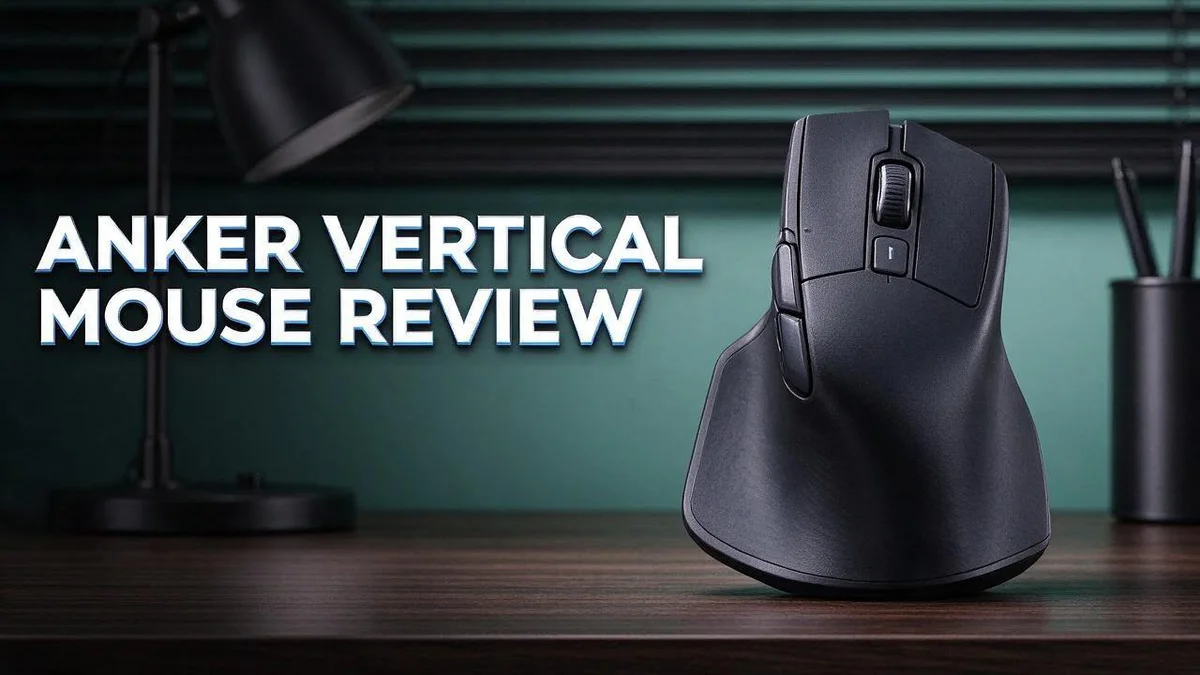
Anker Vertical Mouse Review: Is This Ergonomic Mouse Worth It?
Is your wrist sore after a long day at the keyboard? Many people feel the same way. A vertical mouse may help you find relief.
The Anker Vertical Mouse has an upright grip. Your hand rests in a natural handshake position. This shape helps reduce wrist twisting, so your forearm feels less strain.
In this review, we look at how it works every day. We cover the specs, the comfort, and the parts that may frustrate some users. Some people love it right away, while others need a few days. You will also see how it stacks up against top rivals.
Ready to see if this mouse fits your hand? Keep reading.
In a Nutshell
- Quick take: This wireless mouse suits people who want a more upright hand position. It works well for everyday office tasks.
- Long battery life: The battery can last far longer than the Cherry MW 8C Ergo. You will likely charge it less often.
- Comfort builds over time: Some users say the feel improves after a few days. Give your hand time to adjust to the new shape.
- The scroll wheel takes getting used to: Several reviewers find the wheel awkward. Scrolling can feel clumsy at first.
- Check your hand size first: Smaller hands may find the shape a little tight. Try it in person when you can.
- Less ideal for fast gaming: Competitive players may notice some latency. The button layout may also feel off during quick matches.
Ergonomic Design and Comfort

- Experience enhanced comfort and productivity with the Anker 2.4G Wireless Vertical Ergonomic Optical Mouse...
- Enjoy superior sensitivity and precision with this wireless mouse. It boasts 800/1200/1600 DPI Resolution...
Last update on 2026-11-26 / Affiliate links / Images from Amazon Product Advertising API
The shape of this mouse changes how your hand rests on the desk. Your palm settles into a natural handshake position.
Less wrist twisting is the main benefit. A flat mouse forces your forearm to rotate all day. This design keeps your forearm calmer and more relaxed.
Your thumb and fingers can rest on the sides instead of gripping tightly. Less squeezing means less tension in your hand.
Good posture starts with your elbow. Keep your elbow close to your side while you move the cursor. Let the arm pivot from the shoulder for smoother control.
Grip style also changes how the mouse feels. Palm grip users often adapt quickly. Fingertip grip users may need more time to settle in.
Test the mouse for a few minutes before you decide. A short trial shows whether your palm and fingers feel supported.
Your desk setup matters too. Clear space lets the mouse glide and lets your arm move freely. A level surface keeps your wrist neutral.
Breaks still matter a lot. Even the best ergonomic tool cannot replace movement. Stand up, stretch your hand, and shake out your fingers every hour.
Who benefits most? People who spend long hours on a computer often notice the biggest change. Office workers and remote workers may feel relief first.
A warm or sweaty palm can make any mouse slide around. A matte surface on your mouse pad can give you more control.
Change your sitting position often. Small shifts keep muscles from tightening up.
Your comfort depends on your own body. What feels right for one person may feel odd for another. Trust how your hand feels after each session.
Overall, this ergonomic shape supports a healthier hand position. Pair it with good habits, and your wrist will thank you.
Performance and Tracking
Tracking starts with the optical sensor. It reads small surface changes and follows your hand smoothly.
The three DPI settings give you flexibility. Use 800 DPI for detail work. Move up to 1600 DPI when you need to cross a large screen quickly.
The middle setting, 1200 DPI, often works well for everyday browsing and office tasks.
Wireless connection keeps the desk clean. The 2.4 GHz link uses a small USB receiver. You plug it in and the mouse starts working right away.
Cursor movement feels steady on most surfaces. A plain desk or mouse pad usually gives the best results. Glossy glass can confuse the sensor.
Tracking also depends on how you hold the mouse. Keep your wrist relaxed and move from the elbow. Smooth motion gives cleaner cursor paths and fewer jumps.
Button response feels quick for daily work. Clicks register cleanly when you press them. Dragging files and selecting text feels easy.
Expect a short learning period. Your cursor may feel fast at first. Adjust the DPI setting until the speed feels natural.
Screen size changes how DPI feels. On a large monitor, a higher setting saves wrist movement. On a laptop screen, a lower setting gives more control.
Surface choice affects glide as well. Use a mouse pad with a smooth texture. Rough wood or heavily grained fabric may cause small stutters.
Overall, the tracking suits office work and web browsing well. Fast shooters may want a different tool. Test the speed on your own screen before you decide.
Try precise tasks during your test. Editing photos or aligning cells in a spreadsheet shows accuracy quickly. Small errors appear fast.
Good tracking reduces frustration over time. Smooth cursor control saves small corrections each hour. Those little moves add up over a workday.
Battery and Connectivity
Battery planning matters more than most people expect. A mouse that runs out during an important project can break your focus fast.
The Anker Vertical Mouse helps you avoid those interruptions. You can set it up once and stop thinking about charging for a long stretch.
Build a simple check-in habit. Look at the battery level on the same day each week, such as Monday morning. This small step keeps surprises away from your workday.
Treat the USB receiver as a key part of your setup. Plug it into a port you use every day. Keep it close to the mouse so the connection stays steady during long sessions.
Protect the receiver when you travel. Small receivers get lost easily in a laptop bag. Store it in a pocket or pouch, and check for it before you leave the office or a café.
Your desk layout also affects how you use the connection. Place your computer where you sit most often. This keeps the mouse close to the receiver and reduces the chance of cursor lag from awkward positioning.
Good habits protect both your battery and your workflow. Make charging, receiver care, and desk placement part of your normal routine. Small steps like these keep the mouse ready for every task, whether you write emails, edit documents, or browse the web all afternoon.
Top 3 Alternatives
Logitech Lift

- Lift yourself up: When the desk life gets you down, lift yourself up with Logitech Lift Vertical Ergonomic...
- Raise your hand into comfort: Rest on Lift upright mouse throughout the day, with a softly textured grip and...

Last update on 2026-11-26 / Affiliate links / Images from Amazon Product Advertising API
The Logitech Lift is a compact vertical mouse made for smaller hands. It keeps your wrist in a natural, upright position. Many people pick it for travel because it fits easily in a bag.
Its quiet clicks suit shared offices and busy cafes. It also tracks well on glass surfaces, so you can use it almost anywhere. Most users say the grip feels light and easy to hold all day.
Logitech MX Vertical

- NATURAL HANDSHAKE POSITION - MX Vertical’s natural handshake position reduces muscular activity by...
- 57° VERTICAL ANGLE FOR IMPROVED WRIST POSTURE - MX Vertical’s unique 57° vertical angle reduces the...
Last update on 2026-11-26 / Affiliate links / Images from Amazon Product Advertising API
The Logitech MX Vertical offers a larger shape for bigger hands. It rests your forearm in a relaxed handshake position. Many users notice less strain after long work sessions.
This model adds smooth scrolling and programmable buttons. You can switch between up to three computers with one button press. It suits people who write, edit, or research for hours each day.
Evoluent VerticalMouse 4

- Ergonomic Design for Wrist Comfort – The Evoluent VM4SW Vertical Mouse 4 gently supports your hand in an...
- Programmable Buttons for Personalized Use – Easily customize button functions using the included Evoluent...
Last update on 2026-11-26 / Affiliate links / Images from Amazon Product Advertising API
The Evoluent VerticalMouse 4 has a sharp, upright design that many people find helpful. Its thumb buttons keep your fingers relaxed.
It works with both Windows and Mac systems. Setup is quick, and the mouse feels solid on the desk. If you want a classic vertical feel, this option is worth a look.
Scroll Wheel and Button Layout
The scroll wheel and button layout shape how you move through pages every day. Many people notice these two parts first.
The scroll wheel feels awkward for many users. Reviewers point out that it does not sit in a natural spot. Your fingers may need several days to adjust.
Scrolling works well for short documents. Long web pages can feel slow, though. You may find yourself flicking the wheel more often than you expect.
Think about how your hand moves. Your index finger usually rests on the wheel. Because the mouse is angled, that finger reaches a different position than it does on a flat mouse.
The mouse has five buttons in total. Most people use only the left click, the right click, and the scroll wheel each day. The side buttons still matter for browsing.
Side buttons help with browsing. You can move back and forth between pages without reaching for the keyboard. Many people find that this saves small moments throughout the day.
Some users may press the side buttons by accident. Take a few minutes to learn where each button sits. A quick test on a web page helps you feel the difference.
Gamers may want a closer look. Competitive players often want buttons that respond the same way every time. TechPulse notes that the button layout may frustrate these players. If you game often, test the layout before you commit.
Clicks should feel firm and even. If one button feels loose, check the mouse before you judge it. Simple tests help you learn the layout faster.
Set up your buttons for your workflow. Check whether your computer lets you assign actions to mouse buttons. Many systems include options for this. Think about the tasks you repeat most, then assign the buttons to match them.
Good layout choices reduce strain. Your hand stays relaxed when the controls sit where you expect them. Keep your most used controls within easy reach.
Value for Money
Worth depends on what you need from a mouse. The Anker Vertical Mouse offers many useful features for daily work. Think about how you use your computer each day before you decide.
The biggest benefit for many people is comfort. Reviewers say the vertical shape reduces wrist twisting. Some users feel at ease after just a few days.
Long battery life adds real worth too. The mouse offers about 2190 hours of battery life. The Cherry MW 8C Ergo offers around 168 hours, so you will charge far less often.
Hand size changes the picture. Some people find the mouse fits small on their hands. Measure your hand and test the grip before you choose it.
Other models also deserve a look. The Logitech MX Vertical and Logitech Lift are popular choices. The Razer Pro Click V2 Vertical, Keychron, Trust, CSL, and Delux also compete in this space.
Gamers should weigh performance carefully. Reviewers mention latency and a button layout that may frustrate competitive players. If fast reactions matter most, compare other options first.
Think about your daily routine. Long writing sessions and heavy browsing show the benefits most clearly. Short, occasional use may not reveal the full strengths of the design.
Compare the features side by side. Look at battery life, hand fit, and button layout. Write down what matters most to you, then check each model against that list.
Read recent user reviews too. Real experiences often reveal details that spec sheets miss. Look for comments from people with similar work habits.
Overall, this mouse suits everyday computer users best. It gives comfort, long battery life, and steady tracking for office tasks. Match its strengths to your daily habits, and you will know if it deserves a place on your desk.
Pros and Cons
Pros
- Your wrist stays in a more relaxed position.
- A cable-free 2.4 GHz link keeps your desk tidy.
- Three DPI settings let you change cursor speed for each task.
- Your forearm rests in a natural, angled position.
- It fits well into most standard desk setups.
Cons
- Only three DPI levels may limit very fine control.
- Listed weight differs between sources, so check details before you decide.
- The tall shape can feel bulky on a small desk.
Who Should Buy It
If you spend most of your day at a computer, this mouse deserves a spot on your shortlist. It suits people who type, research, and browse for hours at a time.
Office workers and writers will likely notice the difference first. Long emails, reports, and spreadsheets keep your hand busy all day. A vertical shape supports a handshake style grip, which many people find easier to hold over a full workday.
People who switch from a laptop touchpad may also find this helpful. A separate mouse lets you keep your posture steady. You can sit back, keep your elbow near your side, and move the cursor with less effort.
Students and home workers can benefit too. Essays, quick searches, and online classes all involve steady clicking. Short sessions feel easier when your hand already rests in a comfortable spot.
New mouse users should expect a short adjustment period. Your hand needs a few days to adapt to the upright angle. Give the mouse a fair trial before you decide. Stick with it for at least a week of daily use.
Remote workers who sit for long hours often notice the benefit most. They spend more time with one hand on the mouse than on almost any other tool. A relaxed grip helps them stay focused through long shifts. Those hours add up quickly, so comfort matters more than small performance details.
Someone who needs very precise control may want to look elsewhere. Designers and video editors should compare other models first. This mouse works best for steady, everyday tasks.
Shoppers who feel unsure can test the shape in a store or ask a friend who uses one. A short trial shows whether the grip fits your hand.
In short, this mouse suits office workers, writers, and remote staff who value comfort above all. Its clear comfort focus gives it a strong place in daily routines.
Final Verdict
The Anker Vertical Mouse earns a solid spot in our final verdict. It suits people who sit at a desk for hours.
Who gets the most from it? Writers, office staff, and home workers will likely feel the benefit fastest. Heavy typists and frequent browsers also gain a lot.
Gamers and designers who need pinpoint accuracy should look elsewhere first. Fast-paced play and fine detail work demand more precise tools.
Think about the trade-offs before you commit. Some users find the scroll wheel awkward. Others say the grip feels small on larger hands.
These issues do not ruin the experience. They do matter over months of daily use, so pay attention to them.
A short test can save you regret. Hold the mouse for ten minutes at your own desk. Notice whether your thumb rests naturally.
Check whether your wrist stays loose during simple tasks. Move a few files, scroll a long page, and type a short note.
If every movement feels relaxed, you have likely found a strong match. If your hand feels cramped, keep looking.
Ask yourself three quick questions. Do you spend most of your day at a computer? Do you feel tension in your forearm? Are you ready for a short learning curve?
If you answer yes to all three, this mouse deserves a close look. It fits a clear need rather than trying to do everything.
Compared with a standard mouse, the vertical design changes how your arm sits. Your hand rests in a handshake position instead of lying flat.
Bottom line: the Anker Vertical Mouse offers a practical design for everyday computing. It may not suit every job, but it solves a real problem for many people.
Frequently Asked Questions
How long does the battery last?
The Anker Vertical Mouse has a very long battery life. Its rated life reaches 2190 hours. That beats the Cherry MW 8C Ergo, which lists about 168 hours.
Is the scroll wheel easy to use?
Some users find the scroll wheel awkward. It can take time to get a smooth feel. If you scroll often, try it in person before you commit.
Will it fit my hand?
Some people say it feels small in the hand. Measure your palm and compare it with the mouse size of 120 × 62.8 × 74.8 mm. This helps you judge the fit before you buy.
Is it good for gaming?
Not for fast-paced play. Some gamers report latency, and the button layout may feel frustrating during competitive matches. This mouse fits everyday computer work far better than high-speed games.

Dillip is the founder and editor of DillipWeb.com, where he simplifies the world of AI software, tech gadgets, and accessories through honest reviews, detailed comparisons, and easy-to-follow guides. With a deep passion for emerging technology, he helps everyday users make smarter, more informed tech decisions.