Eero 7 Review: Wi-Fi 7 Mesh Router Performance, Setup, and Verdict
Tired of Wi-Fi that drops during video calls or stalls during game nights? You are not alone. Many homes now need faster, more stable coverage in every room.
The Eero 7 is a Wi-Fi 7 mesh router built to fill those gaps. It covers up to 2,000 sq ft (190 m²) and supports 240 MHz channels for high speeds.
Two auto-sensing 2.5 GbE ports also let you connect wired devices. Setup can feel finicky at times, so give yourself a few extra minutes.
In this review, we look at performance, setup, and who should buy the Eero 7 and who should look elsewhere.
In a Nutshell
-
Steady speeds for busy homes: The Eero 7 delivers stable Wi-Fi 7 performance, so streaming, gaming, and video calls can run side by side. Most households will notice fewer slowdowns during peak hours.
-
Simple setup in most cases: Reviewers rate the Eero 7 “Best for Easy Setup,” which helps first-time users. Many people finish the process quickly once they start.
-
Setup can still feel finicky: Some users run into trouble during installation, especially when they rush the steps. Take your time and follow each prompt carefully so the network connects smoothly.
-
Watch the modem timing: A mistimed modem power cycle can cause connection issues during setup. Turn off the modem and let it settle before you power on the Eero 7.
-
No 6 GHz band support: The Eero 7 skips the 6 GHz band, which may matter for homes with many newer devices. People who want the newest wireless band may prefer a different model.
-
Bulky power adapter: The power brick is chunky, so it may block a nearby outlet. Plan your placement before you plug in the unit.
Key Features and Specs

- OUR MOST AFFORDABLE WI-FI 7 ROUTER - eero 7 helps you future-proof your network and make the most of Wi-Fi...
- SAY GOODBYE TO DEAD SPOTS - eero 7 minimizes network disruptions to help ensure you have fast, reliable wifi...

Last update on 2026-11-26 / Affiliate links / Images from Amazon Product Advertising API
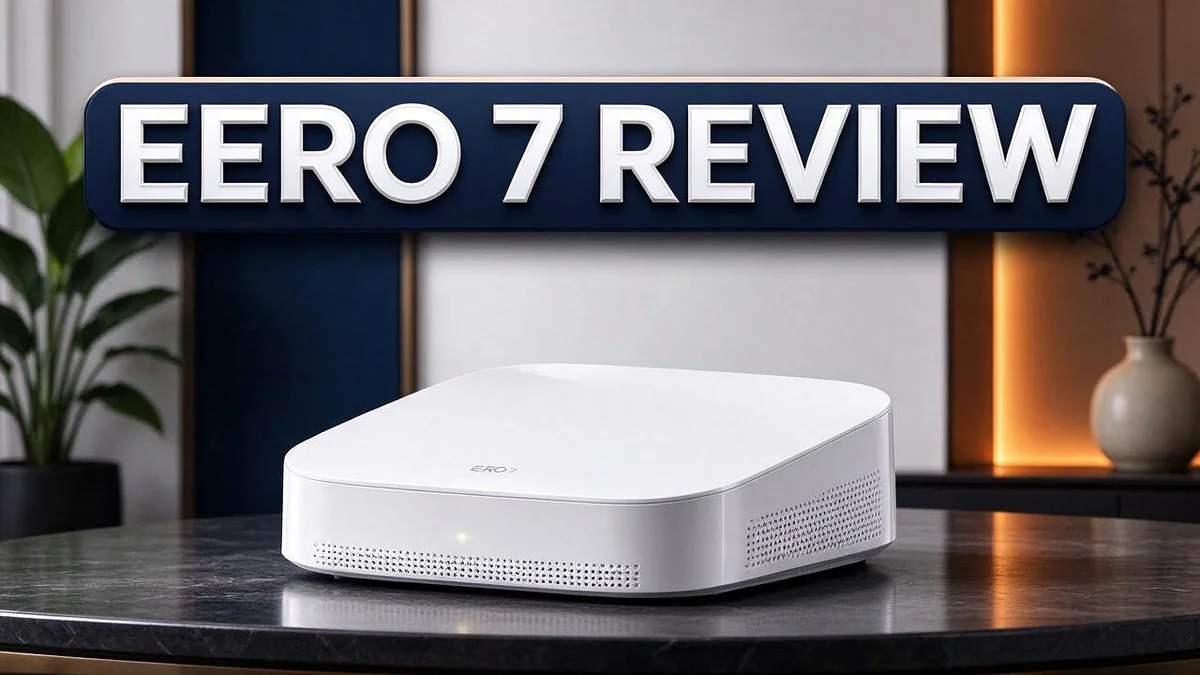
The Eero 7 packs a surprising amount of hardware into a small body. Its 5.12 by 5.12 by 2.52 inch frame sits neatly on a shelf or desk. Many owners will find it easy to place in a living room.
Inside, a 1.1 GHz quad core processor handles traffic between your devices. The unit also carries 1 GB of RAM and 4 GB of flash storage. These numbers help the router juggle many connections at once.
Coverage reaches up to 2,000 square feet, or about 190 square meters. That range suits a typical single floor home. Larger homes can add extra units to fill dead spots.
The radios work across two bands. The 2.4 GHz and 5 GHz antennas share the load. This split helps older gadgets connect while newer devices use faster lanes.
Channel support is another strength. The Eero 7 supports 240 MHz channels. Wider channels can carry more data when the signal is clean.
Smart home fans will also notice the wireless extras. Bluetooth Low Energy 5.0 comes built in. The router also supports Thread and Zigbee through Matter, but only as a controller.
Check device compatibility before you buy, since that controller role has limits. It manages compatible gear but does not replace a full smart hub.
Who gets the most from these specs? Households with several smart devices benefit most. Bluetooth and Matter support add useful options for that setup.
Specs work together. The processor, memory, and channel width all support steady traffic. Each spec plays a part in how the system handles daily use.
Readers should check their own layout before they choose. Count the rooms, measure the square footage, and note where smart devices sit. Those details will show whether the specs match your home.
Spec sheets can feel dry, so focus on real needs. Ask whether you stream in 4K, run video calls, or host gaming sessions. Your answers will guide how much these features matter to you.
Wi-Fi 7 Performance and Coverage
Coverage on paper only tells part of the story. Your home layout decides how far the signal really travels. Walls, floors, and furniture all play a role.
Thick brick walls, metal appliances, and large mirrors can weaken the signal. Place the unit in an open spot near the middle of your home.
Avoid tucking the router inside a cabinet or behind a television. Those spots trap signal and slow down your connection. A shelf or a high corner often works better.
Homes with several floors need extra planning. Floors absorb signal quickly, so upstairs bedrooms may feel weak. Adding another node on the upper level can fill that gap.
Ethernet backhaul is another smart choice. A wired link between nodes keeps the mesh fast and reduces pressure on the wireless path.
Nearby interference can also crowd the airspace. Microwaves, cordless phones, baby monitors, and neighboring networks all compete for room. Changing channels or moving the unit may help.
The easiest way to check results is simple. Walk through each room with your phone and run a speed test. Write down where speeds drop, then adjust placement and test again.
Dead zones often hide at the edges of a property. Garages, backyards, and basements tend to get weak signal. Plan for these areas before you commit to a final spot.
Crowded networks also matter. Each laptop, tablet, camera, and phone shares the same range. The more devices you connect, the more the signal works to keep up.
Keep the unit off the floor and away from other electronics. Clear space around the device helps signal travel outward.
Placement takes patience. Try two or three spots before you settle. Small moves can change your results a lot.
Think about daily habits too. If you work from a back room, place the main unit closer to that area. Your network should follow your routine.
Good placement helps every connected device. Streaming, calls, and browsing all feel smoother when signal reaches each room.
Setup and Ease of Use
Getting started with the Eero 7 feels simple once you know the flow. The companion app guides you through each step, so you rarely need to guess what comes next. Even first-time users can manage it alone.
Before you open the box, gather a few items. Keep your internet account details, a charged smartphone, and a free outlet close to your modem. Having these ready saves time.
The app asks you to create an account first. This account controls every eero device in your home, so use an email address you check often. You can add family members later if they need access.
Placement matters during setup too. Choose a central spot for the first unit, then let the app confirm the signal before you finish.
Adding more units feels straightforward once the first one runs. The app searches for new nodes and walks you through pairing. Most homes need only a few minutes for each extra unit.
If the app stalls, close it and reopen it. Your phone may need a fresh connection to the network, so switching between Wi-Fi and mobile data can also help.
Firmware updates happen in the background. You do not need to download files or click through menus. The system also handles routine maintenance without any input from you, so your network stays current with new features and security fixes.
Daily management takes place in the same app. You can rename your network, set limits for specific devices, and review which gadgets connect. These tools keep everyday tasks simple, even for beginners.
Parents often appreciate the family features. You can schedule internet breaks for kids and see which devices use the most data. These settings help families set clear routines.
Most users find the app a helpful guide from start to finish. Clear instructions and friendly prompts make the whole process less stressful. A little patience at the start leads to a smooth experience later on.
Top 3 Alternatives
Looking for a mesh system that fits your home? These three options offer strong coverage and simple setup. Each one suits a different type of home.
TP-Link Deco XE75

- WiFi 6E Tri-Band Mesh WiFi – Cover up to 7,200 Sq.Ft with next-gen seamless WiFi and make dead zones and...
- Brand-New 6 GHz Band – Experience the latest frequency of WiFi, eliminating interference from all legacy...
Last update on 2026-11-26 / Affiliate links / Images from Amazon Product Advertising API
This system supports WiFi 6E and covers larger homes. It uses a tri-band design, so your devices get more room on the network. Setup happens through a simple app that guides you step by step.
It works well for families with many connected devices, like phones, tablets, and smart TVs.
Netgear Orbi RBK853

- Coverage up to 7,500 sq. ft. and for up to 100 devices. Extend coverage up to 2,500 sq. ft. with each...
- Ultrafast AX6000 gigabit speed with WiFi 6 technology for uninterrupted streaming, HD video gaming, and web...
Last update on 2026-11-26 / Affiliate links / Images from Amazon Product Advertising API
This kit focuses on speed and steady connections. It uses a dedicated wireless link between the router and the satellites. That means your main devices keep fast speeds, even far from the router.
It suits big homes with thick walls or multiple floors.
Google Nest Wifi Pro

- Nest Wifi Pro is up to 2x faster than Wi-Fi 6, so you get super fast speeds and a reliable connection for your...
- Three Wi-Fi routers provide up to 6600 square feet of fast, reliable Wi-Fi[2]; and you can customize your...
Last update on 2026-11-26 / Affiliate links / Images from Amazon Product Advertising API
This option works well for smart homes. It supports WiFi 6E and includes Thread support for smart home gadgets. The app lets you pause devices, set guest access, and check network health with ease.
Pick the system that matches your home size and device count. Each option above gives you a reliable connection for everyday use.
Compatibility and Future-Proofing
Your modem sets the speed limit. The Eero 7 works with most cable, fiber, and DSL modems. Still, your modem must handle the speed your internet plan delivers. A slow modem will hold back even the fastest router.
The 2.5 GbE ports help with fast connections. Both ports sense the connection automatically. This makes them a good match for internet speeds faster than one gigabit. Wired desktops and game consoles can also use those speeds.
Wi-Fi 7 gear gets the most from it. Newer phones and laptops with Wi-Fi 7 can use the wider channels. Older devices still connect, but they will not reach those top speeds. Mixed households get a smooth experience either way.
Missing 6 GHz means a limit for later. The Eero 7 lacks the 6 GHz band. Wi-Fi 6E and Wi-Fi 7 phones can use 6 GHz, but this router cannot. Those devices will fall back to the 5 GHz band instead.
Power cord placement needs thought. The power adapter is large and bulky. Plan for an outlet with clear space around it so the adapter fits without strain. Keep the adapter away from heat sources, too.
Future updates keep the system current. Software improvements can add features without new hardware. Its Matter controller role may expand through later software changes. Keeping the app updated helps you get these changes sooner.
Upgrade paths exist within the same family. The eero Pro 6E and eero Max 7 offer other options. Mixing models can work, so you can add gear later. Check the app for supported combinations before buying.
Moving house is simple with this system. Each unit is compact enough to pack in a bag. Setup repeats in the new home, so placement planning starts fresh.
Renters also benefit here. The units plug into standard outlets and need no special installation. This keeps your setup easy to move.
Plan for growth before you buy. Think about how many devices your home may hold in five years. A household that adds new gadgets each year gains the most from this setup. Choosing wisely now saves hassle later.
Pros and Cons
Pros
- The newest wireless standard helps newer phones and laptops run smoothly.
- The compact body fits neatly on a shelf or desk.
- Built-in Thread and Zigbee support lets it act as a smart home controller.
- Bluetooth Low Energy connects nearby gadgets without extra hardware.
Cons
- A mistimed modem restart can cause connection problems during setup.
- The initial setup can feel finicky for some people.
- Thread and Zigbee support works only as a controller, so it cannot replace a full smart home hub.
Who Should Buy It
The Eero 7 fits average-sized homes best. Most houses and apartments up to about 2,000 square feet (190 m²) get full coverage. If your place falls in that range, this system suits you well.
Busy households will notice the difference first. Phones, tablets, game consoles, and laptops all share the same connection. A steady mesh network keeps video calls and streams running smoothly during peak evening hours.
Renters make another strong group. You can take the units along when you move. Setup takes some patience, but you do not need technical skills to finish it.
Upgraders with older routers also benefit. If your current router drops connections or struggles with newer devices, this model adds the newest wireless standard. You get modern speeds without choosing the largest model in the lineup.
Smart home beginners with a handful of sensors or bulbs can start here too. The controller features let the unit manage nearby devices from one central point. It works well as a first step into home automation.
Remote workers gain a practical advantage. A home office needs reliable uploads and clear video calls. The mesh design can reach a desk in a spare room without running extra cables through the house.
Online gamers who want stable connections will also appreciate the setup. Consistent signal strength helps reduce lag spikes during long sessions. Wired backhaul through the 2.5 GbE ports adds extra stability when the units sit far apart.
Some shoppers should look elsewhere. Homes larger than 2,000 square feet may need extra units or a higher tier. People who want the 6 GHz band or a full smart home hub will want a different product.
Ask yourself three quick questions before you buy. How large is your home? How many devices connect each day? Will you upgrade your gear again soon? Honest answers make the decision much easier.
Final Verdict
The Eero 7 earns a solid spot on your shortlist. It gives steady Wi-Fi 7 performance for everyday life.
Streaming, video calls, and web browsing run smoothly once the network is ready. Think of this router as a smart pick for people who want the latest wireless standard today.
Patience during setup truly pays off. Take each step in the app at a relaxed pace. Keep your phone nearby so you can confirm each prompt.
Rushing through the process often leads to more frustration than it saves. The payoff arrives quickly once the network is live.
Most households then enjoy a network that feels calm and reliable. Once the network runs, it tends to stay out of the way.
You rarely need to touch the settings again. That quiet operation is a real benefit for people who dislike tech chores.
Think about how you use the internet each day. A family with many phones, tablets, and game consoles will notice the steady connection.
A solo user with a few laptops may not need every extra feature. Matching the router to your habits keeps the decision clear.
Long term plans deserve a close look. The Eero 7 handles current devices with ease. Buyers who expect to add many new gadgets soon should compare their options carefully.
Shopping around makes sense for most people. The TP-Link Deco 7 Pro BE63 offers another Wi-Fi 7 mesh system worth reviewing side by side.
Make a short list of must have features. Then check each model against that list.
Our final call is simple. Pick the Eero 7 if you want a stable Wi-Fi 7 mesh network that stays easy to manage. Careful planning now saves trouble later.
Renters and upgraders with older routers will likely find the change very satisfying. Smart home beginners with a few sensors can start here too.
Look elsewhere if you need the 6 GHz band today or a full smart home hub. Your home size and device count will guide the final choice.
Frequently Asked Questions
Does the Eero 7 support the 6 GHz band?
No, it does not. The Eero 7 works on the 2.4 GHz and 5 GHz bands only. Devices that need 6 GHz will connect on 5 GHz instead. Most newer phones and laptops still run well on 5 GHz.
Will the power adapter fit my outlet?
The power adapter is quite chunky. Check your wall outlet before you set up the router. A short power strip or a spot with extra space can keep the plug from blocking nearby sockets.
Can I connect a desktop or game console with a cable?
Yes. The Eero 7 has two 2.5 GbE ports that sense speed automatically. A wired desktop or console can use fast speeds without relying on the wireless signal. This helps for work files, large downloads, and other tasks that need a steady link.
How does it compare with the eero Pro 6E?
The eero Pro 6E is the most useful comparison point. It supports the 6 GHz band, which the Eero 7 lacks. If your devices use 6 GHz, the Pro 6E may suit you better. If they do not, the Eero 7 still gives you a modern Wi-Fi 7 network.

Dillip is the founder and editor of DillipWeb.com, where he simplifies the world of AI software, tech gadgets, and accessories through honest reviews, detailed comparisons, and easy-to-follow guides. With a deep passion for emerging technology, he helps everyday users make smarter, more informed tech decisions.