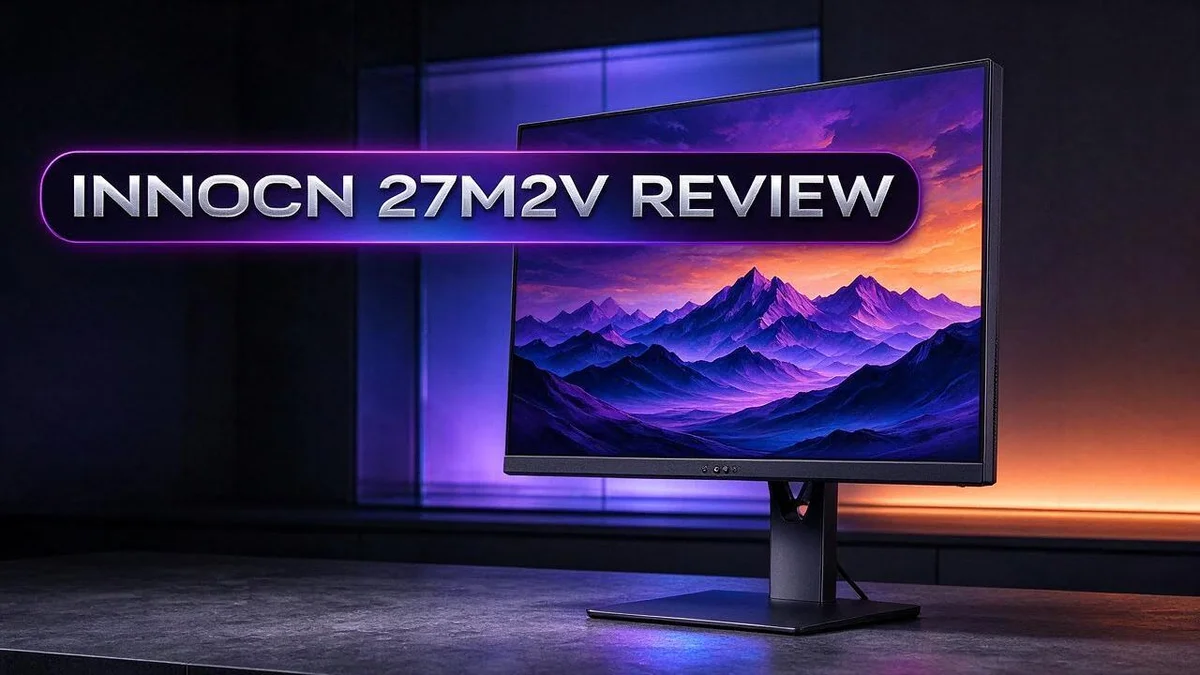
Innocn 27M2V Review: 4K Mini LED Monitor for HDR, Dimming, and Sharp Text
Looking for a sharp screen that makes text and photos pop? The Innocn 27M2V might be the monitor you need. It is a 27 inch 4K UHD Mini LED IPS display that many users praise.
Its 1,152 local dimming zones help deliver deep blacks. Users also report sharp text, good colors, and a fairly uniform panel. Geardiary rates the panel A+.
Whether you game, edit photos, or watch movies, this monitor covers a lot. It offers HDMI and DisplayPort ports and a wide 178 degree viewing angle.
Many owners say the auto HDR handling is excellent. The screen also stays free from flicker. Before you buy, note that listings disagree on the refresh rate, so check the exact specs.
In a Nutshell
- Expert approval: Geardiary gives the panel an “A+” rating. That score signals strong overall quality, so buyers who care about picture performance will notice the difference.
- Wide viewing angles: The 178 degree viewing angle keeps colors clear from the side. Friends can sit beside you and still enjoy the same picture.
- Even brightness: Owners describe the panel as fairly uniform. Edges look close to the center, which suits large desks and shared screens.
- Comfortable viewing: The screen has no flicker, so long work sessions feel easier on your eyes.
- Check the refresh rate: Listings conflict, with some showing 160Hz and others showing 60Hz. Confirm the exact figure before you buy if smooth motion matters to you.
- Versatile ports: HDMI and DisplayPort connect laptops, consoles, and desktop PCs. One Reddit user returned their unit, but no reason was shared.
Text Sharpness and Color Accuracy

- True-to-Life Color for Creators – 4K HDR500 & DeltaE <1 - Stop guessing colors during photo editing, 3D...
- One-Cable Workstation – USB-C with 90W Power Delivery - No more tangled desks. A single USB-C cable delivers...

Last update on 2026-11-27 / Affiliate links / Images from Amazon Product Advertising API
Sharp text depends on how many pixels fit into each inch. The 27M2V uses a 4K panel on a 27-inch screen. That tight pixel density keeps small fonts clean and edges smooth.
Dense pixels also help with small icons and menus. Toolbars look clean, which can ease eye strain over a full day.
This matters most during long documents, spreadsheets, and code. You can fit more windows side by side without squinting. Lines stay straight, and thin characters look solid.
Thin edges on small text stay sharp, even from a close seat. Subtitles and captions in movies stay readable too.
Photographers can also check fine detail. Hair strands and fabric textures show more clearly on a 4K screen.
Color accuracy comes from the IPS panel type. IPS screens keep hues steady, so your tones stay consistent when you match colors across a design project.
Mini LED backlighting also shapes how colors look. Bright highlights and dark shadows add depth to photos. Users report natural skin tones and smooth sky gradients.
Color checks become easier with a wide workspace. You can place a reference image beside your edit. Compare both side by side and spot differences fast.
Specs tell only part of the story. Calibration tools can adjust the display for precise work. Test with your own photos before you decide.
Pro tip: Set the picture mode before you judge colors. Start with the default mode, then tweak brightness and contrast. Keep your room lighting steady for fair comparisons.
Brightness settings change how text looks too. Lower brightness can reduce glare in bright rooms. Adjust until letters feel easy to read.
Use a soft dry cloth for the screen. Smudges can hide fine text and soften color. A quick wipe keeps the image crisp.
Bottom line: text and colors both look strong here. Anyone who works with type or images will notice the difference fast.
Local Dimming and HDR Performance
Local dimming controls the backlight in separate zones. Each zone brightens or dims based on the picture. This means dark areas stay dark while bright areas still glow.
Many screens struggle with blooming. You may see a soft halo around a bright star, subtitle, or cursor on a black background. More zones give finer backlight control, so these halos tend to shrink.
Think of the zones as a grid of tiny lamps. Each lamp works on its own patch of the panel. Smaller patches let the picture show sharper edges between light and shadow.
HDR content asks even more from the backlight. HDR videos include bright highlights like sunlight, fire, or reflections. A monitor needs enough brightness to make those highlights pop without washing out nearby shadows.
Peak brightness matters here. The sibling 32M2V gets praise for high peak brightness. That spec helps HDR highlights stand out, so compare numbers when you read listings.
Getting the best result takes a few setup steps. Turn on HDR in your operating system settings. Then choose a matching picture mode on the monitor. Mismatched settings can make HDR look dull or washed out.
Try a few test clips first. Dark movie scenes, night skies, and game sunsets show how well the backlight performs. Watch for crushed shadows or gray blacks. Those signs tell you whether the settings need adjustment.
Room lighting matters too. Bright windows can reduce how much contrast you see on screen. Position the monitor so light falls from the side rather than straight onto the glass.
Dark rooms show the most contrast, so many people watch HDR at night. Lower room light lets shadows and highlights stand out more. Try dimming lamps behind the screen for a comfortable setup.
Give the settings time. Small adjustments often bring the biggest gains in contrast and detail.
Refresh Rate and Motion Handling
Refresh rate sets how many times per second the screen redraws the picture. A higher number usually means smoother motion. Fast scrolling, quick camera pans, and fast game moves look cleaner when the refresh rate climbs.
The listings for this monitor disagree, so verify the number first. One listing shows 160Hz, while another shows 60Hz. Check the official specs page or the on-screen menu after setup to see the true rate.
Your cable plays a big role too. A cable that carries less data can limit the refresh rate, even when the monitor supports more. DisplayPort is usually the better choice for high refresh rates at 4K. HDMI works well for consoles and everyday use, but confirm that your cable supports the version you need.
Motion also depends on your source. A game running at 60 frames per second will not look smooth just because the screen supports 160Hz. The monitor can only show the frames your computer or console sends. Match your frame rate to your screen for the best result.
Here is a simple test. Drag a window across the desktop and watch the edges. Smooth movement shows a healthy setup. Choppy movement suggests the cable, the graphics settings, or the refresh rate needs adjustment.
Sports and action films show motion best. Play a clip with quick pans and look at the players. A sharp, steady image means the screen handles motion well.
Adaptive sync is another feature to check. It matches the screen speed to the frame rate of your game, which can reduce screen tearing. Look at the product specs to see whether the monitor supports it. Your graphics card must support it too, so confirm both before you expect it to work.
Picture modes can change motion too. Some modes add processing that makes movement look unnatural. Try a few modes with a fast video clip. Choose the one that looks most natural to your eyes.
Top 3 Alternatives
Dell UltraSharp U2723QE

- Low blue light: The improved ComfortView Plus reduces harmful blue light emissions to ≤35%, for all-day...
- Refresh rate: A smooth, tear-free experience with AMD FreeSync Premium (refresh rate up to 120Hz) and an...
Last update on 2026-11-27 / Affiliate links / Images from Amazon Product Advertising API
The Dell UltraSharp U2723QE gives you sharp 4K detail on a 27-inch screen. Text looks crisp, and images show fine detail.
Its IPS panel keeps colors clear from every angle. Wide color coverage makes photos look true to life. A built-in USB-C hub with power delivery charges your laptop through one cable. This model suits office workers and photo editors who want clean, accurate color.
LG UltraGear 27GP850

- Vivid Colors and Sharp Details - Nano IPS technology supports the express high-fidelity color for reproducing...
- Gaming Innovation Beyond Boundaries - Complete your battle station with a premium LG UltraGear Gaming Monitor...
Last update on 2026-11-27 / Affiliate links / Images from Amazon Product Advertising API
The LG UltraGear 27GP850 is built for gamers. It offers a fast 165Hz refresh rate and a 1ms response time. Motion stays smooth during quick action scenes.
The Nano IPS panel delivers vivid colors and wide viewing angles. Adaptive sync keeps the picture steady during intense moments. Fast shooters and racing games feel natural on this screen. Competitive players will also appreciate how responsive it feels.
ASUS ProArt PA278QV

- Calman Verified & Delta E < 2 Accuracy: Achieve true-to-life precision right out of the box for professional...
- 100% sRGB & 100% Rec. 709 Color Gamut: Ensure your creative projects match industry standards for vibrant...
Last update on 2026-11-27 / Affiliate links / Images from Amazon Product Advertising API
The ASUS ProArt PA278QV focuses on color accuracy. It comes factory calibrated, so you can trust what you see on screen. Factory calibration saves time because you do not need to adjust settings by hand.
The WQHD resolution gives you plenty of room for timelines and design tools. Its stand adjusts for height, tilt, and rotation. Designers and video editors will appreciate this flexible setup for long sessions.
Connectivity and Setup
Setting up the Innocn 27M2V takes only a few minutes. Start by attaching the stand to the base. Tighten each screw by hand so nothing wobbles.
Place the monitor on a flat desk. Leave space behind it for cables.
Choose the right cable first. Use the connection that your graphics card or console supports best. Keep a spare cable nearby for quick swaps.
Route the cables through the clip on the stand. Leave a little slack so you can raise or lower the screen without pulling plugs loose.
Plug the power cable into a surge protector. That step guards your screen during storms or power dips.
Power on and select the input. Use the menu buttons to pick the source that matches your cable. If the screen stays black, switch to the other input and try again.
Set the resolution on your computer. Open display settings on your PC or Mac. Confirm the resolution reads 3840 x 2160. A lower number makes text look soft.
Turn on HDR only when you need it. Many desktop apps look pale with HDR active all day, so switch it on for movies and games.
Check the brand website for firmware updates. A quick update can improve stability and fix small bugs.
Let the monitor run for a few minutes before you start a long work session.
Run a short test before you settle in. Open a text file, play a movie clip, and load a game menu. Fix any issue now, while the setup is fresh in your mind.
A clean setup makes every later step easier.
Viewing Angles and Uniformity
Viewing angles matter more than many people expect. The Innocn 27M2V lists a 178 degree viewing angle. This number means the picture stays clear when you sit off to the side.
IPS panels usually keep colors steady from wider positions. Many users report that this panel looks fairly even across the screen.
Check this at home. Sit in your normal seat and look at the center of the screen. Then lean left and right. Notice whether colors shift or the image looks washed out.
Uniformity asks a different question. It checks whether brightness stays even from edge to edge. A full screen dark image works best for this test. Show a plain black or dark gray screen and look for bright patches near the corners.
Some faint glow is normal on any IPS monitor. You may notice a light haze when the room is dark and the scene is mostly black. Most people barely notice it during daily use.
Follow this quick uniformity check. Set the brightness to a middle level first. Then open a full white image and scan each corner. Finally, repeat the test with a gray image. Uneven spots usually show up clearly on these solid backgrounds.
Placement also shapes what you see. Position the monitor at eye level so the center of the screen lines up with your eyes. This keeps your neck relaxed and reduces the need to tilt.
If you use two screens side by side, angle the Innocn 27M2V so its view matches your natural line of sight.
Shared viewing works well too. Friends sitting beside you can often follow a movie or game without losing detail. The wide angle helps group sessions feel more enjoyable.
Take time to run these tests before you settle in. A little checking now helps you enjoy even color and steady brightness for years.
Pros and Cons
Pros
- Sharp text thanks to the 4K (UHD) resolution.
- Good colors with a fairly uniform IPS panel.
- Deep blacks come from the 1,152 local dimming zones.
- The screen is flicker free, which helps during long sessions.
- One user called its auto HDR handling the best they have tried.
Cons
- Refresh rate listings conflict, so the exact number is unclear.
- One Reddit user returned the unit, but the reason is not stated.
- The research shows few independent drawbacks, so read more reviews.
- No direct competitor comparison appears in the current research.
Who Should Buy It
This monitor fits several types of people well. Think about how you spend your time at the screen. Your daily habits will show whether it suits you.
Creative freelancers often value accurate visuals. Photo editors and video makers can review detailed work on one large panel. They avoid constant tweaks between separate screens.
Movie lovers will enjoy this screen too. Streaming shows at night feels more immersive on a big, sharp display. Friends can gather around without squinting.
Students and writers also benefit. Long study sessions feel easier when several windows sit side by side. Notes, research, and papers fit on one screen.
Casual users who browse, chat, and stream should find everyday tasks pleasant. The clear picture makes routine work feel more comfortable.
Home office workers also gain from this model. A single large screen reduces clutter on the desk. Video calls, spreadsheets, and chat apps can sit in separate windows.
Those who work across many tasks in a day will appreciate the flexibility. One panel can handle work, play, and entertainment.
Gamers should check the refresh rate first. The listings disagree, so confirm the exact number on the official product page.
Fast shooters may need a higher number. Story games often run well even at a moderate pace.
Buyers who want the brightest possible highlights should compare carefully. The sibling 32M2V earns praise for peak brightness.
Comparing both spec sheets helps you decide.
Who might skip it? Competitive players who need a confirmed high refresh rate should wait for clear data.
In short, this monitor suits creators, students, and movie fans best. Gamers and buyers who need strict specs should verify details before they order. A quick check now saves time later. Read several recent reviews too for fresh opinions. Real user feedback adds useful context. Take a moment to match the monitor with your daily routine.
Final Verdict
The Innocn 27M2V makes a strong case for people who want a sharp and colorful screen. It pairs a 27 inch 4K panel with Mini LED backlighting. Overall, it earns a solid recommendation.
Most buyers will like what this monitor does well. Its strengths show up in daily work, movies, and creative projects. The main gaps come from missing data, not clear flaws.
A clear return policy protects your purchase. It gives you time to test the screen in your own room. Buy from a seller with easy returns and keep the packaging for a few weeks.
Your desk setup matters too. A 27 inch screen needs enough depth and room for a stand. Measure your space before you order so the monitor sits at eye level.
Your computer matters as much as the monitor. Driving 4K at smooth frame rates needs a capable graphics card. Older laptops may struggle, so check your video ports first.
Next steps are simple. Read two or three recent owner reviews for real world feedback. Compare the official spec sheet with any listing you find.
Long sessions feel easier with smart habits. Place the screen away from windows to reduce glare. Take short breaks every hour to rest your eyes.
Pair it with good accessories. A sturdy stand and a clean cable help the setup last. Choose cables that support your video ports and resolution.
Our final call is simple. If you want crisp text, deep contrast, and clean colors, this monitor deserves a spot on your shortlist. Confirm the details first, then decide with confidence.
Final thought for busy readers. The Innocn 27M2V delivers sharp visuals for daily tasks and creative work. Verify the specs, check your setup, and enjoy a screen that looks great. Strong results come from informed choices.
Frequently Asked Questions
What does local dimming actually do?
Local dimming controls the backlight in small sections of the screen. Dark areas stay dark while bright areas glow. This helps night scenes and dim photos look more natural. It also keeps gray haze low on many shows and games.
How can I check the refresh rate on my own unit?
The listings disagree, so test it yourself. On Windows, open Display settings and select Advanced display. On a Mac, open System Settings and choose Displays. Your computer shows the real refresh rate the monitor runs at.
Can more than one person view the screen at once?
Yes, the 178° viewing angle helps. Viewers seated off to the side can still see the picture clearly. This makes it handy for showing a client a design or sharing a movie with a friend.
Which ports should I use?
The monitor includes HDMI and DisplayPort. Check which ports your computer has first. DisplayPort often works well for PC setups, but confirm the best choice in your computer and monitor manuals.

Dillip is the founder and editor of DillipWeb.com, where he simplifies the world of AI software, tech gadgets, and accessories through honest reviews, detailed comparisons, and easy-to-follow guides. With a deep passion for emerging technology, he helps everyday users make smarter, more informed tech decisions.