Koorui 27 Inch Monitor Review: 1440p Color, Gaming Performance, and Eye-Care Features
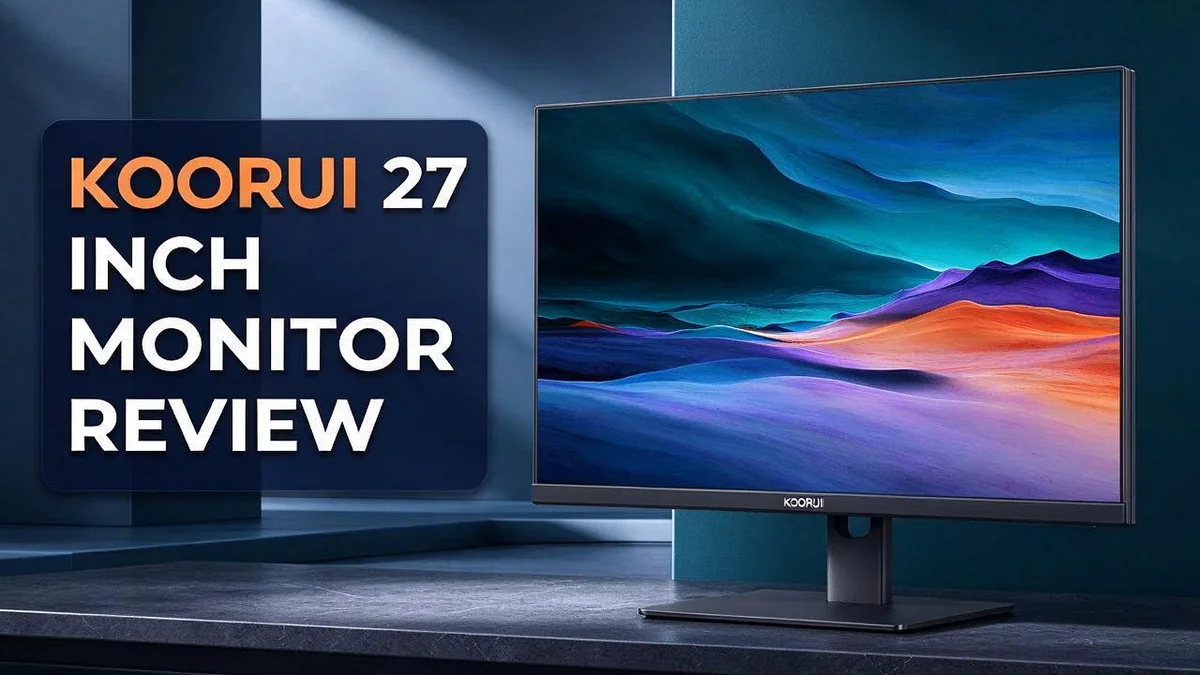
Looking for a monitor that handles both work and play? The Koorui 27 inch monitor might be the answer you need.
Sharp detail matters. This screen offers a 2560×1440 QHD resolution on a 27 inch panel. Text and images look clean and crisp.
Gamers often ask about smooth motion. Many Koorui models offer refresh rates from 144Hz up to 180Hz. Specs vary by model, so check your exact version before you buy.
Owners often praise the color and fast gaming response. Eye care features also help during long sessions. Adaptive Sync, HDMI, and DisplayPort support make setup easy.
In this review, we break down the key features, real user feedback, and who this monitor suits best. Keep reading to see if it fits your desk.
In a Nutshell
-
Panel choice matters. Some models use a VA panel, while others use an IPS panel. A VA panel often shows deeper blacks, and an IPS panel often offers wider viewing angles. Check the exact model before you decide.
-
Refresh rates range from 144Hz to 180Hz. Higher numbers help fast scenes look smooth. Model options vary, so confirm the rate on your listing.
-
Connections cover most setups. The monitor includes HDMI and DisplayPort ports. Users can connect a PC or console with ease. Adaptive Sync also helps reduce screen tearing during play.
-
Color features stand out on select models. Some listings claim HDR10, 100% sRGB, and 95% DCI-P3 coverage. Results can vary, so read the specs for your version.
-
Stand quality draws criticism. One reviewer called the stand weak. Many buyers may prefer a VESA mount for extra stability.
-
Vibrancy complaints appear on 240Hz models. One user felt colors looked less rich on QHD 240Hz versions. Also, a few unverified reports mention dead pixels.
Display Panel and Color Accuracy

- QHD 1440P Visuals with Rich Colors:Experience sharper details with this 27 inch gaming monitor featuring...
- Smooth 240Hz Gaming Performance:Take your gaming performance further with an overclocked refresh rate of up...
Last update on 2026-11-26 / Affiliate links / Images from Amazon Product Advertising API
Color accuracy decides how true your images look. Many buyers want more than bright pixels. They want natural skin tones and shadows that show real detail.
Think of color coverage as a map. A wider map lets the screen show more shades. The sRGB standard covers most websites and everyday photos, so it matters for daily use.
DCI P3 coverage is a wider standard used in movies and modern games. One review reports about 95 percent coverage, which points to rich reds and greens.
Movie fans may notice deeper tones during dark scenes.
Viewing angles matter when others share your screen. Colors can shift when you sit off center. Place the monitor at eye level and face it directly.
Calibration can help. Many users adjust brightness, contrast, and color temperature in the on screen menu.
Start with a standard preset, then tweak gamma until dark scenes show clear detail.
Dead pixel worries deserve a quick check. A few users report spots, but these claims lack confirmation.
Run a full screen test in white, black, red, green, and blue to spot faults early.
Room lighting also shapes how colors appear. Bright windows can wash out subtle shades. Dim harsh light or move the desk away from glare.
Overall, this panel suits mixed use well. Photo editors may want stronger color verification. Gamers and office users will likely find the colors pleasing.
Brightness deserves attention too. Higher brightness helps HDR content pop when a source supports it, yet it can strain eyes in dim rooms. Pick a level that feels comfortable for long sessions.
Creative work needs extra care. Check colors against a printed photo or a second screen. Small shifts can change how final files look elsewhere.
Balanced color can ease eye strain during long work days. Text feels clearer when contrast looks natural. Adjust settings until words stand out clearly.
Gaming Responsiveness and Refresh Rate
Fast pixels help during quick action. Listings claim a 1ms response time on at least one model.
Manufacturers also list MPRT, which measures motion clarity instead of pixel speed. Check which figure appears on the model you pick.
Adaptive Sync matches the screen refresh to your graphics card output. This feature cuts screen tearing, the split image that appears during fast camera turns.
Tearing often shows up when frame rates jump up and down during busy scenes.
Input lag is the delay between your mouse click and the action on screen. Lower lag feels more direct in shooters, racing games, and fighting titles.
Your PC decides how many frames you actually see each second. A 144Hz panel only shines if your system can push close to that number.
Heavy effects like ray tracing can pull frame rates down fast. Lowering a few settings often keeps motion smooth.
Connection choice matters too. DisplayPort usually delivers the highest refresh rate. Older HDMI cables may limit the refresh rate, so test both ports.
Windows often defaults to 60Hz after setup. Open display settings and select the top refresh rate manually.
Curved models may feel more immersive in racing and open world games. Check the listing to confirm the curve.
Some players notice overshoot in dark scenes. It appears as bright halos behind moving objects.
Use the overdrive setting to balance speed and clean edges. Test a few levels in a game you know well.
Gamers who play esports titles often choose the highest refresh setting. Casual players may prefer the quality mode instead, which trades some speed for detail.
Try both modes for a few minutes each. Pick the one that feels smoother in your favorite game.
Frame pacing also matters. Smooth, steady frames feel better than high numbers that jump around.
Keep your graphics drivers updated. New releases often improve sync support and stability for gaming monitors.
Stand, Build, and Design
Stand quality is where many buyers first notice a difference. One reviewer called the stand weak, so test it closely before you settle in.
A solid stand keeps the screen steady. It should not wobble when you type or tap the desk.
Look for these stand features:
– Height adjustment for eye level
– Tilt for a comfortable viewing angle
– Swivel for sharing the screen with others
– Pivot for vertical text and coding
Build quality follows the same idea. Many models use a plastic frame, so the screen can feel light in your hands. Light does not always mean weak, but you should test the joints gently.
Design choices also shape your daily use. Thin bezels make the screen feel bigger. Slim edges also help when you place two windows side by side.
Use a VESA mount for more control. If the stand feels shaky, a wall arm or desk arm can hold the panel firmly. Check the back for standard mounting holes first.
Cable management matters too. Route cables through the stand base so your desk stays tidy. Keep power and video cables apart to reduce clutter and interference.
Desk space counts as well. Measure your desk depth before setup, since a wide base can take up more room than you expect.
Stand height matters for your neck and back. Your eyes should sit near the top third of the screen. This position helps you avoid leaning forward during long sessions.
Some users prefer to remove the stand entirely. This gives more flexibility, but only if your mount supports the weight. Check the weight rating on your mount first.
Finally, look at the finish. A matte surface cuts glare from windows and lamps. Glossy finishes can look sharp but reflect light more easily.
Try the monitor in your own room before you decide. Sit in your usual chair and adjust each setting. A short test shows whether the stand fits your habits.
Top 3 Alternatives
Looking for a different screen? These three options make strong alternatives to the Koorui 27 inch monitor. Each one fits a different need.
Dell S2721QS

- Improved ComfortView Plus: Reduces harmful blue light emissions to ≤35%, for all-day comfort without...
- Refresh rate: A smooth, tear-free experience with AMD FreeSync Premium (refresh rate up to 120Hz) and an...

Last update on 2026-11-26 / Affiliate links / Images from Amazon Product Advertising API
The Dell S2721QS gives you sharp 4K visuals. Text looks crisp, and colors look bright and natural.
It works well for office tasks, video streaming, and photo editing. Its thin bezels also give your desk a clean, modern look.
LG UltraGear 27GL650F

- G sync compatible.Aspect ratio:16:9.Viewing Angle:178.0 degrees.Response time:5.0 milliseconds
- 27 inches Full HD (1920 x 1080) IPS display
Last update on 2026-11-26 / Affiliate links / Images from Amazon Product Advertising API
The LG UltraGear 27GL650F is built for fast gaming. Its high refresh rate keeps motion smooth during action scenes.
Quick response times reduce blur, so moving objects stay clear. It is a solid pick for anyone who plays shooters or racing games every day.
Samsung Odyssey G5

- Samsung’s 27” Odyssey G5 QHD Gaming Monitor delivers brilliant visuals for exhilarating gameplay that’s...
- QHD resolution (2560 x 1440) boasts incredibly detailed, pin-sharp images.
Last update on 2026-11-26 / Affiliate links / Images from Amazon Product Advertising API
The Samsung Odyssey G5 brings a curved screen to the list. The curve wraps around your field of view.
It suits both gaming and movie nights. Smooth motion keeps fast scenes clear, and the screen handles bright rooms well.
Choose this model if you want a bit more depth in your setup.
Eye-Care Features
Eye care matters most during long days at the desk. Many people stare at a screen for hours without noticing. The Koorui listing highlights eye care features, so it deserves a closer look.
Flicker free backlighting is a feature worth checking. A steady light source can ease strain during long sessions. Look for this label on the product page or box.
Low blue light mode is another common option. It warms the image and may feel gentler in the evening. Use it only if colors still look right to you.
Room light changes everything. A bright window behind the screen creates glare. Place the monitor away from bright windows and match its brightness to the room.
Text size plays a role too. Increase the font size in your system settings instead of leaning closer. Small text forces your eyes to work harder.
Breaks protect your eyes as much as settings do. Try the 20 20 20 rule every twenty minutes. Look at something about twenty feet away for twenty seconds.
Blinking drops when we focus on screens. Set a timer or use a break app to remind you. Keep a glass of water nearby to ease dryness.
Distance matters as well. Sit about an arm length from the screen so your eyes can relax. Text that sits too close forces constant focus changes.
Ambient light shifts through the day. Morning sun can shift the look of a screen, while evenings often feel dim. Check the room before you start working.
Screen time limits help too. Plan short tasks between meetings. Give your eyes a rest after reading long documents.
Eye care works best as a daily habit. Combine the monitor features with simple routines. Adjust settings slowly and notice what feels comfortable.
Small habits add up over weeks. Pick two or three steps and stick with them. Your eyes will thank you during long projects.
Connectivity and Setup
Setting up your Koorui 27 inch monitor takes only a few minutes. Start by checking the box for the power cable and video cable. Your exact contents may vary, so look at the included list.
Next, plug the power cable into the back of the screen and a wall outlet. Turn the monitor on before connecting your computer. This order keeps the setup simple for most people.
Choose your video input carefully. The monitor offers HDMI and DisplayPort ports, so pick the one your graphics card supports. Use a cable that matches the port on both devices.
Press the control buttons on the monitor to open the on screen menu. Pick the correct input source, such as HDMI or DisplayPort. The screen shows a message when it finds a signal.
Check the input label after switching. If the screen stays black, the monitor may still sit on the wrong input. Cycle through the sources until the picture appears.
Connect your computer last for the cleanest start. Once the picture appears, open your graphics control panel. Confirm that the resolution matches the native 2560×1440 setting.
Install the latest graphics driver before you change other settings. Drivers help the card send the right signal to the screen. Updated software can prevent flickering and missing display modes.
Use a short, good quality cable. Long cables can cause signal issues on some setups. Keep the cable free from sharp bends so the connection stays firm.
Test your setup with a simple task. Open a web page, then play a video. Look for clear text and smooth motion. If anything looks off, return to the input menu and try the other port.
Plan for a second device too. Many desks use a laptop alongside a desktop. Switching inputs takes only a few seconds with the menu.
Save your settings once everything works. Your choices stay in place after restarts. Note which port you used so future changes take less time.
Pros and Cons
Pros
– Sharp 1440p picture gives you extra room for work and games.
– Fast refresh rates keep motion smooth during gaming.
– Adaptive Sync helps reduce screen tearing.
– Many owners praise the color quality.
– Most reviews rate it above four stars.
Cons
– Some owners find the stand feels weak.
– Color saturation can look dull on some 240Hz QHD models.
– A few reports mention dead pixels, but these remain unverified.
– The panel type changes by model, so check the exact version first.
Who Should Buy It
Gamers who want a step up from 1080p often find this monitor a good fit. Many players notice the difference as soon as they start a match.
Students and home workers can benefit too. A larger 27 inch desktop lets you keep notes, video calls, and documents open side by side.
Programmers and spreadsheet users also fit well here. Extra screen space cuts down on constant window switching during long work sessions.
Writers and researchers gain from the extra room. Long documents and browser tabs fit without zooming out too far.
Office teams that use several apps will appreciate it. Chat, email, and calendars stay visible at the same time.
Families sharing one desk can enjoy it as well. Two people can split the screen for homework, shows, or video calls.
Buyers with an older computer should wait. Fast refresh rates need a strong graphics card to match them. Check your system first.
Photo editors and designers should look closer. Color work often demands exact accuracy and proper calibration. Test the exact model before you rely on it for print or client projects.
People who want HDR should look elsewhere. HDR10 appears on only one listing, so it may not be available on your version.
Anyone who sits close to the screen should measure first. A 27 inch panel fills the view on small desks, so make sure there is enough space.
A quick checklist can help you decide. Ask yourself three questions. Do you game often? Do you need precise colors? Does your computer handle high frame rates?
Final Verdict
The Koorui 27 inch monitor earns a strong place on a desk. It offers a sharp 1440p picture and smooth motion for most daily tasks.
Its biggest strengths show up in gaming and everyday work. Many users notice how lively the screen looks during fast scenes.
Eye care matters during long workdays. The listed eye care features can make hours of reading and writing feel easier on tired eyes.
Some listings add extras that widen the appeal. HDR10 appears on one listing, and some models use a curved design. These options suit viewers who want deeper contrast in movies or a wraparound feel. Buyers who sit close to the screen often notice the curve most.
Each listing may bundle different extras, so compare them before you order.
Desk space plays a major role in this choice. A 27 inch panel needs enough depth and width, so measure your desk first. Viewing distance also affects how sharp the text looks.
A sturdier setup can help if the stand feels loose. A monitor arm or wall mount gives you more control over height and angle.
Test the screen right after delivery. Show a full white image and a full black image to spot bright or dark spots. Check the edges too. This quick test helps you catch problems early and makes returns simpler.
Daily use over several months shows how well the screen holds up. Owners who plan to keep a monitor for years should read the warranty terms before buying.
Our final take is positive for most households. Shoppers who want a sharp, fast display for gaming, study, and office work will likely feel satisfied. It brings good sharpness and speed together in one screen. The strengths outweigh the weak spots for typical use. Those with demanding creative needs should explore other choices.
Frequently Asked Questions
Does this monitor work with a game console?
Yes, it can. Most listings include an HDMI port, which works with common consoles. Check the port list on your exact model before you connect anything.
Does it support HDR?
Only some listings mention HDR10 support. Read the specs on the product page to confirm it. Without HDR, the picture still looks clear and sharp for daily work and games.
Is every model curved?
No. Some models use a curved screen, while others stay flat. A curved panel can feel more immersive during games and movies. A flat panel often suits document editing and office tasks better.
What does the 1ms response time mean?
The 1ms figure appears on one listing as MPRT. MPRT measures motion clarity, which is different from raw pixel speed. Fast action scenes can look sharper with this rating. Treat the number as a listing claim, not a fixed promise.
Can I use it with a laptop?
Yes, if your laptop has an HDMI or DisplayPort output. Connect the cable, then set the display to 2560×1440 for the sharpest image. Your laptop may need a quick display setting change after the first connection.

Dillip is the founder and editor of DillipWeb.com, where he simplifies the world of AI software, tech gadgets, and accessories through honest reviews, detailed comparisons, and easy-to-follow guides. With a deep passion for emerging technology, he helps everyday users make smarter, more informed tech decisions.