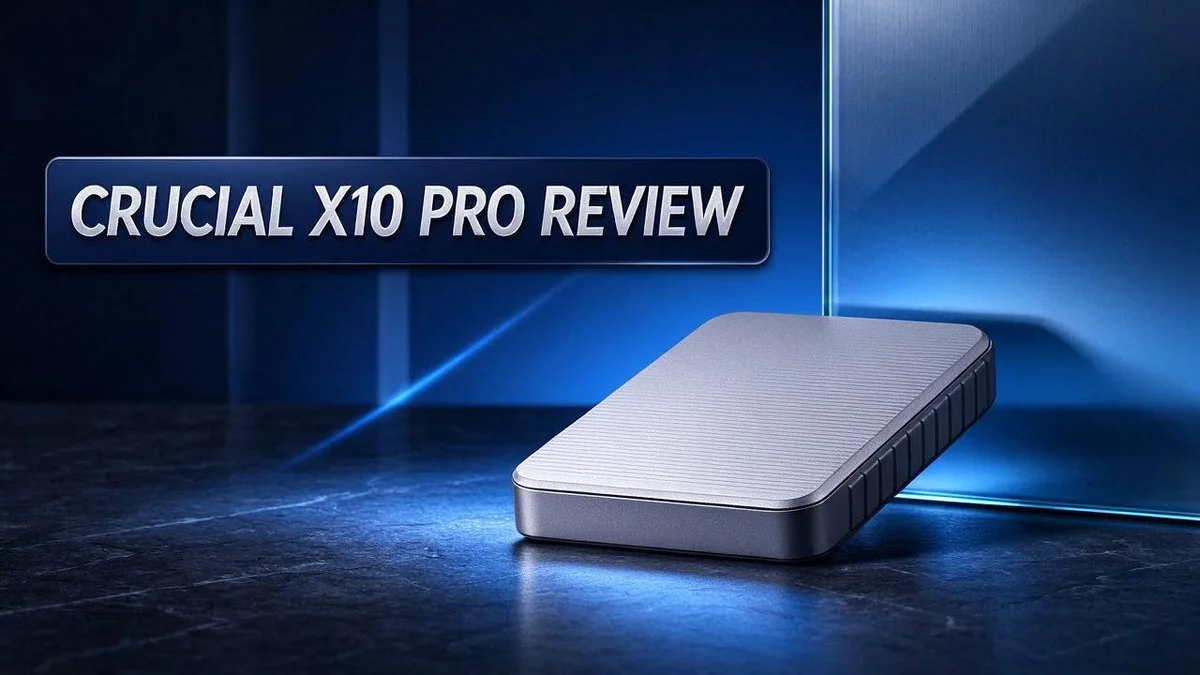
Crucial X10 Pro Review: Speed, Durability and Verdict for Portable SSDs
Tired of slow external drives that hold you back? You need a portable SSD that keeps up with your work. The Crucial X10 Pro might be the answer.
Fast transfers make a real difference. Moving large video files or game libraries takes seconds instead of minutes.
This drive uses the USB 3.2 Gen 2×2 standard. Reports show read speeds up to 2,100 MB/s and write speeds up to 2,000 MB/s.
Built for life on the go, it feels compact and rugged. It resists drops up to 2 m and carries an IP55 rating for water and dust.
Capacities range from 1TB to 8TB, so you can pick the space you need.
Plug it in and it works across platforms. Keep reading to see how it stacks up against rivals like the SanDisk Extreme V2 and Samsung T7.
In a Nutshell
-
Read speeds reach up to 2,100 MB/s. Editors can offload footage and keep working. Write speeds reach 2,000 MB/s, which helps during backups too.
-
IP55 rating keeps dust and water out. Rain, sand, and dusty job sites pose little risk. You can carry it on outdoor shoots with less worry.
-
Drop protection reaches up to 2 m. A fall from a backpack or desk will not stop your drive. Your files stay safer during busy travel days.
-
Two models stand out in testing. The 2TB model CT2000X10PROSSD9 and the 4TB version were both reviewed. Each one suits a different storage need.
-
The box has a cable gap. No USB A cable comes included. USB4 support is also missing, so check your laptop ports first.
-
Strong rivals deserve a look. SanDisk Extreme V2, Samsung T7, and SanDisk Creator Pro all compete closely. Compare them side by side before you decide.
Storage Capacity and Options

- Ultra-fast Speeds: Designed for professional creators, this external SSD delivers fast data access with up to...
- Built to Last: Perfect for field work and all-weather shoots with IP55 water and dust resistance. Plus, drop...
Last update on 2026-11-26 / Affiliate links / Images from Amazon Product Advertising API
Choosing the right size starts with your files. Think about how much data you create each month. Photo libraries, raw video, and large game installs grow faster than most people expect.
A 1TB model suits students and light users. It holds a few active projects and a solid backup of important documents. Smaller space also keeps the drive simple to manage for beginners.
The 2TB model, CT2000X10PROSSD9, sits in the middle. Many creators find it a comfortable balance. It holds several video projects at once without constant cleanup.
Bigger models fit heavy workloads. The 4TB version gives room for full photo archives and long video shoots. Moving files off a laptop becomes less of a chore.
The 8TB top model suits large teams. It offers the most room in the lineup. Studios and families with huge media libraries often choose this size.
Higher capacities also help with planning ahead for new hobbies. You can store entire game libraries and keep older projects close by. That saves time when you need a file from last year.
Leave some free space on purpose. Drives often run best when they have room to breathe. Keeping a buffer makes file management easier and reduces clutter.
A quick estimate helps too. Multiply your average file size by the number of files you expect to keep. Add twenty percent for growth. That number guides your choice.
Consider how you will split your data. Some people use one drive for active work and another for backups. Others assign one drive per client or per season of footage. Both methods keep files organized. Label each drive clearly so you never lose track.
Start small and expand later. You can add a second drive whenever your needs grow. This approach keeps your setup flexible as your library grows.
Your best choice depends on your daily habits. Map out your file sizes, count your projects, and pick the capacity that fits your next year of work.
Speed and Transfer Performance
Speed only helps when your setup can keep up. Your computer needs a port that matches the drive’s speed level. A slower port will hold the drive back, no matter how fast it is.
The write speed deserves attention too. The drive writes at up to 2,000 MB/s, so saving new files happens quickly. Camera cards clear faster, and you can get back to shooting sooner.
Reads and writes matter in different ways. Reads help when you open files or run programs from the drive. Writes help when you save footage or back up folders. Think about which task you do most often.
Sustained speed tells a fuller story. Short tests often look impressive. Long transfers, however, show how a drive handles heat over time. Large jobs that run for several minutes may show steadier results than quick bursts.
Cable choice affects your results as well. A cable must support the same speed standard as the drive. Low quality or old cables can cause slow transfers, even when your computer and drive are both fast.
Heat plays a quiet role in performance. Keep the drive out of direct sunlight and away from hot car dashboards. A cool drive is more likely to keep its top speed during a long copy.
USB4 ports need a closer look. Many newer laptops use USB4 ports. This drive connects to them without trouble, but it does not use USB4 features. You will get the speed the drive supports, nothing more.
Plug the drive straight into your computer when possible. Hubs and docks share bandwidth with other devices, which can lower your speed. A direct connection gives the drive the most room to work.
Test your own results. Published numbers come from one source, so your results may differ. A free benchmark tool can show your real transfer speeds. Run a test with a large file to see how your setup performs.
Good habits protect speed over time. Eject the drive safely before unplugging it. Keep your system software updated so your ports work correctly.
Design and Durability
The X10 Pro fits easily into a jacket pocket or a small bag. Its compact body saves space in a laptop case. You can toss it in with cables and chargers without a second thought.
The shape feels comfortable in your palm. Smooth edges help it sit flat on a desk. It will not roll away when you set it down.
The compact body keeps the port area stable. Your cable stays snug during long transfers. Loose connections can wear out a port over time, so a firm fit matters.
Think about how you carry it every day. A soft pouch adds a layer of cushioning. Keep the drive away from keys and coins, since sharp objects can scratch the outer surface.
A small case helps most people. It keeps the drive from knocking against metal objects. It also keeps dust off the port.
Daily habits shape how long any drive lasts. Store it in a dry spot away from direct sunlight. Avoid leaving it in a hot car.
Handle the cable with care. Pulling hard on the cable can stress the connector. Gently unplug the drive by holding the body instead.
Long term, storage habits matter more than most people expect. Many users never think about placement until a problem appears. Small routines protect the drive from everyday bumps.
Look at the shell after a few months. Check for scuffs, loose parts, or dust near the port. Clean gently with a soft, dry cloth.
Design choices also affect how the drive feels in use. Lightweight bodies travel well but may feel less solid to some people. Your own habits decide whether that balance suits you.
Some users keep the drive on a desk all day. Others carry it between home, school, and work. Both routines work well when the drive stays clean and secure.
Good design gives peace of mind on busy days. A compact shape, a firm port fit, and simple care keep the drive ready. Pick a setup that suits how you move through your week.
Top 3 Alternatives
Looking for a fast and reliable external drive? These three alternatives offer speed, portability, and solid storage. Each one suits a different type of user.
Samsung T7 Shield

- GO THE DISTANCE: Withstand whatever adventure with the wildly reliable T7 Shield; It’s designed for the...
- YOUR CONTENT CAPTURED: Take on the project, then transfer all your heavy files within seconds with the USB...
Last update on 2026-11-26 / Affiliate links / Images from Amazon Product Advertising API
The Samsung T7 Shield is a tough little drive built for everyday use. Its rugged shell resists drops, dust, and light water splashes.
Most users like its fast file transfers over USB. Setup takes seconds, so you can start saving files right away.
SanDisk Extreme Portable

- NEARLY 2X FASTER THAN OUR PREVIOUS GENERATION(8) – move 1,000 high-res photos in under 60 seconds(6) with up...
- IP65 RATING AND UP TO 3M DROP PROTECTION(3) – protects against spills and drops.

Last update on 2026-11-26 / Affiliate links / Images from Amazon Product Advertising API
The SanDisk Extreme Portable suits photographers and video creators. It offers quick read and write speeds for large media files.
Its compact body fits easily into a bag or pocket. A sturdy design also helps it handle bumpy trips.
WD My Passport SSD

- Blazing fast NVMe technology with speeds of up to 1050MB/s and write speeds of up to 1000MB/s. | Based on...
- Password enabled 256-bit AES hardware encryption
Last update on 2026-11-26 / Affiliate links / Images from Amazon Product Advertising API
The WD My Passport SSD keeps things simple. It works well for backups and everyday storage.
Many people choose it for its sleek look and steady performance on laptops and desktop computers. Some models also offer password protection for private files.
Compatibility and Setup
Most people plug the drive in and start copying files right away. Still, the first setup matters more than many people think. A few quick checks can prevent surprises later.
Check your operating system first. Windows, macOS, and many Linux systems can read the drive. The file system decides which devices can write to it.
Choose a format that fits your devices. The exFAT format works well on both Windows and macOS. Other formats may limit access on some computers.
Formatting erases everything. Reformatting removes all files on the drive. Copy your important data somewhere safe before you change the format.
Phones and tablets need extra care. Support depends on the device and the app you use. Check your phone settings before you connect the drive.
Watch the power supply. Some USB hubs share power among many devices. The drive may not receive enough power through a crowded hub.
Use the backup tools you already have. Time Machine on macOS and File History on Windows can store backups on the drive. Set them up after you format the drive.
Create a simple folder plan. Make separate folders for photos, videos, and documents right away. Clear folders make files easier to find later.
Eject before you unplug. Use Eject on macOS or Safely Remove Hardware on Windows. This step protects your files during active transfers.
Test with a small file. Copy one small file, open it, and confirm it works. This quick check proves the setup works before you move large projects.
Check the capacity in system tools. Disk Utility on macOS and Disk Management on Windows show the drive’s full size. Confirm that the listed size looks right.
Keep your operating system updated. Current systems handle external drives more reliably. Updates also fix common connection issues.
Plan for future computers. Keep the original format in mind when you upgrade your computer. A format that works on your old system may still work on your new one.
Setup takes only a few minutes. With these steps, you can start working with confidence.
Pros and Cons
Pros
- The drive delivers top speeds over USB 3.2 Gen 2×2.
- It is compact and fits easily in a pocket.
- The rugged shell resists drops up to 2 m.
- An IP55 rating handles water and dust.
- It works right away on most computers.
Cons
- The box does not include a USB A cable.
- You need a matching USB C port to reach the top speeds.
- Some newer USB4 setups cannot use the drive’s full capabilities.
Who Should Buy It
The Crucial X10 Pro suits people who move large files often. Its top speeds help when time matters most.
Video editors are a strong match for this drive. A single 4K project can reach hundreds of gigabytes, so fast transfers save real time.
Pulling footage from cameras also feels much quicker. Editors can spend more time cutting scenes and less time waiting.
Photographers who shoot in bursts will appreciate it too. Memory cards fill fast, and offloading a full day of images takes far less time.
Students and remote workers often carry projects between home and school. A fast drive keeps that routine simple.
Mixed device households also benefit here. A person who swaps between a Windows PC, a MacBook, and a Linux machine can use one drive for everything.
Field workers who collect data on location need quick access. Large sensor and drone files pile up fast, so a quick, durable drive suits them well.
Small business owners handling client media can use it for deliveries. Fast copying helps them meet tight deadlines.
Travelers who record 4K video can offload footage quickly each evening. Fewer delays leave more room for enjoying the trip.
Anyone who dislikes complicated setup will appreciate this. Plug and play support works with most common systems.
Some people will not need this level of performance. Casual users who only store documents and photos may never notice the speed difference.
A simpler drive could meet their needs well. Before buying, list the files you copy each week. Heavy weekly transfers justify the speed, while light use may not.
Overall, creators and frequent transfer users gain the most. Everyone else should compare their daily habits before deciding.
Final Verdict
The Crucial X10 Pro earns a strong recommendation. It gives you fast transfers, a tough body, and simple setup in one small package.
Think of this drive as a dependable partner for heavy file work. It keeps pace with large projects and rarely leaves you waiting.
Your final choice depends on your daily habits. A drive should match how you work, not force you to change your routine.
Ask yourself three quick questions before you buy. Do you move large files every week? Does your computer have a USB C port ready? Will the drive travel with you often?
If you answered yes to most of these, the X10 Pro makes a smart pick. You also get room to grow, since capacities range from 1TB to 8TB.
Still, compare it with other options before you commit. The SanDisk Extreme V2, Samsung T7, and SanDisk Creator Pro all deserve a look. Each one blends speed, size, and design in its own way.
Shop around for the best fit. Put the specs side by side and read recent user feedback. This quick check helps you avoid regret later and gives you confidence in your choice.
Think about the long run too. A drive that handles today’s footage should still fit your needs as your files grow. Plan for future storage now, and you will avoid a rushed upgrade later.
A good drive should feel like part of your toolkit, not a burden to carry. Look for a model that disappears in your bag and works quietly in the background.
In short, the Crucial X10 Pro suits creators and professionals who value speed. It also serves anyone who wants a reliable companion for storing and moving important work. Make your decision with confidence, and enjoy faster file transfers every day.
Frequently Asked Questions
What sizes does the Crucial X10 Pro come in?
The drive comes in capacities from 1TB to 8TB. Reviewers tested a 2TB model, CT2000X10PROSSD9, and a 4TB version. Pick a size that fits your current projects and leaves room for new files.
How fast is the X10 Pro on paper?
The listed speeds reach up to 2,100 MB/s read and 2,000 MB/s write. These numbers come from one source. Your real results depend on your port, your cable, and the type of files you copy.
Does the X10 Pro handle rain and dust?
Yes, it carries an IP55 rating. This means it resists dust and water sprays. It does not mean the drive is safe underwater, so keep it away from pools and heavy downpours.
How does it compare with other portable drives?
Top rivals include the SanDisk Extreme V2, the Samsung T7, and the SanDisk Creator Pro. Compare them side by side on size, speed, and build quality. Each one suits a different kind of work, so match the drive to your daily needs.

Dillip is the founder and editor of DillipWeb.com, where he simplifies the world of AI software, tech gadgets, and accessories through honest reviews, detailed comparisons, and easy-to-follow guides. With a deep passion for emerging technology, he helps everyday users make smarter, more informed tech decisions.