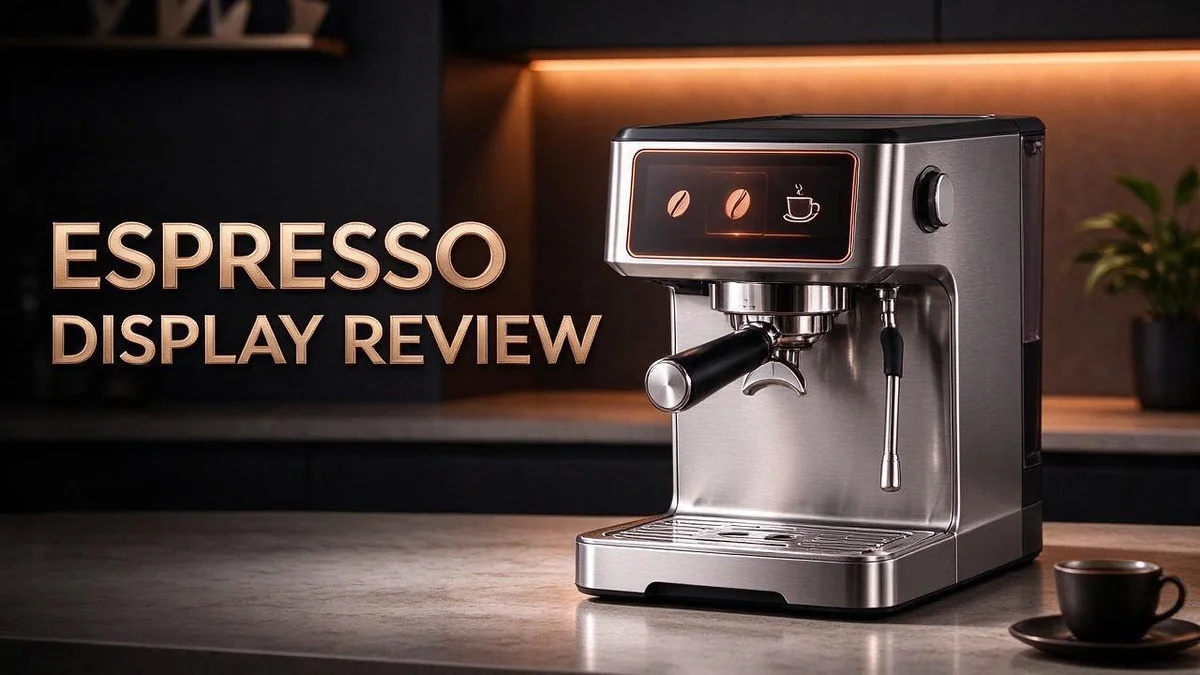
Espresso Display Review: Is This Portable Monitor Worth Buying?
Looking for a screen that fits your work and your desk? The Espresso Display might be the answer you need.
Many creators and office workers want a clear, bright monitor. They also want something easy to move. This is where the Espresso Display stands out.
The lineup includes three main models. The Espresso Pro 17 offers 4K resolution in a portable design. The Espresso 13 Touch and Espresso Lite 15 offer other options for different needs.
The display feels thin and light. At just 5.4 mm thick, it slides into your bag with ease. Strong colour accuracy and a bright, clear panel make every task look sharp.
Want to know if this display suits you? Keep reading. We cover the key features, pros, cons, and top alternatives so you can decide with confidence.
In a Nutshell
- Touch support lets you tap, swipe, and draw right on the screen. This feature helps when you edit photos or sketch ideas fast.
- Strong colour accuracy shows your work the way it really looks. Designers and photographers can trust what they see, and good colour helps match prints and client work.
- Tight software integration keeps setup simple and smooth. Your display pairs well with the tools you use every day.
- Excellent build quality gives the screen a solid, premium feel. It handles daily trips and busy desk life with ease.
- Versatile stands help you find the right height and angle. The optional magnetic Stand+ adds even more flexibility, so your setup feels comfortable during long work sessions.
- Other choices include the ViewSonic VX1655-4K-OLED and SOTSU FlipAction Elite 16 for portable use. Desktop shoppers can also compare BenQ, Asus, Dell, and Lenovo models.
Design and Build
Good design shapes how a screen feels day after day. The Espresso Display pays attention to small details that make daily use easier. Many people overlook these details until they need them.
The magnetic Stand+ option is a smart touch. It attaches with magnets, so you can switch between a portable setup and a desk setup quickly. Less fuss means more time for your work.
Think about how you move your display. If you carry it between a home office and a café, the magnets save time. You can also lay the screen flat on a table when space runs short.
Eye level matters for neck comfort. Place the top edge near or slightly below eye height so you do not tilt your head all day. Long sessions feel easier when your body stays relaxed.
Cable management deserves more thought than most buyers expect. Check how the cords leave the back of the screen. Neat routing keeps wires out of sight and off the floor, so your desk looks calm.
Port placement also affects daily comfort. Ports on an easy-to-reach edge save you from reaching behind the screen. When you compare any display, look at where the ports sit before you buy.
Surface finish changes the viewing experience too. A clear screen can show reflections in a sunny room. Position the display away from bright windows so glare stays low and your content stays easy to read.
Handling matters as well. Fingerprints show up on some glossy surfaces, so keep a soft cloth nearby. Hold the panel by its edges when you adjust it, and avoid pressing on the middle.
Overall, the design supports both mobile and fixed work styles. You get a flexible tool that adapts to your space. If you can, try the setup in person, so you feel the weight and the magnetic pull for yourself.
Display Quality and Colour Accuracy
Sharp detail matters more than many buyers expect. When you edit photos or review layouts, tiny lines and fine text need to stay clear. This screen handles that job well.
The Espresso Pro 17 uses 4K resolution, which packs more pixels into the same panel area. That density keeps small icons and text crisp.
Full HD is also available. It suits everyday tasks like browsing, writing, and video calls. Pick the option that matches how you work.
Brightness keeps images lively. The bright panel stays easy to read in well lit rooms. Your work looks clear even in a sunny studio.
Colour accuracy depends on more than the panel alone. Consistent tones matter just as much. A screen should show the same shades each time you open a file.
Calibration helps keep those shades steady over time. A hardware calibrator reads the screen and adjusts the output. Run it every few weeks for the best results.
Viewing angle changes colour too. Some panels shift tone when you look from the side. Sit close to your usual eye level and check your work from there.
Room lighting plays a big role as well. Warm bulbs can make a neutral grey look slightly yellow. Judge colour under the same light your clients use.
Contrast helps shadows and highlights separate. Dark scenes show more detail when black levels stay deep.
Try a quick test first. Open a grey gradient and a colour chart. Look for banding, uneven tones, or strange tints across the panel.
Test with your own photos or designs too. Sample images can hide problems that appear in your real work.
Good display quality gives you confidence in every file. Pair the screen with steady calibration and smart lighting for the best outcome. Your eyes adjust fast, so take short breaks before judging colour.
Connectivity and Stand Options
Connecting your display should feel quick and simple. Start by thinking about the device you use most. A laptop, tablet, or desktop each links up in its own way. Test the connection before you commit to a desk layout. Some setups need a little extra time at first. Take your time and check each link. Good planning avoids surprises later.
Stand options change how you work. A stand shapes your posture, your view, and your desk space. Some people prefer a stand that stays put. Others want the freedom to move the screen often. Ask yourself which habit fits your routine best.
A sturdy base matters more than most buyers expect. It keeps the screen steady when you tap or draw on it. Wobble makes touch input feel less precise. Watch for tilt locks that feel firm and secure. Check how far the stand tilts forward and back. A small tilt range can limit your angle in bright rooms. Also look at how high the stand lifts the panel.
Low stands suit a laptop on a shelf. Higher stands suit long writing sessions at a desk.
Desk space matters too. A compact footprint leaves room for notebooks and coffee cups. Measure your desk before you pick a size or stand style. Keep the stand base clear of cables so it sits flat.
Portable use brings new needs. If you take the screen out of the house, pack light. Keep the cable and adapter in a small pouch. Pack a soft sleeve to guard the screen during travel. Try a dry run at home before a trip to a café. A quick test reveals gaps in your setup.
Good connectivity and a steady stand make daily use easy. Take a few minutes now, and your setup will feel comfortable for years.
Top 3 Alternatives
Breville Barista Express

- MANUAL HAND-TEXTURED MICROFOAM: The powerful steam wand on this cappuccino maker and latte machine is designed...
- PRECISE DOSE GRINDING: Integrated precision conical burr grinder on bean-to-cup espresso machine grinds on...

Last update on 2026-11-27 / Affiliate links / Images from Amazon Product Advertising API
The Breville Barista Express suits people who want café drinks at home. It has a built-in grinder, so you grind fresh beans right before brewing.
Its steam wand helps you texture milk for lattes and cappuccinos. Beginners learn fast, and experienced users can fine-tune every shot.
De’Longhi Stilosa

- Includes Portafilter, measuring scoop/tamper and two filters for single or double espresso
- Stainless steel boiler is engineered to last long and work for years
Last update on 2026-11-27 / Affiliate links / Images from Amazon Product Advertising API
The De’Longhi Stilosa is a simple machine for new espresso fans. Its compact body fits well on small kitchen counters.
Easy controls make daily brewing quick and stress-free. It also heats up quickly, so you can start your morning without a long wait.
Rancilio Silvia
The Rancilio Silvia is built for people who love hands-on brewing. Its solid metal build can last for many years.
Once you learn its rhythm, you can pull shots that rival your favorite cafe. Its heavy frame stays steady on the counter during long brewing sessions, and many home baristas choose it because it rewards practice and patience.
Power Draw and Efficiency
A low power draw helps every working day. The Espresso Display uses little power during normal use. Many people keep a screen on for hours, so this detail adds up quickly.
Brightness plays a big role in energy use. Screens use more power when they shine at full strength. Lowering the brightness for indoor work saves energy. Save the highest settings for bright sunlight or detailed colour checks.
Your daily tasks change the energy picture. Editing photos keeps the panel busy for long stretches. Writing documents or reading email asks far less from the screen. Think about your usual tasks before you judge the power use.
Portable use benefits from efficient hardware. When you run the screen from a power bank or a laptop port, a low draw stretches your battery. You can work longer away from a wall socket. This makes café sessions and train rides more comfortable.
Standby habits matter too. Turn the display off when you step away for lunch. Simple habits reduce wasted energy over a full week. A quick switch saves power without any extra gear.
Heat and power go hand in hand. Devices that draw less power usually produce less heat. A cooler panel feels more comfortable during long sessions. Less heat also means the screen runs under less stress.
Check the power adapter before you connect. Use the adapter that comes with your display when possible. Matching power levels helps the device run as designed. If you need a replacement, confirm the rating first.
Efficiency supports a calmer workspace. A display that runs cool and draws little power fits well in a home office. It also suits shared studio spaces where many devices compete for outlets. Plan your setup, and the screen will fit into your routine with ease.
Software and Touch Experience
Touch input changes how you use the screen. Many people reach out to tap a page instead of clicking. The Espresso 13 Touch supports this habit with quick, direct control.
Touch works well for simple moves like scrolling, zooming, and opening files. You can pinch to zoom on photos and swipe through long documents. Your hand stays close to the work, so you lose less time.
Gestures take a little practice. Start with tap and scroll, then add pinch and swipe later. Small steps build confidence and keep frustration low.
Finger input helps creative work. Sketching and marking up notes feel natural when you touch the glass directly. Quick gestures let you change tools without leaving the canvas.
Software integration keeps everything in sync. The display works closely with your operating system, so settings feel familiar. You adjust options in one place instead of hunting through menus.
Touch needs the right software setup. Check that touch input is switched on in your system settings if taps do not respond. Keep your graphics driver up to date so gestures stay smooth and accurate.
Build quality supports frequent touch use. Regular tapping puts wear on a screen and frame. A solid build keeps the display feeling steady, even after long sessions.
Reach matters when you tap a screen. Touch works best when the display sits at a comfortable distance. Hold your arm close to your side and keep taps short and light.
Touch and keyboard work well together. Type with the keys and select, drag, or scroll with your fingers. Many users find this mix comfortable.
Ease of use suits new and experienced users. Basic gestures need no training, so family members can start right away. Give touch a full week of daily use and notice how it changes your routine.
Pros and Cons
Pros
– Strong colour accuracy helps photo and design work look true to life.
– The bright, clear display stays easy to read in busy rooms.
– It feels lightweight when you carry it between desks or rooms.
– The excellent build quality holds up to daily travel and use.
– It is easy to use right out of the box.
Cons
– Full HD models show less fine detail than the 4K Pro 17.
– The magnetic Stand+ option is an extra part you may need to add.
– Desktop buyers may want a larger screen than the portable models offer.
Who Should Buy It
This display suits creators who work on the move. Freelance photographers, video editors, and designers often change locations. A portable screen gives them extra room wherever they set up.
Students can benefit too. A second screen helps with notes, research, and reading long documents side by side. The screen can travel in a bag with a laptop.
Remote workers who split time between home and cafés will like it. Two screens make video calls, spreadsheets, and documents easier to manage. Setup stays simple at each new spot.
Coders and analysts may also find value here. Code can sit on one side while a browser or data sheet sits on the other. This layout cuts down on constant tab switching.
Creative professionals on tight deadlines often keep reference images open beside their main work. Having inspiration visible helps the workflow stay smooth. Teams that present to clients on the road can also use the extra screen during meetings.
Desk-bound users should look at other options first. If you rarely leave one workspace, a larger monitor may suit you better. Models like the BenQ PD2725U and Dell UltraSharp U2723QE offer a different size and setup.
Shoppers who want one main screen should compare carefully. This line works best as a companion display for extra space. Think about where you work most often before you choose.
Choose this display if you:
Move between offices, studios, or home regularly.
Need a second screen for creative or multitasking work.
Want touch input on a portable panel.
Your daily routine should guide the final choice. Pick the model that fits your workload and travel habits. A clear plan leads to a confident decision.
Final Verdict
Our final verdict is clear. The Espresso Display earns a spot on your shortlist if you need a screen that travels well. It suits people who want one sharp panel for work on the road.
Think about your daily routine first. If you move between offices, client sites, and home, a portable screen saves real effort. You carry less, set up faster, and keep your workflow intact.
The Espresso Pro 17 sits at the top of the range. Its 4K panel gives the most fine detail, so it suits photo edits and detailed design files. The Espresso 13 Touch and Espresso Lite 15 serve lighter daily tasks.
Compare before you commit. Rivals such as the ViewSonic VX1655-4K-OLED and the SOTSU FlipAction Elite 16 also target portable users. Check screen size, panel type, and stand options side by side.
Desktop shoppers should look elsewhere. Models like the BenQ PD2725U, Asus ProArt PA279CV, and Dell UltraSharp U2723QE give a fixed setup more screen space. Those choices suit people who rarely leave one desk.
Make a quick checklist. Confirm that your laptop has the right ports. Test touch input in your system settings. Decide whether you need the magnetic stand before you order.
Think about the long run. A portable screen works hard over years of travel. Look for a warranty that covers daily wear. Read reviews from people who used the screen for several months.
Battery and power needs also matter. Carry a compact cable so you can connect quickly at any desk. A light charger keeps your bag easy to carry on long trips.
In short, this display rewards mobile creators and hybrid workers. It delivers a clean, capable screen that goes wherever you go. Try it for a week if you can, then decide. Pick the model that fits your tasks and your travel habits.
Frequently Asked Questions
Which model should a first time buyer choose?
Start with how you plan to use the screen. The Espresso Lite 15 suits simple, everyday tasks. The Espresso Touch 13 suits people who want hands-on control.
Think about where you will use it most. A clear choice now saves you from returning the screen later.
Does the touchscreen help with sketching or marking up files?
Yes, the touch support lets you tap, swipe, and mark up files right on the glass. This feels more natural than moving a cursor around with a mouse.
Students and designers often use touch to highlight notes during a meeting. It keeps your hands busy in a useful way.
Is the display thin enough to fit in a bag?
Yes, the screen measures only 5.4 mm thick. It slides easily into a laptop sleeve or a crowded backpack.
That extra space leaves room for chargers, cables, and a notebook. Your bag stays comfortable even on long trips.
Will it drain my laptop battery during a long day?
The display uses low power, so it puts less strain on your laptop battery. This helps you work longer between charges.
Still, pack a charger for long days away from outlets. A quick top up keeps your setup running smoothly.

Dillip is the founder and editor of DillipWeb.com, where he simplifies the world of AI software, tech gadgets, and accessories through honest reviews, detailed comparisons, and easy-to-follow guides. With a deep passion for emerging technology, he helps everyday users make smarter, more informed tech decisions.