KTC H27T22 Review: 27-Inch 1440p 165Hz Gaming Monitor Tested
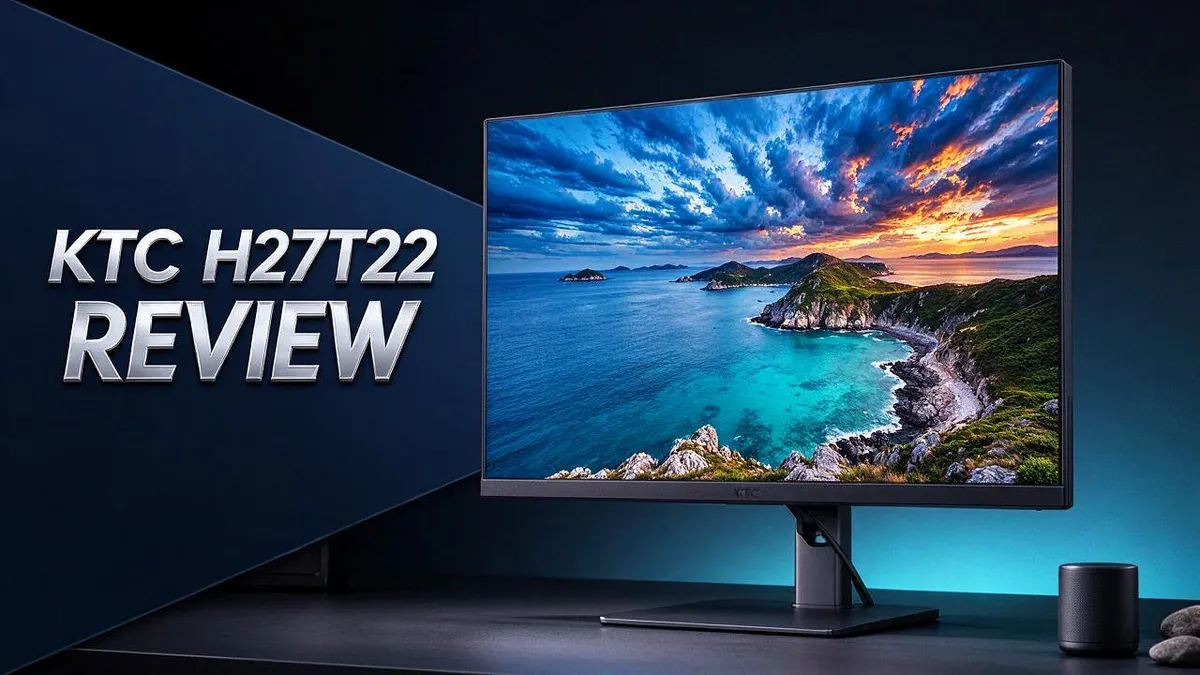
Gamers want smooth motion and sharp detail. The KTC H27T22 offers both in one clean package. It is a 27 inch screen that shows crisp 1440p visuals for games and movies.
Many players look for a monitor that keeps up with fast action. This model runs at a 165Hz refresh rate and supports FreeSync. That means fewer screen tears and smoother frames during intense matches.
The panel uses IPS technology. Colors look rich, and the screen coating adds to the overall quality. Response time feels quick, so moving objects stay clear.
Console players also get a useful extra. A 4K 60Hz supersampling mode gives consoles a sharper image on this display.
Want to know if this monitor fits your setup? Keep reading. This review covers the key specs, real strengths, and who should buy it.
In a Nutshell
-
Model variants need a closer look: Listings name the H27T22C and the H27T22C 3 version, and each one shows a different refresh rate. Confirm the exact model number before you decide, since the details can change between sellers.
-
Contrast figures differ across sources: Some pages show a 1000:1 contrast ratio, while others list 1300:1. Check the official spec sheet for the final number.
-
Color quality stands out: Testers highlight good color quality and a helpful screen coating. These features matter most for photo editing, movies, and games with bright scenes.
-
A sibling model offers a lower option: The KTC H27T7 runs at 100Hz. Players who want a simpler setup may find this model a better match.
-
Rival monitors fill the same space: The Gigabyte M27Q Pro and Philips 27E1N5900R often appear in side by side comparisons. Reading those reviews can help you compare features directly.
-
Mixed labels can cause confusion: One video calls the panel OLED, which conflicts with the IPS listing. Trust the manufacturer details over casual video titles.
Panel and Picture Quality

- Stunning Visuals: Equipped with a 27-inch HVA panel, QHD (2560x1440) resolution and 144Hz high refresh rate...
- Outstanding Image Quality: Boasts 129% sRGB wide color gamut (8-bit) to reproduce rich and lifelike colors...
Last update on 2026-11-26 / Affiliate links / Images from Amazon Product Advertising API
Picture quality starts with the panel. At 27 inches, 1440p packs pixels tightly together. Text and icons look crisp, so web pages are easy to read without squinting.
The sharp look also helps during everyday work. Spreadsheets, code, and documents show clean lines at a normal desk distance. Most people sit about an arm’s length away, and this screen size fits that space well.
Viewing angles matter too. Because the panel is IPS, colors hold steady when you lean in or sit off to one side. Friends sitting next to you can still see the same image without a big shift in tone.
Dark scenes tell a different story. Black areas often look more like dark gray, especially in a dim room.
Lighting makes a clear difference. Turning down the room light can help you see shadow detail better. Games with dark corridors benefit most from this simple change.
Brightness settings deserve a look. Start with the default mode, then adjust brightness until dark areas show detail without washing out bright areas. Small changes make a visible difference in movies and games.
Color accuracy improves with a few tweaks. Choose a standard or sRGB preset if colors look too bold. Skin tones and grass often look more natural that way.
Sitting too close can make the image feel less balanced. Keep a steady distance so the full picture stays even across the screen.
Lighting placement matters as well. Position the monitor away from windows so sunlight does not hit the screen directly. Glare can wash out colors and hide dark detail.
Overall, the panel gives a strong base for daily use. Good text clarity, steady colors, and simple setting changes help the picture look its best. Spend a few minutes adjusting the screen, and you will notice the difference.
Refresh Rate and Motion Clarity
Refresh rate decides how often the screen draws a new image. The KTC H27T22 reaches 165Hz, which gives moving objects a steady flow. Each new frame arrives sooner, so quick camera turns feel more natural.
Motion clarity depends on more than the number on the box. Your graphics card must push enough frames to fill that rate. When frame output drops below 165 per second, the extra speed goes unused.
FreeSync helps by syncing the monitor with your graphics card. This removes screen tearing, which shows up as a split image during sudden pans. Less tearing means cleaner edges when you spin the camera in a shooter.
Motion blur is a separate issue. Even a fast panel can smear moving objects. Many monitors include an overdrive setting or a blur reduction mode. Test each option in your favorite game, then keep the one that looks clearest.
Overdrive needs care. Strong settings can cause bright trails or inverse ghosting behind moving objects. Start at a middle level and raise it slowly. Watch the edges of characters and vehicles for halos.
Frame rate matching matters for video too. Movies and shows usually play at 24 or 30 frames per second. A 165Hz screen handles them without trouble, although the picture does not gain extra detail. Your eyes still get a calm and even image.
Competitive players often chase the highest possible refresh. Casual players may notice less difference. Either way, the H27T22 gives a clear step up for quick action games, racing titles, and fast-paced sports.
Test the setup yourself. Open a game with fast movement, then move the camera left and right. Look for smearing, tearing, or stutter. Give each adjustment a few minutes, because small changes in cable choice or graphics settings can shift results.
Ports, Modes and Console Compatibility
Start with the right cable. Your cable decides what the screen can show. Check the rear panel to see which inputs the monitor offers before you connect anything.
Use a PC for the full 165Hz. A PC can send the top refresh rate. Open your display settings and choose the highest refresh rate in the list. Windows often starts at 60Hz, so this step matters.
Consoles stay at 60Hz. Most consoles do not send 165Hz. The console mode on this monitor runs at 4K 60Hz, which gives your console a sharp picture on the 1440p panel.
How the 4K mode works. The console sends a 4K image. The monitor then scales it down to fit its 1440p panel. This process is called supersampling, and it can smooth out jagged edges in many games.
Turn on the mode in the menu. Open the on-screen menu and look for the input or picture section. Select the console or 4K option there. Setting names can differ, so check the manual if you feel lost.
Match the console output too. Your console also needs a matching output setting. Choose 4K at 60Hz in the video menu. Leave higher refresh options off, since this mode stays at 60Hz.
Switching between devices is easy. Use the input button to move between your PC and console. You do not need to unplug anything each time you switch.
Check the input after each change. A blank screen often means the source uses a signal the cable cannot carry. Try another cable or mode and see if the picture returns.
Keep the setup tidy. Short cables work well for most desks. Long runs can cause signal trouble, so keep the connection simple and sturdy.
Test with a game you know. Pick a game you already know well. Look at text, edges, and small details. This shows you whether the chosen mode suits your eyes and your setup.
Top 3 Alternatives
LG UltraGear 27GP850

- Vivid Colors and Sharp Details - Nano IPS technology supports the express high-fidelity color for reproducing...
- Gaming Innovation Beyond Boundaries - Complete your battle station with a premium LG UltraGear Gaming Monitor...
Last update on 2026-11-26 / Affiliate links / Images from Amazon Product Advertising API
The LG UltraGear 27GP850 offers a sharp 1440p display on a 27 inch Nano IPS panel. It runs at a 165Hz refresh rate with a fast 1ms response time. Gamers get smooth motion in fast shooters and racing titles.
It also supports both G-Sync and FreeSync Premium. This helps reduce screen tearing. The stand adjusts in height, tilt, and swivel, so setup feels easy.
ASUS TUF VG27AQ

- High-Resolution QHD Gaming Display: 27-inch QHD (2560 x 1440) gaming monitor with 180Hz refresh rate designed...
- ASUS Extreme Low Motion Blur Sync Technology: ELMB Sync technology enables ELMB and variable-refresh-rate...

Last update on 2026-11-26 / Affiliate links / Images from Amazon Product Advertising API
The ASUS TUF VG27AQ brings a 1440p IPS panel that shows rich colors and wide viewing angles. Its 165Hz refresh rate keeps gameplay fluid. Quick response times keep motion clear.
This monitor works well for mixed use. You can game in the evening and edit photos during the day. Its sturdy build also feels good on a busy desk.
Gigabyte G27Q

- GAME WITH SUPERSPEED IPS PANEL – The GS27QA features a stunning 27-inch SuperSpeed IPS display for the most...
- COMPETITIVE EDGE WITH 180HZ REFRESH RATE AND 1MS RESPONSE TIME – Achieve a super-fast response time and...
Last update on 2026-11-26 / Affiliate links / Images from Amazon Product Advertising API
The Gigabyte G27Q delivers a crisp 2560 x 1440 resolution on a 27 inch screen. Its 165Hz panel makes competitive games feel responsive. Players who want more detail will enjoy the sharp image.
It supports FreeSync Premium for smoother play. The display also has a simple on screen menu. Many users like its clean look and easy controls.
Build, Stand and Ergonomics
Your desk setup shapes how the screen feels every day. A monitor sits in one spot for hours. The stand and frame decide how comfortable that time feels.
The H27T22 has a clean and simple look. It suits most desks without taking up too much space. A neat setup also makes your gaming area feel more inviting.
Start with the height. The top edge of the screen should sit at or just below eye level. This keeps your neck in a neutral position while you play.
Tilt the screen slightly back. A small backward tilt helps you look at the center without lifting your chin. Adjust it until the top of the screen feels easy to read.
Check the stand’s adjustment range before you set up. Some stands move up and down, tilt, or swivel. Read the product listing to see which movements the stand supports.
Stability matters more than many people think. A wobbly base can shake when you type or tap the desk. A firm stand keeps the picture steady during fast action.
Cable management adds a clean finish. Use clips or a cable tray to hold wires along the back edge. Loose cables can catch your foot or pull on the monitor.
Consider a VESA mount if the stand does not fit your desk. A wall arm or desk arm can free up space and give you precise height control. Check the back panel for mounting holes and confirm mount support in the listing.
Dual monitor setups need extra thought. Check the frame width on each side. Narrow edges create a smoother look when two screens sit side by side.
Good posture also depends on your chair. Sit back with your feet flat on the floor. Keep your elbows near your sides and your wrists relaxed on the keyboard.
Take short breaks during long sessions. Look at something far away every 20 minutes. This relaxes your eye muscles and keeps your body moving.
A comfortable stand makes long gaming sessions easier. Spend a few minutes on setup, and your body will thank you.
Pros and Cons
Pros
- The colors look rich and lively in games and videos.
- The screen coating helps reduce glare from lamps and windows.
- Fast scenes feel quick and smooth on screen.
- The IPS panel keeps colors steady when you view it from the side.
- Sharp 1440p detail makes text and game worlds look crisp.
Cons
- Spec listings differ between sellers, so check the exact model before you buy.
- The contrast ratio is listed at modest levels, so dark scenes may look a little gray.
- Some listings mention a different panel type, which can confuse shoppers.
- Few long-term user reviews exist, so real-world durability is still unclear.
Who Should Buy It
Not every shopper needs the same screen. This model suits some people far better than others.
Competitive gamers are the clearest match. The 165Hz refresh rate helps fast shooters and racing titles feel responsive. FreeSync also keeps motion smooth when frame rates change during busy moments.
Your graphics card matters. To reach high frame rates at 1440p, your PC needs enough power. Lowering a few settings can help your games hit those faster speeds.
Players stepping up from a 1080p screen will notice a real change. The extra pixels give games more detail without making the desk feel crowded. Games look sharper, and menus feel easier to read.
Students and home office workers can benefit too. Long reports, spreadsheets, and web pages look clean at this resolution. The larger workspace makes it easier to keep two windows open at once. Text stays crisp, so long reading sessions feel less tiring.
Casual players may not need the top speed. If you mostly play slower games or watch videos, a lower refresh rate may feel just as good. In that case, the sibling KTC H27T7 at 100Hz could be worth a look.
Viewers who want a wider picture should consider a different size. Ultrawide models such as the AOC CU34G4ZCA 34 inch give more side to side space for simulation games and multitasking. Those screens suit people who want more room than a 27 inch panel offers.
Shoppers who want the deepest blacks for movie nights may prefer a different panel type. Dark rooms and film fans often look for stronger contrast than this model can show. Those buyers may want to compare deeper contrast models before they decide.
If your main goal is smooth, sharp play at 1440p, this screen deserves a close look. Pair it with a capable PC, and it can handle both gaming and daily work with ease.
Final Verdict
The KTC H27T22 earns a strong spot on a short list for smooth 1440p play. It delivers quick motion, crisp detail, and a pleasant picture for most everyday uses.
Still, this monitor is not the right pick for every setup. Its listings vary between sellers, so you should confirm the exact model before you commit.
Take a moment to compare the refresh rate, panel type, and contrast ratio on the listing. Those three details tell you what you will actually get at home.
Check your PC before you order. A strong GPU lets the screen show its high frame rates. Without that support, the extra speed sits unused.
Think about your play schedule. Short evening sessions suit it well. Long weekend marathons call for regular eye breaks.
Set realistic goals. Expect smooth play in most titles, not perfect frames in every game. Demanding new releases may need lower settings.
No major drawbacks stood out in the research. Still, the lack of long term data means you should test the screen when it arrives. Try it during your return window if you can.
Console owners get a useful option too. The 4K 60Hz supersampling mode can make games look sharper on supported consoles.
Small upgrades make a big difference. A sturdy mouse pad and good headphones can round out the setup. Good lighting keeps your eyes comfortable during long sessions.
Compare it with two or three rivals. Look at Gigabyte and Philips options side by side. Choose the one that fits your room, your PC, and your habits.
Use this quick checklist before you buy. Confirm the refresh rate in the listing. Check that your PC can drive high frame rates. Measure your desk so the screen fits comfortably.
Our final take is simple. If you want fast, sharp 1440p gaming and you own a capable PC, this screen deserves a serious look. Check the model, plan your setup, and enjoy smoother play.
Frequently Asked Questions
Can I use this monitor with a console?
Yes, it can work with consoles. The screen offers a 4K 60Hz supersampling mode that helps consoles display sharper images. Open your console’s display settings and pick the mode that fits your setup.
How does it compare with the KTC H27T7?
The H27T7 is a sibling model with a 100Hz refresh rate. The H27T22 runs faster, so it suits players who want smoother motion. The H27T7 may work well for people who care less about high frame rates.
Which rival monitors should I compare it with?
Shoppers often compare it with the Gigabyte M27Q Pro and the Philips 27E1N5900R. Each rival has its own panel and feature mix. Line up the features side by side to see which one fits your desk and games.
Is this monitor an OLED screen?
No, most listings describe it as an IPS panel. One video title used the word OLED, which conflicts with those listings. Read the product sheet closely so you know exactly what you get.
Do I need to change any settings to get the best results?
Yes, a few settings make a big difference. Turn on FreeSync in your graphics software so the picture stays smooth during play. Then set the refresh rate to the highest level in your display settings, because many computers start at a lower rate.

Dillip is the founder and editor of DillipWeb.com, where he simplifies the world of AI software, tech gadgets, and accessories through honest reviews, detailed comparisons, and easy-to-follow guides. With a deep passion for emerging technology, he helps everyday users make smarter, more informed tech decisions.