Kinesis Freestyle Review: Is This Ultra-Thin Split Ergonomic Keyboard Worth It?
Typing for hours can leave your wrists sore. Many people search for a keyboard that feels better at the end of the day. The Kinesis Freestyle might be the answer you need.
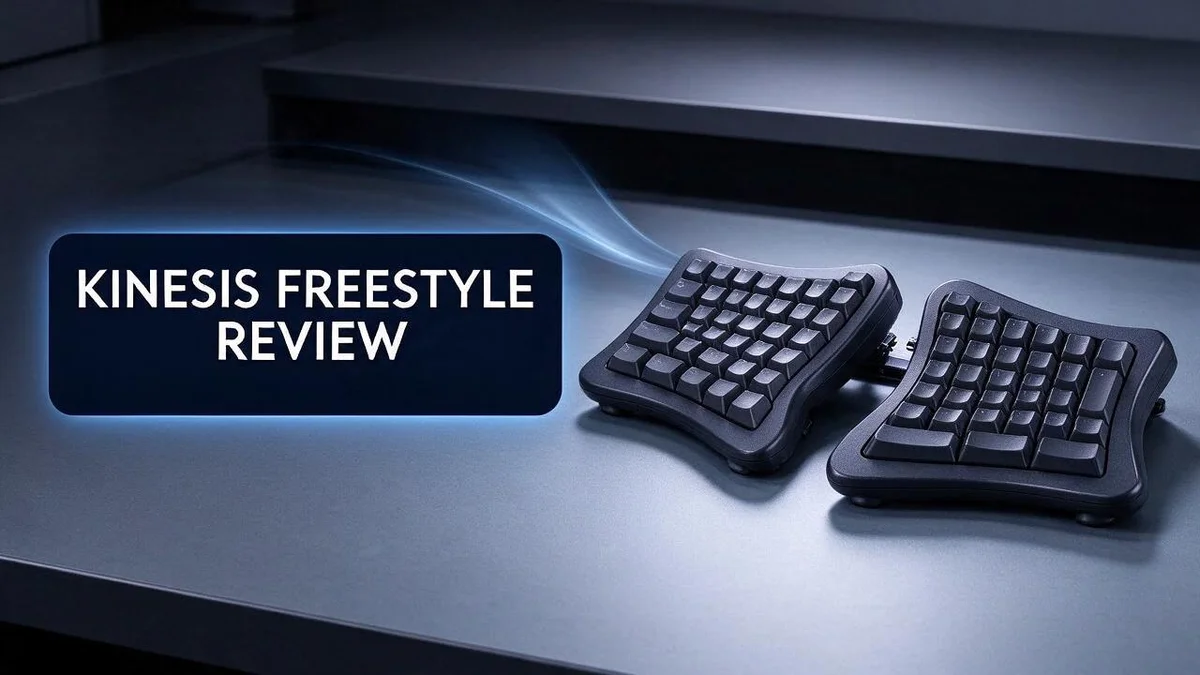
This adjustable split keyboard takes a fresh approach. It is ultra thin, so it sits low on your desk. Its narrow footprint also gives you up to 9 inches of separation between the two halves.
Many users say their hands and wrists feel more relaxed. The keys feel light, and the double wide Delete and Escape keys are easy to hit. Still, some people dislike the key sizes, so let’s look at what makes this keyboard stand out.
In a Nutshell
-
Plug and play setup: The Freestyle works as a standard USB device. Your computer uses its default driver, so you can start typing right away without installing extra software.
-
Slim and narrow design: This board sits much lower on your desk than the original Freestyle Solo. Its compact footprint also keeps your workspace clear.
-
Flexible split width: You can open the gap up to 9 inches. Many people find their own natural stance by adjusting the space between the two halves.
-
Multiple versions to choose from: The Adjustable model connects by USB or Bluetooth. The Form model adds a mechanical build, a touchpad, and wireless use. Both versions work with Mac and PC.
-
A short learning curve: Many new users press keys too hard at first. Light, steady taps build speed and control with regular practice.
-
Layout takes some adjusting: Some users dislike the key sizes and placement. Give yourself a few weeks to adapt before you judge the board. Durability also gets mixed feedback, with one user reporting about 5 to 6 years of use.
Key Layout and Typing Feel

- AWARD-WINNING SPLIT DESIGN: Unlike fixed ergonomic keyboards, the Freestyle2 allows you to rotate and separate...
- STANDARD WINDOWS LAYOUT: The Freestyle2 for PC features a standard Windows layout with hotkeys like Cut, Copy...

Last update on 2026-11-26 / Affiliate links / Images from Amazon Product Advertising API
Your hands stay in a more natural spot. The split layout lets each hand rest on its own side. Your arms can sit closer to your body while you type.
Fingers need time to find new homes. Each key sits in a slightly different place than on a standard board. Expect a few mistakes during the first week.
Muscle memory takes patience. Your brain remembers old key positions for a long time. Slow, steady practice helps new habits form faster.
A steady rhythm feels more comfortable. Many typists find that a calm pace works best. Rushing often leads to missed letters and tense hands.
Symbols and numbers may feel out of reach. Punctuation keys can take longer to learn. Keep a simple cheat sheet nearby for the first few weeks.
Typing sounds change with each press. Lighter keys make less noise than heavier ones. Many people enjoy a quieter workspace while they write.
Your typing speed may dip at first. That dip is normal for almost any new layout. Many people regain their speed after a few weeks of daily use.
Try short sessions to start. Practice for ten or fifteen minutes each day. Longer sessions can wait until your fingers feel more at ease.
Mix practice with normal work. Type emails and notes on the new board. Real tasks build skill faster than drills alone.
Switching devices can feel confusing. If you also use a laptop, the layout may seem odd at first. Keep a regular keyboard nearby for a while.
Familiar shortcuts may need a second look. Some combinations may land on different keys. Take a moment to test the shortcuts you use most often.
Your desk setup affects the feel too. A clear workspace gives your arms room to move. Adjust the board until the middle gap feels right for your shoulders.
Give the layout a fair chance. Most of the adjustment happens in the first few weeks.
Ergonomics and Wrist Comfort
Good ergonomics starts with your posture. Sit with your back supported and your feet flat on the floor. Keep your screen at eye level so your neck stays relaxed.
Your elbows matter too. Let them hang at a natural angle beside your body. Shoulders should stay loose instead of lifting toward your ears.
Think about your wrist angle. A straight wrist puts less strain on tendons. Try to avoid bending your hand up or down while you type.
Many people rest their wrists on the desk while typing. This habit can press on the wrist and slow blood flow. Instead, let your hands float just above the keys and move from your forearms.
Good habits matter as much as good hardware. Use a chair with adjustable height. Set the keyboard so your forearms run parallel to the floor.
Your sitting position also changes how your hands feel. Lean back slightly and let your chair carry your weight. Your hands then have less work to do.
Mouse placement matters a lot. Keep your mouse close to the keyboard so your arm does not stretch. Long reaches pull on the shoulder and forearm all day.
Take short breaks every thirty minutes. Stand up, roll your shoulders, and shake out your hands. These small moves keep blood moving and reduce stiffness.
Try a light stretch for your fingers. Spread them wide, hold for a few seconds, then relax. Repeat this three or four times each hour.
Pay attention to early warning signs. Tingling, numbness, or a dull ache signals that something needs a change. Adjust your setup before discomfort grows into pain.
Comfort builds over weeks. Give your body time to adapt to new posture habits. Track how you feel at the end of each workday and adjust as needed.
A calm, relaxed setup helps your hands feel fresh at the end of the day. Small changes add up over time, so start with one tweak today.
Size, Portability and Desk Setup
Think about your desk before the keyboard arrives. Space matters more than most people expect. Measure the depth and width first.
Split boards need open space in the middle. Keep a clear zone between the halves.
Clutter there can make the setup feel cramped. Remove pens, cables, and stray cups.
Cable routing counts. Run the cable along the back edge of the desk. Use a clip or a small tray to keep it tidy.
A loose cable can pull the board out of place.
Portability works a little differently. The board slides into a laptop bag more easily than a standard keyboard.
Pack it flat. Wrap the cable in a pouch so nothing scratches the keys.
Travel setups look different. A hotel desk or shared table may lack room for a split layout. Plan a simple backup for those days. Your laptop keyboard can fill the gap.
Monitor placement needs a fresh look. Center your screen with your body, not the keyboard gap.
Shift the monitor if your neck turns to one side. A small change can ease tension quickly.
Lighting affects how easily you read the keys. Place the board where light falls from the side. Glare on the keycaps can make symbols harder to spot. Dim bright overhead bulbs if needed.
Shared desks need a quick reset. Store the board in a drawer when others use the space.
Small habits keep your workspace ready for the next session. Your desk will thank you.
Think about your daily route too. If you move the board often, pick a case with a firm lid.
Add padding on the sides. Less packing time means more focus at work.
Desk setup is personal. Try a few layouts for a week. Notice where your shoulders feel loose and where they tighten.
Write down what works each day. Your own notes will guide the final choice.
Top 3 Alternatives
ZSA Moonlander

- CONTOURED ERGONOMIC SHAPE PROVEN TO INCREASE COMFORT AND PRODUCTIVITY: Patented design features split key...
- MECHANICAL SWITCHES AND PBT KEYCAPS PROVIDE A PREMIUM TYPING EXPERIENCE: Gateron Brown stem switches feature...
Last update on 2026-11-26 / Affiliate links / Images from Amazon Product Advertising API
The ZSA Moonlander is a split keyboard with a unique layout. Its thumb clusters sit low, so your hands stay in a natural position. You can program every key with the free Oliver layout editor. Many typists love the fully customizable keys and the compact feel.
Its switches swap easily, which makes it a fun pick for people who like to tinker. Keep in mind that it has a learning curve, so give yourself a few days to adjust.
Logitech Ergo K860

- Improved Typing Posture: Type more naturally with a curved, split keyframe and reduce muscle strain on your...
- Pillowed Wrist Rest: Curved wrist rest with memory foam layer offers typing comfort with 54 per cent more...
Last update on 2026-11-26 / Affiliate links / Images from Amazon Product Advertising API
The Logitech Ergo K860 offers a wavy split design. It rests your wrists on a soft pad and tilts the keyboard for comfort. Long typing sessions feel easier with this setup. The keys feel quiet and smooth, which works well in shared offices.
It connects to multiple devices, so you can switch between a laptop and a desktop quickly. This keyboard suits people who want comfort without a steep learning curve.
Microsoft Sculpt Keyboard

- Cushioned palm rest provides support and promotes a neutral wrist position. This keyboard features Advanced...
- Split keyset design helps to position wrists and forearms in a natural, relaxed position.
Last update on 2026-11-26 / Affiliate links / Images from Amazon Product Advertising API
The Microsoft Sculpt Keyboard uses a gentle curve and a split layout. Its tilt helps your forearms stay relaxed during the workday. Many users find it a simple upgrade from a flat keyboard. The wrist rest is soft and easy to use.
Setup takes only a minute, and the keys respond well to light touches. If you want a familiar layout with better posture, this option fits your needs.
Models and Connectivity Options
The Kinesis Freestyle comes in several models, so picking the right one matters. Each version connects in its own way. Knowing the differences helps you choose well.
The Adjustable model connects by USB or Bluetooth. You can pick the link that fits your setup best.
USB works as a standard USB device. Most computers recognize it right away because it uses the default driver. Plug it in and start typing.
Bluetooth removes the cable from the picture. This choice suits people who want a cleaner look on the desk. It also frees up a USB port for other gear.
Choose USB if you type at one desk most days. A wired link stays steady and needs no battery checks.
Choose Bluetooth if you move between a laptop, a tablet, or other devices. Pairing takes only a moment.
Some people use one board with two computers. Bluetooth makes that easier because you can move the link without swapping cables. Wired use fits a single main machine best.
The Form model takes a different route. It uses mechanical keys, includes a touchpad, and runs wirelessly. The built in touchpad means fewer trips to the mouse.
Mac and PC versions exist. Kinesis builds separate versions for each system. Pick the one that matches your computer so the modifier keys behave as expected.
Wireless models need a little extra care. Check battery levels often so typing never stops in the middle of your work.
Quick tip: Test the link before you commit to a desk layout. Connect, type a few lines, and see how it feels.
Think about where you work most. Your daily routine should guide the choice more than any single feature. A model that matches your habits will serve you well over time.
Durability and Long-Term Use
Durability matters when you use a keyboard every day. The Kinesis Freestyle has drawn some questions on this point. Many people want to know how it holds up over the years.
One user reports about five to six years of regular use. That gives you a useful benchmark. Your own results will depend on how you care for the board.
Press lightly from the start. Many new owners hit the keys too hard at first. Heavy presses can wear the switches faster, so a soft touch protects your board.
Keep the gaps clean. Crumbs and dust can settle between the keys over time. Turn the board gently and use compressed air once a month.
Guard against spills. Liquid can reach the internal parts and cause damage. Keep drinks on a side table or a mug holder nearby.
Watch the connection points. The plug and the cable jack take repeated stress. Check them now and then for looseness or fraying.
Limit heat and sun. Direct sunlight and warm spots can age plastic parts. Keep the board away from a sunny window or a heater vent.
Keycaps may show shine or fading after years of heavy typing. This looks cosmetic, but it signals how often you use the board.
Software needs little attention. The Freestyle works as a standard USB device with the default driver. Fewer updates mean less upkeep.
Test the keys once a month. Type a short paragraph and note any keys that feel weak or sluggish. Early notes help you spot problems before they grow.
Plan for replacement eventually. Every keyboard wears out with time. Sticky or dead keys are early signs, so address them quickly.
A little care goes a long way. Clean surfaces, light typing, and a safe spot on the desk can extend the life of your board. Treat it well, and it can serve you for years.
Pros and Cons
Pros
- Many users report better wrist and hand comfort during long sessions.
- Keys feel light, so the touch is smoother than many expect.
- The Delete and Escape keys are extra wide and easy to hit.
- The narrow frame opens up to 9 inches of separation for a relaxed posture.
- The board is recognized as a standard USB device, so setup stays simple.
Cons
- Key sizes and placement bother some typists.
- The split layout can take time to learn for new users.
- Some people find the unusual spacing slows them down at first.
Who Should Buy It
The Kinesis Freestyle suits a certain kind of typist. It works well for people who spend most of their day writing, coding, or answering messages. Long sessions show the value fast.
Writers and programmers often gain the most. They type for hours and notice small strains quickly. A layout that keeps the hands in a natural line can ease that daily load.
Remote workers also fit the profile. Many people now work from a kitchen table or a spare room. A keyboard that sits flat and wide across the desk helps set up a stable workspace.
Students who type essays may also appreciate the change. A new layout can feel strange at first, but practice builds speed. Plan for a few days of slower typing before the rhythm returns.
People who already like ergonomic gear usually adapt well. They know how to shape their setup around the body. They also tend to accept a short learning period without frustration.
Some buyers should think twice. Anyone who needs a traditional layout for shared computers may struggle. Someone who switches between many keyboards each day may find the unusual spacing hard to carry over.
Those who rely on heavy custom macros may want to test the software first. Check that your key shortcuts still work the way you need them to.
Try before committing if possible. Spend a week with the board on a normal workday. Track how the hands and shoulders feel by the end of each day. A clear answer usually comes quickly.
People who sit in one place for most of the day gain the most from a steady setup. A good chair and proper screen height still matter. The keyboard works best as one part of a full desk plan.
Your daily habits decide the match. Light typists who rarely type long documents may not notice big differences. Heavy typists who want a fresh setup often see the most benefit.
Final Verdict
The Kinesis Freestyle is a strong pick for typists who want a real split keyboard. It does not try to be everything for everyone. Instead, it focuses on comfort and a clean, simple setup.
Most readers will not love it on day one. The layout feels strange at first, and that is normal. Give it a few weeks, and the shape starts to feel natural.
Think of this board as a long term tool, not a quick fix. Your hands need time to adjust to the spacing. Patience pays off here, so stick with it. Keep notes on how you feel each week.
How does it compare with rivals? Kinesis Advantage offers a bowl shaped design that suits deep split typing. ErgoDox EZ and Dygma Raise appeal to people who love custom programming. Keyboardio attracts enthusiasts who want a unique feel. Goldtouch V2 may suit those who prefer a more familiar layout.
Each option serves a different kind of typist. The Freestyle sits in a useful middle ground. It offers a split design without demanding a full overhaul of your desk or your habits. Many buyers choose it after trying more extreme split boards.
Who should skip it? Gamers who rely on fast key clusters may find the layout frustrating. Anyone who relies on a number pad every day should check the layout first. Pick a board that matches your daily tasks.
Our final take is simple. If you type all day and want a split layout that stays compact, this keyboard deserves a spot on your shortlist. Pair it with a good chair and proper screen height for the best results.
Try it in person when you can. Feel the keys, check the spacing, and see how your wrists respond. A short trial week can save you from regret. Your own experience will tell you more than any review.
Frequently Asked Questions
Is the Kinesis Freestyle good for people with small hands?
Many people with smaller hands find the compact frame easy to reach. The keys sit closer together, so fingers travel less distance. Try a few sessions before you decide, because every hand feels different.
Can I use it with a Mac and a PC?
Yes, the board supports both systems. Pick the version that matches your computer. Check the model name before you order so the layout fits your setup.
Does it connect by Bluetooth or cable?
It depends on the model. Some versions use a USB cable, while others connect wirelessly. Choose the option that suits your desk. A cable keeps the connection steady, while wireless gives a cleaner look with fewer wires.
Will it work well if I type on a laptop?
It works best with a separate monitor and a flat desk. Laptop users may find the board takes up extra room. Set it at elbow height so your wrists stay relaxed while you type.
How long does it take to type at full speed?
Most people need a few weeks of short daily practice. Typing speed often dips at first, and that is normal. Stick with it for at least two weeks before you judge the layout.

Dillip is the founder and editor of DillipWeb.com, where he simplifies the world of AI software, tech gadgets, and accessories through honest reviews, detailed comparisons, and easy-to-follow guides. With a deep passion for emerging technology, he helps everyday users make smarter, more informed tech decisions.