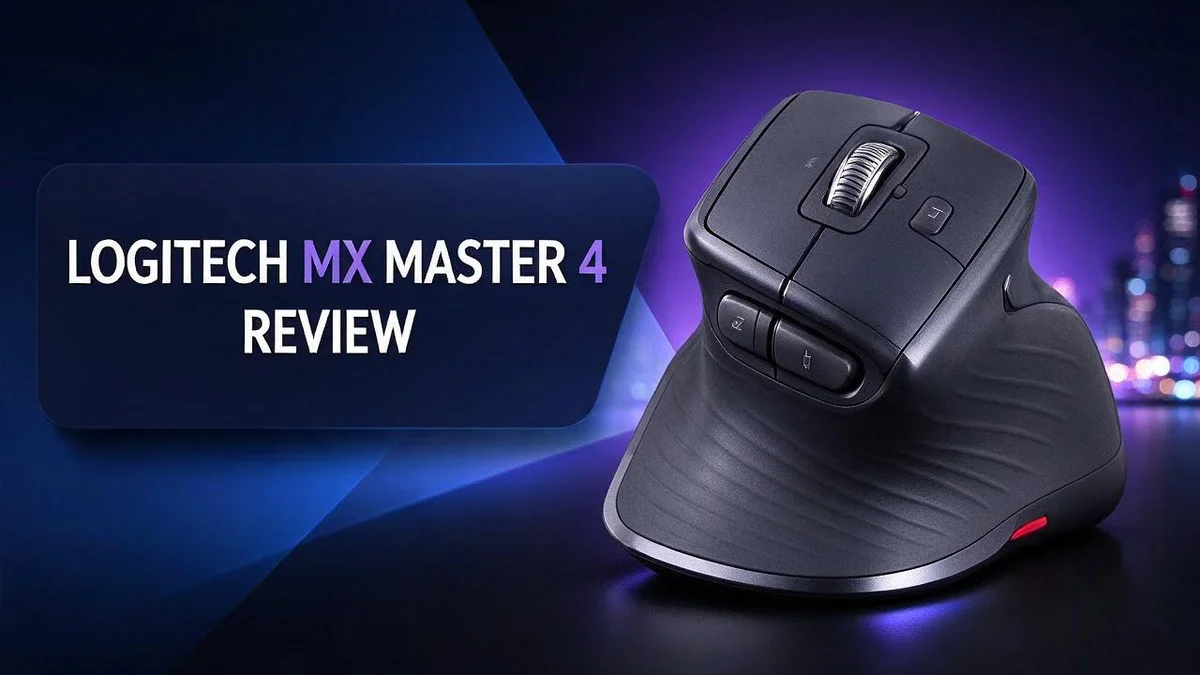
Logitech MX Master 4 Review: Features, Comfort, Performance and Verdict
Are you looking for a mouse that does more? The Logitech MX Master 4 might be the one. It packs a lot into one smooth device.
This mouse uses a HERO 2 sensor with 8K DPI tracking. Many users say the tracking feels very accurate. The MagSpeed scroll wheel glides smoothly through long documents and web pages.
The new haptic engine is also quieter than earlier models. That makes it a good pick for shared offices. You can also customize many buttons with Logi Options+.
Some reviewers feel it is heavy, so it may not suit everyone. Still, its comfort and long battery life stand out. Let’s see if it lives up to the hype.
In a Nutshell
The Logitech MX Master 4 aims to help you work faster. Here is a quick look at what it offers.
-
Many buttons for power users: Extra buttons let you set shortcuts for work, editing, and browsing. You can reach key tasks without lifting your hand from the mouse.
-
Smooth MagSpeed scrolling: The scroll wheel glides through long documents, spreadsheets, and web pages. Scrolling feels fast and steady from top to bottom.
-
Comfort for long days: Most people find the shape easy to hold for hours. Your hand feels relaxed during long writing or design sessions.
-
Long battery life: You can charge it less often and keep working without interruptions. Fewer charging breaks mean less hassle during busy weeks.
-
Flexible control with Logi Options+: Change button actions and set up each app the way you like. Saved settings make it easy to switch between different tasks.
-
A step up from the MX Master 3S: This newer model brings improved materials and better repairability. It suits anyone who wants a current upgrade to a trusted favorite.
Key Features and Customization

- 3-ITEM BUNDLE: Logitech MX Master 4 ergonomic wireless mouse in Graphite (Logitech part 910-007560), Deco Gear...
- HAPTIC SENSE PANEL + ACTIONS RING: Feel subtle, customizable haptic feedback on actions and shortcuts, and...
Last update on 2026-11-27 / Affiliate links / Images from Amazon Product Advertising API
The Logitech MX Master 4 also brings a LIGHTSPEED wireless connection. A steady link matters when you move fast between apps. This setup helps your cursor respond right away.
Next, look at the MagSpeed scroll wheel as a control tool, not just a scroller. You can use it to move through long projects, timelines, or search results. Pair it with a custom button for the best results.
Start with a few key actions. Map the buttons you press most often first. Add more later as your habits change. This keeps your setup clean and easy to use.
Give each new shortcut a short trial. Use it for a day or two. Keep the ones that save time and drop the rest.
Power users get the most from these features. Casual users may need only a few settings. Either way, the setup adapts to your routine.
Consider how you switch tasks during a normal day. Editing photos needs different shortcuts than writing emails. A separate profile for each task saves time. You stop searching menus and act faster.
Map the side buttons carefully. Side buttons sit near your thumb. Pick actions you can reach without stretching. Comfort matters more than the number of shortcuts.
Keep the layout consistent. Same button actions build muscle memory. Your hand learns each control without thinking. Work feels smoother over time.
Think about your daily apps. Browsers, spreadsheets, and design tools each have their own shortcuts. Match your buttons to the tools you open most. This gives you the biggest gains fast.
Test before you commit. Spend a week with the default setup first. Note which buttons you ignore. Then change only those controls.
Small tweaks add up. One better shortcut saves seconds each time. Those seconds grow into real time over a week. Your workflow feels lighter and more focused.
Design, Comfort and Haptic Feedback
Design is where the Logitech MX Master 4 really stands out. Its sculpted body follows the natural curve of your hand. Your palm settles in place with very little effort.
The thumb rest deserves a closer look. It sits on a raised area beside the main buttons. This position keeps your thumb relaxed while you scroll through long lists or wide spreadsheets.
Your grip style matters a lot here. People who use a palm grip often feel most at home with this shape. Fingertip and claw grip users may need a few days to decide if it fits their habits.
Materials also shape your daily experience. The surface feels smooth and firm in the hand. Better materials can help the mouse keep its good feel over time.
The haptic engine adds a different kind of feedback. Instead of relying only on sound, you feel a small pulse under your fingers. That touch signal can confirm an action without pulling your eyes away from the screen.
Shared workspaces benefit from this approach. A calm pulse works well in libraries, open offices, or video calls, where loud clicks can distract others. You still get clear feedback without making a fuss.
Repairability is another part of the design story. A mouse that you can service stays useful for longer. This helps you avoid replacing a good device too soon.
Small frustrations add up during a long workday. A shape that fits your hand removes many of them. Good design makes simple tasks feel smoother from morning to night.
Give your hand time to adjust. Use the mouse for a full week before you decide. Pay close attention to your wrist and fingers at the end of each day. Real comfort shows itself over time.
Sensor Performance and Battery Life
Sensor performance matters most when you switch surfaces. A sensor that responds well on glass, wood, and fabric saves you time.
The HERO 2 sensor reads movement with high precision. Test it on your own desk first, since surface texture can change how the cursor feels.
The 8K DPI setting gives you fine control over speed. Lower the setting for detailed design work and raise it when you move across large monitors.
Accurate tracking helps when you edit photos or draw fine lines. A steady cursor makes small clicks and drags feel more predictable.
Pointer movement should feel natural, not jumpy. If you notice lag or drift, check your surface and sensor settings in Logi Options+ before you judge the device.
Battery life fits real work weeks better than you might expect. Heavy days with lots of scrolling and clicking still leave you with power to spare.
Battery drain depends on your habits. Video calls and constant scrolling may use more power than light browsing.
Check the battery level before a long meeting or a travel day. A quick glance prevents surprises when you need the mouse most.
Charging habits also matter. Plug the mouse in during lunch or overnight so it stays ready for the next task.
Wireless signal strength also affects how smooth the cursor feels. Keep the receiver close to the mouse and avoid thick metal objects between them.
Small tests give you a clear answer. Try a few tasks on different surfaces, then decide if the sensor fits your daily routine.
Good sensor and battery performance build trust in your gear. When the cursor responds well and power lasts, you focus on your work instead of your tools.
Top 3 Alternatives
Logitech MX Anywhere 3S

- Mastered For Mac: With matching Apple finishes, Logi Options+ functions for macOS (7), USB-C charging, MX...
- Designed For Mac: This Logitech Bluetooth mouse is fully compatible with Apple MacBook Pro, MacBook Air, iMac...

Last update on 2026-11-27 / Affiliate links / Images from Amazon Product Advertising API
This mouse fits well in a bag. It is small, light, and easy to carry. Many people use it on laptops at cafes or in the office.
It works on almost any surface. Its tracking uses a sensor that handles glass and fabric. You can connect it to up to three devices and switch between them with one tap. It also charges through a USB-C port.
Quiet clicks make it a good choice for shared spaces. The scroll wheel also moves fast on long pages.
Razer Basilisk V3 Pro

- ICONIC ERGONOMIC FORM WITH 10 1 PROGRAMMABLE BUTTONS: Favored by millions worldwide, the mouse’s signature...
- 13-ZONE CHROMA LIGHTING WITH FULL UNDERGLOW: Customize each zone from over 16.8 million colors and countless...
Last update on 2026-11-27 / Affiliate links / Images from Amazon Product Advertising API
This mouse suits gamers and power users. It has many extra buttons on the side. You can map each one to a shortcut or a macro.
Its grip feels comfortable for long sessions. The shape supports your palm and fingers. A tilt wheel lets you scroll sideways with ease. Its buttons click with a firm feel.
Customization is the big strength here. You can adjust settings through the companion software.
Logitech Lift

- Lift yourself up: When the desk life gets you down, lift yourself up with Logitech Lift Vertical Ergonomic...
- Raise your hand into comfort: Rest on Lift upright mouse throughout the day, with a softly textured grip and...
Last update on 2026-11-27 / Affiliate links / Images from Amazon Product Advertising API
This mouse focuses on comfort for your hand. Its vertical design keeps your wrist in a natural position. Many people with wrist discomfort find it helpful.
It is a great pick for small hands. The compact size fits smaller palms well. It also works on many surfaces and pairs with several devices. Its thumb rest keeps your hand relaxed.
Simple controls keep things easy. You can start using it right out of the box.
Connectivity and Compatibility
Connectivity decides how smoothly a mouse fits into your daily setup. A good match saves time and keeps your desk tidy. Good links also reduce frustration when you move between tasks.
Count your free ports first. Many laptops have only a few USB ports. If you rely on a hub or dock, leave room for the receiver. Keep it close to the mouse so the signal stays steady.
Use a direct port when possible. Hubs can add small delays or interference. Plugging the receiver straight into the computer gives the cleanest result. Save the hub for cables you use less often.
Check the operating system before you buy. Logi Options+ supports Windows and macOS computers. Visit Logitech’s official support pages to confirm the latest details for your model. Good research now means fewer setup headaches later.
Think about switching between computers. Many people move between a work laptop and a home desktop. Look at whether the mouse can pair with more than one device. Easy switching saves you from repeated pairing steps.
Compare your current setup. If you own the MX Master 3S, you may already know your receiver and cable needs. Compare those needs with the new model. This check tells you whether you can reuse your current accessories.
Test the link in your real workspace. Move the mouse across the room and watch the cursor. Notice any delay or drop in movement. A stable link feels natural during long meetings and late night edits.
Plan for the unexpected. Keep a charging cable nearby. Keep the receiver in clear view of the mouse. Small habits keep the connection reliable.
Consider a backup option. Some people keep a second mouse for emergencies. Choose a model that works with your main computer. Having a backup keeps work moving if the receiver goes missing.
Pros and Cons
Pros
– Many buttons let you customize your workflow.
– The MagSpeed scroll wheel glides smoothly through long pages.
– The shape feels comfortable during long work sessions.
– The battery lasts a long time between charges.
– Tracking stays precise for detailed work.
Cons
– Some testers find the mouse heavy.
– Weight may matter if you prefer a light mouse.
– Many buttons can feel busy for simple daily use.
Materials and Repairability
Materials matter more than many people think. Your hand touches this mouse every day. The materials decide how it feels, looks, and ages over time.
Logitech says the MX Master 4 uses improved materials. This marks a clear step forward from the MX Master 3S.
Better materials often mean a sturdier body. They also help the finish hold up well over time.
Repairability is the other half of the story. A mouse you can repair lasts longer. It also keeps electronics out of landfills.
Repairability means you can replace one worn part instead of the whole device. Common wear points include the buttons, the scroll wheel, and the thin skates on the bottom. Check whether spare parts are sold separately before you buy.
The research notes better repairability, but it does not list exact repair steps. So visit the official Logitech support pages first. Look for repair guides, spare parts, and service options for your region.
Simple care also helps any mouse last longer. Wipe the surface with a soft, dry cloth. Keep the mouse away from liquids and direct heat. Store it in a dry bag when you travel.
Check the warranty length too. A solid warranty protects you if a fault appears early. Keep your proof of purchase in a safe place so any claim goes smoothly.
Think about how long you plan to keep the mouse. If you keep it for several years, repairability matters a lot. If you upgrade often, recycling options may matter more.
Good materials and clear repair paths help your mouse stay useful for years. That keeps your desk setup reliable long after the first day.
Who Should Buy It
This mouse suits people who spend hours at a desk. Writers, coders, and data analysts often need a tool that stays out of the way. The MX Master 4 fits that role well.
Creative professionals may also find real value here. Video editors and photo retouchers move across long timelines and large canvases. Fine control and steady scrolling help them work faster. Their work depends on precision.
Shared offices are another good match. Quieter clicks help when coworkers sit close together. The haptic feedback stays subtle, so it will not disturb the room.
Students often benefit too. Note taking and research involve constant switching between tabs and windows. Smooth scrolling through long articles keeps the reading flow steady.
Gamers should look elsewhere. This mouse is built for productivity, not fast shooter matches. A dedicated gaming model will usually suit those players better.
Remote workers who take many video calls can benefit too. A steady pointer helps during screen shares and presentations. Clear cursor movement makes it easy to follow along. Your audience sees every movement.
Shoppers who feel wrist strain should compare options. A vertical design may suit some people better. The MX Vertical and MX Lift are worth a closer look.
Try before you commit. Use the mouse for a few days in your normal routine. Your own feel will tell you more than any review. Return policies can also help, so check them first.
Ideal buyers share one trait. They value control, quiet operation, and a steady workflow. If that sounds like you, this mouse is a strong pick.
Final word: If you work long hours on a computer, this mouse deserves a close look. Casual users may find it more than they need.
Final Verdict
Our overall verdict is positive. The Logitech MX Master 4 handles long workdays with ease. It fits focused desk work far better than fast action games.
Current MX Master 3S owners should think twice. This model succeeds the 3S, so the changes are real but not dramatic. If your current mouse still feels good, keeping it makes sense.
New buyers get the full set of upgrades. The all-new haptic engine adds a fresh layer of feedback. Anyone moving from an older mouse will notice the difference quickly. The change may feel small on paper but large in daily use.
The sources do not fully agree on weight. One review calls it heavy, while a published spec lists a lighter figure. Checking the weight in your own hands gives you the clearest answer.
Other mice may suit specific needs better. The Keychron M6 and Razer Basilisk V3 offer different shapes and grip styles. Shoppers who want something unlike the MX Master 4 should compare those options first.
Think about your daily routine. Long writing sessions, spreadsheet work, and code reviews all benefit from steady scrolling and accurate control. Quick tasks on a laptop may not need this level of control.
Setup matters as much as the mouse itself. Spend a week learning the buttons before you judge the device. Most first impressions change once your muscle memory catches up.
Our final take is simple. If you want a capable, customizable mouse for daily work, the MX Master 4 earns a place on your desk. Few mice combine these strengths in one package. It rewards people who spend real hours with their computer.
Frequently Asked Questions
How many buttons can I customize?
The MX Master 4 has many buttons, so you can set up more shortcuts than on a basic mouse. Assign each button to an app, action, or shortcut you use often. Logi Options+ handles this setup, so you can match the mouse to your daily work.
Does the battery last through a long trip?
Yes, the battery life is long. LIGHTSPEED wireless keeps the connection steady, so the mouse works well on the road. Pack a charging cable anyway for longer journeys.
Is the tracking precise enough for detailed design work?
The HERO 2 sensor and 8K DPI support accurate tracking. Fine cursor control helps when you edit small details or work on tight layouts. Test the mouse on your usual surface first, because the research does not cover different surfaces.
Do I need extra software to use it?
Logi Options+ is the main tool for customization. You can adjust buttons and preferences there. The research does not confirm how the mouse works without it, so check the manual before you set it up.

Dillip is the founder and editor of DillipWeb.com, where he simplifies the world of AI software, tech gadgets, and accessories through honest reviews, detailed comparisons, and easy-to-follow guides. With a deep passion for emerging technology, he helps everyday users make smarter, more informed tech decisions.