Logitech Wave Keys Review: Is This Ergonomic Wireless Keyboard Worth It?
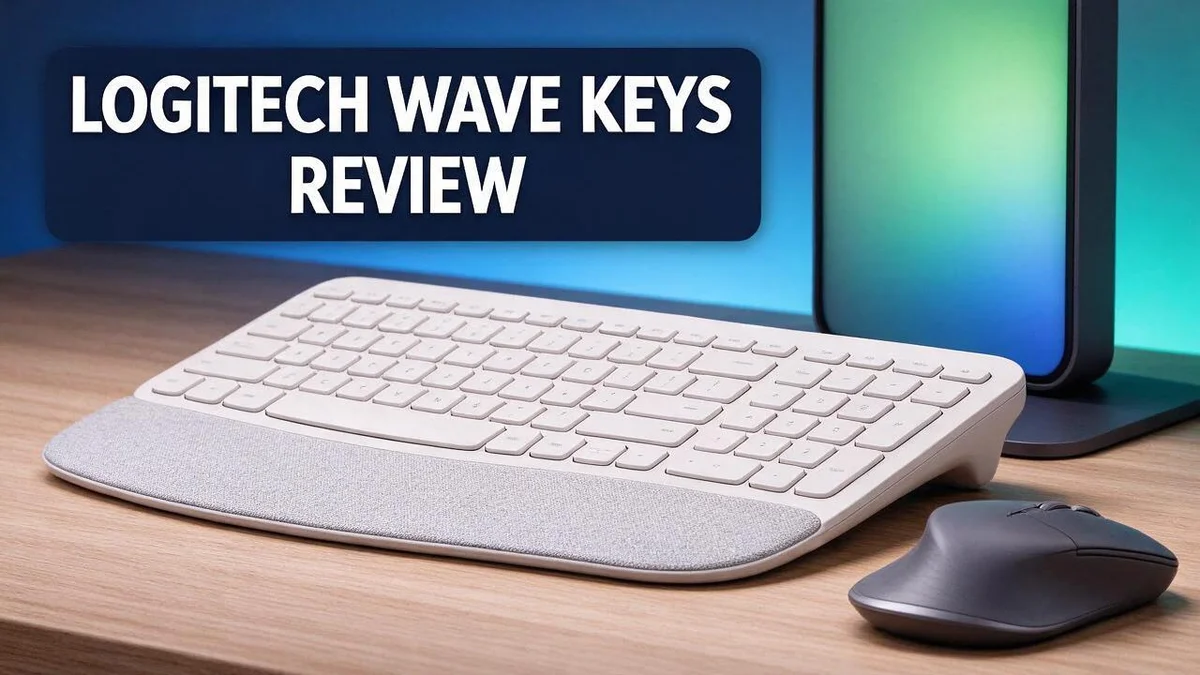
Typing for hours can leave your wrists sore. The Logitech Wave Keys aims to fix that problem. Its wave shape lets your hands rest in a natural position.
Many users say it feels comfortable from the first day. The keys have soft membrane switches with about 2 mm of travel. They feel satisfying under your fingers, and they stay quiet during long work sessions.
A cushioned palm rest adds extra support. The compact layout still includes a numpad. You can pair up to three devices and switch between them with ease. Mac users can also get a version that fits their setup.
Ready to see if this keyboard fits your desk? Let’s look at its design, its features, and how it compares to its rivals.
In a Nutshell
-
Wave shaped layout: The curved body follows the natural shape of your hands. Your arms can rest in a relaxed position while you work. Many people also find this shape easier on the shoulders.
-
Full numpad in a compact frame: You get a number pad without a wide desk footprint. This helps when you crunch numbers or enter data. Your mouse also gets more room to move.
-
Quiet and satisfying keys: Each press gives a clear tactile response. The sound stays soft, so shared offices stay calm. You can type quickly without feeling bothered by noise.
-
Long lasting battery: The keyboard runs for a long time between charges. You spend less time hunting for a cable.
-
Three device connections: You can link up to three devices to one keyboard. Switching from a laptop to a tablet takes just a button press.
-
Mac friendly setup: A Mac version is available for Apple users. Logi Options+ software lets you adjust keys and settings on your computer.
Ergonomic Design and Comfort

- Feel the Wave: Get comfier with Wave Keys, the ergonomic wireless keyboard shaped to help workdays go easier...
- Type in comfort all day long: The wavy design of this compact keyboard places your hands, wrists and forearms...

Last update on 2026-11-26 / Affiliate links / Images from Amazon Product Advertising API
Comfort depends on more than the keyboard alone. Your whole setup matters.
Start with your chair. Sit with your feet flat on the floor and your back supported. Keep your elbows close to your sides.
Next, think about desk height. Your forearms should sit level with the keyboard. If they point up or down, your shoulders may tense over time.
Keep your knees near a right angle too. Good leg support keeps your lower back calm during long workdays.
Place your mouse close to the keyboard. Reaching far to the side pulls your shoulder out of position. Many people forget this step, yet it makes a big difference.
Take short breaks every thirty minutes or so. Roll your shoulders and stretch your fingers. Small movements keep blood flowing and stop stiffness from building.
Watch for warning signs. Tingling, numbness, or an ache in your fingers means you should pause. Talk to a doctor if the discomfort lasts.
Try the keyboard slowly. Type in short sessions during the first week. Give your hands time to adapt to the softer key travel. Some typists need a few days before they feel fully at home.
Adjust your screen too. Place the monitor at eye level so your neck stays upright. Pairing a good screen position with a relaxed typing posture supports a healthy workday.
Tip for shared desks: Keep the keyboard centered in front of you, not off to one side. A centered setup reduces twisting in your torso.
Comfort comes from the full setup, not one product. Use the keyboard as one part of a balanced workspace, and your body will thank you.
Typing Feel and Key Travel
Typing on the Logitech Wave Keys feels different at first. Your fingers may need a few days to adjust to the softer surface.
Many people find that the keys respond well during fast writing. Quick bursts of emails and chat messages feel smooth, so you can keep your pace.
Some reviewers note that typing is not completely the same as high end mechanical boards. If you love a sharp, heavy click, you may miss that sound. Still, the keys handle everyday work with ease.
The wave layout also changes how your hands sit. Your fingers travel shorter distances across the rows, so you reach common keys with less stretching. This can make long sessions feel more relaxed.
Key spacing matters too. The keys sit at a steady distance, which helps reduce mistakes for people who type with all ten fingers. Hunt and peck typists may notice less of a difference.
Shorter travel asks for a lighter touch. Press each key just enough to register, and avoid pounding the keys. Your rhythm will smooth out with practice.
Give yourself about a week to adapt. Many users report that early mistakes fade once muscle memory forms. Keep a notepad nearby to track your progress.
This keyboard suits people who write emails, reports, and messages all day. Heavy gamers who want instant key response may prefer a different style.
Try a short test before you commit. Type a few paragraphs in a word processor and check your accuracy. Pay attention to how your fingers feel after twenty minutes. In short, the typing feel favors gentle comfort over sharp feedback.
Connectivity and Multi-Device Use
Many people move between a laptop, a desktop, and a tablet each day. Every switch can slow the work down. This keyboard aims to make those switches feel quick and calm.
Think of each connection slot as a separate door. Each door leads to a different device. You pick the door you need, and the keyboard follows.
Pairing comes first. Follow the setup steps for each computer or tablet. Once paired, the keyboard keeps each device ready for later use.
Logi Options+ software gives you more control. You can check settings on your computer and adjust how the keyboard behaves. Install it before you start switching between devices.
A simple order saves time. Assign your work laptop to the first slot. Give your personal tablet the second slot. Keep the third slot for a spare computer or phone.
Your hands stay in the same place during each switch. That is a big benefit. You do not need to move the keyboard or reach across the desk.
Keep devices close. Wireless links work best when each device sits within a normal working distance. Place the laptop or tablet near your main monitor.
Multi-device use also reduces clutter. You need fewer cables and fewer keyboards on your desk. One keyboard serves several machines, so your workspace stays tidy.
Try a switching test on a quiet afternoon. Move between each device several times. Notice how fast each connection responds to you. Take time to test each device first, because problems are easier to fix before a busy week begins.
People who run several workstations gain the most. Writers, designers, and office staff often juggle many screens. A reliable connection keeps the flow of work steady.
Top 3 Alternatives
Looking for a keyboard that feels easier on your hands? These three options offer a more comfortable typing experience. Each one takes a different approach to comfort and design.
Logitech ERGO K860

- Improved Typing Posture: Type more naturally with a curved, split keyframe and reduce muscle strain on your...
- Pillowed Wrist Rest: Curved wrist rest with memory foam layer offers typing comfort with 54 per cent more...
Last update on 2026-11-26 / Affiliate links / Images from Amazon Product Advertising API
This keyboard has a split, curved layout. Your wrists sit in a more natural position while you type. A soft palm rest adds extra support during long work sessions. You can connect to up to three devices and switch between them with a single key press. It works well for people who want comfort without a big learning curve.
Microsoft Ergonomic Keyboard

- Microsoft Natural Ergonomic Palm Rest Comfort Keyboard for Business - Wired
- Exceptional comfort. Work all day, with reduced risk of fatigue and injury, on our Ergonomist-approved design.
Last update on 2026-11-26 / Affiliate links / Images from Amazon Product Advertising API
This option also uses a curved, split design to reduce strain. The padded palm rest gives your hands a cozy place to land. You can connect it to your computer with a simple wireless or wired link. Its familiar layout makes it easy to start using right away. It suits anyone who wants a gentle slope and a straightforward setup.
Kinesis Freestyle Edge

Last update on 2026-11-26 / Affiliate links / Images from Amazon Product Advertising API
This keyboard splits into two separate halves. You can place each half wherever feels right for your shoulders and arms. Many users like the adjustable tenting, which lifts the keys to a more relaxed angle. It also offers programmable keys for shortcuts and custom commands. Choose this one if you want full control over your typing position.
Each of these alternatives can ease the strain of daily typing. Think about how you work, then pick the design that fits your body and your routine best.
Battery Life and Power Management
Battery life is one of the strongest points of the Logitech Wave Keys. Reviewers often describe it as a dependable choice for long workdays.
Good battery life means fewer interruptions. You can focus on your writing instead of searching for a charger. A keyboard that stays ready feels calm and steady.
Power use depends on how you work. Heavy typing and constant switching between devices can change how quickly energy drains. Light use across a normal day usually goes further.
Build a simple charging habit. Check the battery status once a week. Recharge during slow periods, such as lunch or the end of the day, so the keyboard never runs low during an important task.
If you leave your desk for several days, store the keyboard in a dry place. This protects both the charge and the internal parts. Your keyboard will be ready when you return.
Battery life also shapes how you feel about a keyboard. When power never becomes a worry, you can focus on comfort and speed. That peace of mind makes the Wave Keys a practical choice for everyday work.
Watch for signs of wear. Over time, every rechargeable battery loses some capacity. If you notice shorter gaps between charges, contact the manufacturer support team for guidance.
Battery management also helps during travel. Pack a small charging cable in your bag. This lets you keep the keyboard ready in a hotel room or a shared office. Good planning keeps your workflow smooth wherever you sit.
Create a power routine for your office. Recharge before busy meetings and keep a short note of charging dates. Small habits prevent surprise drops during deadlines. Consistency matters more than perfection.
Software and Customization
Start by installing Logi Options+ from the official Logitech website. Open the app once the setup finishes, then select your keyboard from the device list. You can see the current key map right away.
Logi Options+ is the main tool for shaping how the Logitech Wave Keys behaves. Every key on the layout can be changed to suit your habits.
Each key can run a new action. Many people use this to open a favorite app or start a search.
The function keys are a good place to begin. You can set them to launch a calculator, open a folder, or lock the screen.
Profiles for each app are one of the best features. You can set one layout for your word processor and another for your design tools.
The software switches profiles on its own when you open a program. You do not need to change settings by hand.
Shortcuts can also reduce strain on your fingers. Copy, paste, and undo sit within easy reach when you need them.
Keep your custom setup simple. Too many changes can make the keyboard confusing during busy days.
Start with three or four changes. Add more only after you use them for a few days.
The software also checks for updates. Keep it current so new features and fixes arrive on time.
Updates can improve compatibility with new operating systems. This matters if you upgrade your laptop or phone.
Mac users can also set custom actions for Mission Control or screenshots. The menu looks a little different, but the steps stay simple.
Reset your profile before a big change. You can return to the default layout whenever you want a fresh start.
Test each new shortcut for a day. Keep the ones you use often and remove the rest.
Good software makes this keyboard feel like your own. A few small changes can save time every single day.
Pros and Cons
Pros
– The wave shape keeps wrists in a natural position.
– A cushioned palm rest eases pressure during long typing sessions.
– Quiet, satisfying keys make typing pleasant in shared spaces.
– The compact layout with a numpad saves desk space.
– Solid build quality feels good in daily use.
Cons
– Shallow key travel may feel less precise to some typists.
– Typing does not feel fully the same as premium keyboards.
– Some sources describe it as an entry level model.
– Few clear drawbacks appear in published reviews, so testing it first is wise.
Who Should Buy It
The Logitech Wave Keys suits some people better than others. It works well for people who type for hours and want a calmer desk setup. Knowing your daily habits makes the choice easier.
Office workers who write all day gain the most. A natural hand position helps during long reports and busy inboxes. Long days at the keyboard feel less demanding with this shape.
People who switch between devices will appreciate the connection options. The keyboard links with up to three paired devices. Moving between a laptop, a tablet, and a desktop feels much simpler.
Mac users also have a strong match. A Mac version is available, so the layout and shortcuts feel familiar. You can get started without much fuss.
Remote workers with a mixed setup can also benefit. They may move between a home desk and a laptop on the couch. One keyboard that fits both spots keeps the routine consistent.
Students and writers with long sessions can benefit too. Comfortable keys help during essays, scripts, and research notes. Steady comfort matters more than speed for many people.
Shoppers with wrist discomfort should take a close look. Many reviewers say the design eases wrist strain. This keyboard does not replace medical advice, so see a doctor if pain continues.
Some typists may prefer another option. Those who want deeper key travel or a premium feel may look elsewhere. Comparing the Apple Magic Keyboard or the Corsair K100 AIR can help you decide.
Testing the keyboard first is the smartest move. Type for a few days in your normal routine. Pay attention to how your wrists and fingers feel at the end of each day.
Final Verdict
The Logitech Wave Keys earns a solid final verdict for people who want comfort above all else. It is a smart choice for daily typing, but it is not a flawless one. Think of it as a dependable daily partner rather than a showpiece.
Fast typists may need a short adjustment period before the rhythm feels natural. Expect the keyboard to feel different at first, since your hands must adapt to a new angle. Give it a week of daily use before you judge the feel. Most typists adjust faster than they expect.
Rivals such as the Apple Magic Keyboard and Corsair K100 AIR take a different path. Compare them by how you type, not by how they look on a desk. Logitech MX Keys S is a useful reference point, though it is not a direct rival.
The Wave Keys suits people who value a calm, steady workflow over flashy extras. It does not try to dazzle with extra lights or loud switches. It focuses on everyday comfort, and that focus pays off over time. Good tools fade into the background, and this keyboard does exactly that.
Wireless freedom also means fewer cables on the desk, which keeps the workspace neat. Long battery life means fewer charging breaks during a busy week.
Readers who type for hours will likely notice the difference within days. Readers who type only a few emails a week may not need this level of comfort.
Buyers who want a bold typing feel or a gaming style build should look elsewhere. Try it in a store or check for a return window before you commit.
Overall, it earns a recommendation for office workers, writers, and people who switch between devices. With a short trial, the wave shape may win you over. Choose this keyboard if comfort, calm, and connectivity matter most to you.
Frequently Asked Questions
How long does the battery last?
Reviewers describe the battery life as long. You can expect fewer charging breaks, even during a full workweek.
Can I change the keys with software?
Yes. The Logi Options+ software lets you adjust settings on your computer. Download it from Logitech’s website before you start.
Does the palm rest help during breaks?
The cushioned palm rest supports your wrists between typing sessions. It gives your hands a place to rest when you pause to read or think.
Which keyboard should I compare it with?
The Logitech MX Keys S is a useful comparison point, though it is not a direct rival. Compare the feel, layout, and setup steps to see which model fits your daily work best.

Dillip is the founder and editor of DillipWeb.com, where he simplifies the world of AI software, tech gadgets, and accessories through honest reviews, detailed comparisons, and easy-to-follow guides. With a deep passion for emerging technology, he helps everyday users make smarter, more informed tech decisions.